


RichardPlayz
Members
-
Joined
-
Last visited
-
RichardPlayz changed their profile photo
-
-
-
-
-
.thumb.png.4ab504d37fbd8b768097f8ccbc502e95.png) The quality of work Stobe has put in this pack is just amazing. From small details to the the large ones. Will be looking forward to new editions to this pack and see what you put out in the future.
The quality of work Stobe has put in this pack is just amazing. From small details to the the large ones. Will be looking forward to new editions to this pack and see what you put out in the future.- 77 comments
- 13 reviews
-
-

- 1
-
-
Amazing pack, Amazing quality. Will be looking forward to more from this pack!😍
- 77 comments
- 13 reviews
-
-
- 1
-
-
RichardPlayz reacted to a comment on a file:
[ELS] Addon/Replace BCSO 12 Car Sed Pack - Patrol and K-9 RB/BB
-
RichardPlayz reacted to a comment on a file:
[ELS] Addon/Replace BCSO 12 Car Sed Pack - Patrol and K-9 RB/BB
-
-
-
-
-
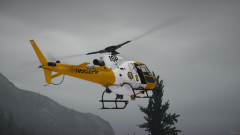 Screenshot_34.png
-
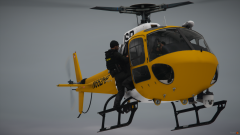 Screenshot_33.png
-
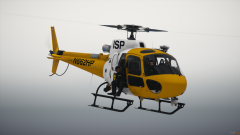 Screenshot_32.png
-
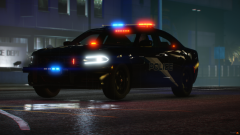 Screenshot_31.png
-
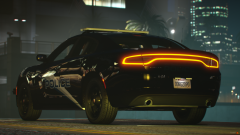 Screenshot_30.png
-
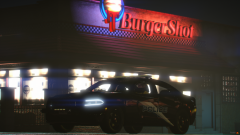 Screenshot_29.png
-
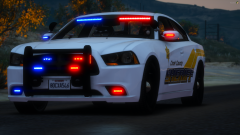 Screenshot_25.png
-
 Screenshot_24.png
-
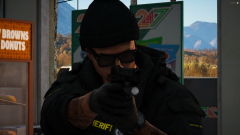 Screenshot_23.png
-
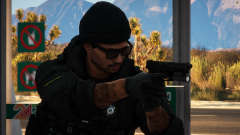 Screenshot_22.png
-
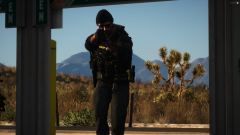 Screenshot_21.png
-
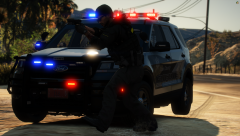 Screenshot_20.png
-
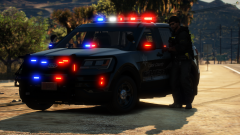 Screenshot_19.png
-
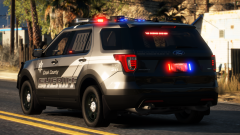 Screenshot_18.png
-
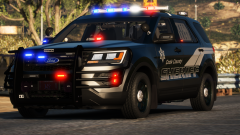 Screenshot_17.png
-
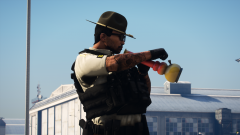 Screenshot_10.png
-
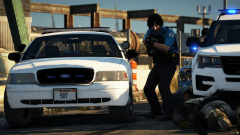 Screenshot_9.png
-
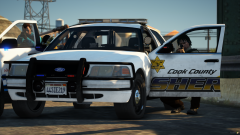 Screenshot_8.png
-
-
-
-
-
-
-
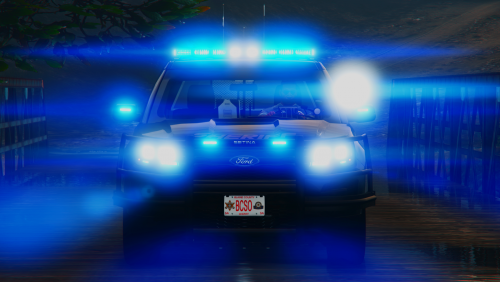 so like cool idea but should definitely keep working on it before you release a incomplete model, too many issues with it so its a one star for me.
- 34 comments
- 6 reviews
-
-

- 2
-
-
-
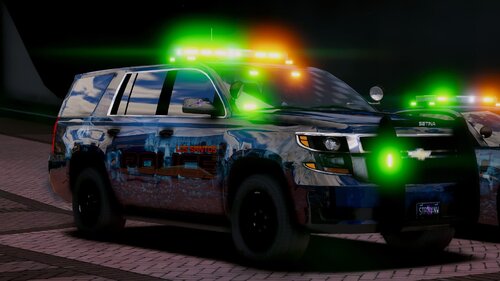 Pink Ribbon is for Breast Cancer awareness while Purple is for Domestic Violance, but other then that cool pack
- 19 comments
- 3 reviews
-
-
- 1
-
-
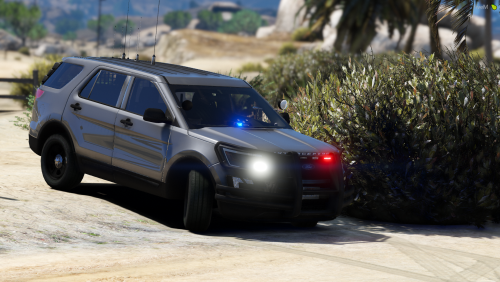 Another Amazing Model, Lighting is beautiful on the FPIU good work cant wait for more!!
- 10 comments
- 1 review
.thumb.png.4ab504d37fbd8b768097f8ccbc502e95.png)
