greenwaldleo
Members
-
Joined
-
Last visited
Everything posted by greenwaldleo
-
Hello, lspdfr community! I've been looking around for a while, but I can't seem to find any ELS compatible smart sirens. Does anyone have any ideas? Thanks, Leo.
-
Thank you! I got it working, and it looks great!
-
Ok, thank you. I'll try that soon. There are multiple lines with the text "police 3" in them , do I replace all of them? And do I just copy and paste the replacement meta lines?
-
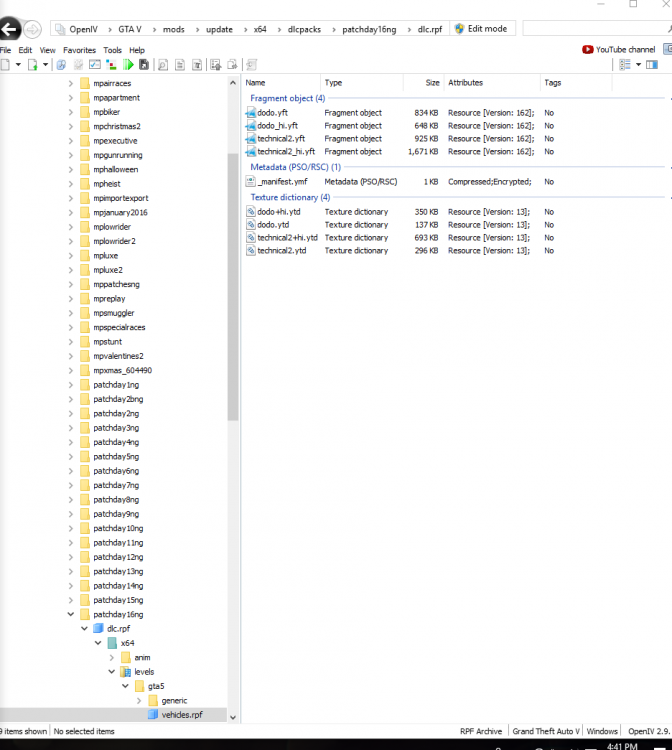
Ok, thanks. Which line of code do I replace in the existing vehicles.meta file? Also, in patchday16, it doesn't list police 3 as an option to replace. Do I just put it in there? Do I have to replace the other police3 files in other patchdays? Thank you again, sorry for all this. :)
-
Hi! I have a couple of questions.. 1. Which patchday do I install TheHurk's 2016 FPIU (ELS) in? It does not appear to say in the installation instructions. 2. Where do I install the "vehicle meta lines"? I followed the file path Hurk provided, but it didn't lead me anywhere specific. Here it is; C:\Program Files (x86)\Steam\steamapps\common\Grand Theft Auto V\mods\update\update.rpf\common\data\levels\gta5. It only leads me to a folder with many different files/subfolders. Where do I put it? And what is a vehicle meta? Here's the link to the vehicle page: http://www.lcpdfr.com/files/file/13936-2016-ford-police-interceptor-pack-w-hq-interior-els/ Thank you so much for your help. P.S - I have been attempting this through OpenIV, not the root folder via file explorer; is this the correct approach? - Leo