kekmeme69
Members
-
Joined
-
Last visited
Everything posted by kekmeme69
-
directory looks fine, all is installed as it should be - initially tried on vanilla cars, as that typically works, however, only on stage three, but the j and p keys trigger nothing - only way to toggle lights is with the generic e key. i attempted installing an els compatible car under the fbi slot, placed the xml file in pack_default folder, and replaced files where necessary under vehicles.rpf car spawns in, drives, and functions regularly, however, once again, no lights are triggered by any of the els keys - the only lights that seem to turn on are the flashing rear lights, nothing more, when e is pressed. seems like the game isn't acknowledging els whatsoever i have tried re-installing els, restarting the game, reinstalling the vcf files, uninstalling and reinstalling the asi loader and openiv.asi, and more - no idea why it is failing to recognize els as a portion of the game mods; albo traffic policer ultimate backup ped stopper (unsure if this is the name, but is composed by the same individual responsible for making UB)
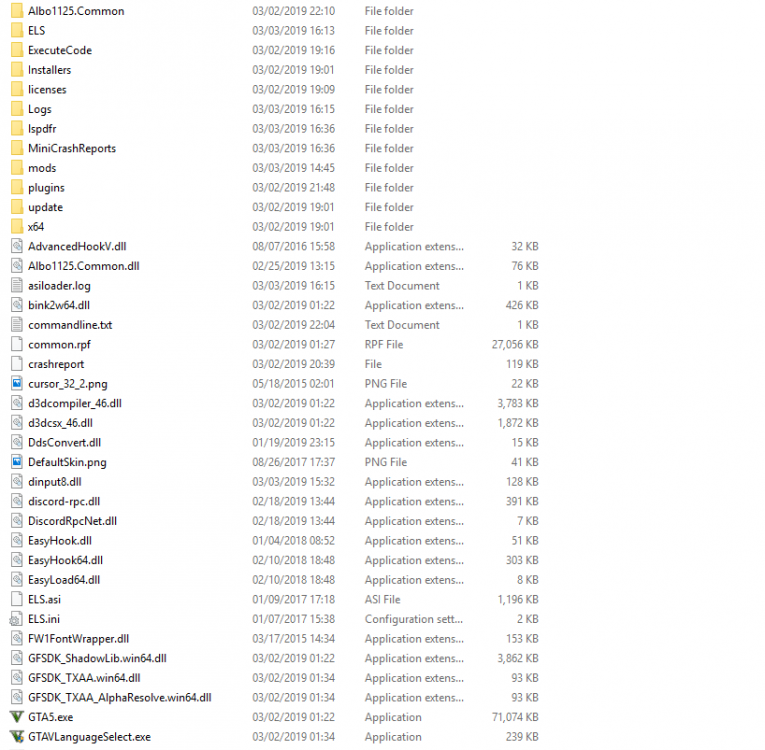
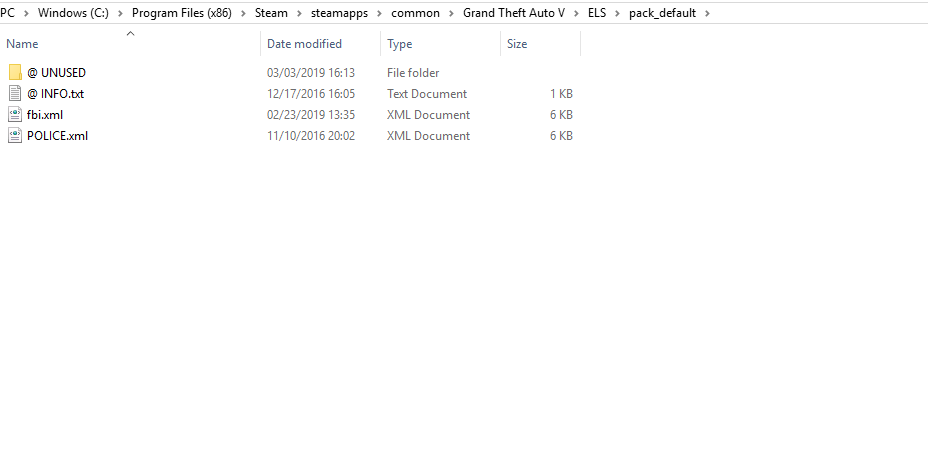 I believe so--why does that matter here?No, got one from this site -- it is els compatible.I apologize profusely if I posted this in the wrong subforum, but--- I added my first ELS car only to find that the lights stay static similar to that in this video: This is what my directory looks like;