
Niceskins
Members
-
Joined
-
Last visited
Everything posted by Niceskins
-
-
.thumb.png.6a32e8f3e9b5ec3a2f359ae3823e0f7a.png) It was not meant for a re-upload simply a personnel gain, and I tried that heh, but thank you for the information :)
It was not meant for a re-upload simply a personnel gain, and I tried that heh, but thank you for the information :)- 20 comments
- 9 reviews
-
-
@Puschi999 Hey man, Not to bother but I wanted to know if its locked because I cant change the patch on the arm to a USAF security forces, I love the uniform and it looks greta patroling as it but the patch says blaine county not the USAF SF patch :x if its not possible it is alright
- 20 comments
- 9 reviews
-
Love it man, Looks amazing I use it every time I patrol as a sheriffs deputy, although I cant change the patch for my new patrol (fort zancudo) its still amazing
- 20 comments
- 9 reviews
-
-
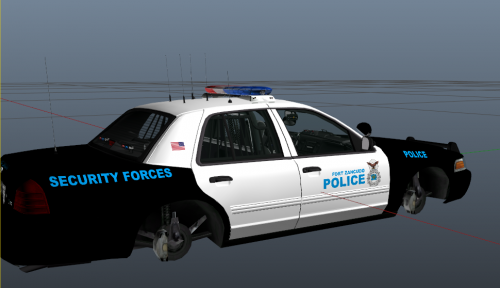 Sorry to anyone who thought I made the vehicals, I just make skins I placed this in the models so it is easier for people to find with the skins @Slendis Because it is easier to find the skins and vehicles, I apologise for the confusion
- 5 comments
- 2 reviews
-
NO their not, If you check the credits it says who made them No** @Slendis I checked the video he made so I decided to put it in the description also
- 5 comments
- 2 reviews
-
This is the first upload I am creating for my account, These are the Fort Zancudo Police textures This file utilises the sheriff and sheriff2 files from the pack below Base Vehicles Used by t0y I just finished the skins;
- 5 comments
- 2 reviews

.thumb.png.6a32e8f3e9b5ec3a2f359ae3823e0f7a.png)