
skullnetwork
Members
-
Joined
-
Last visited
Everything posted by skullnetwork
-
it works thanks man
-
thanks I'll try that and get back to ya if it works or not
-
so I remembered that its a specific key binding to turn on the lights, the only problem I'm having is the siren not working on the charger state trooper model from the pack. the horn works but the siren doesn't but one of the other vehicles in the pack the siren works just fine
-
I think I just installed it wrong or something because I press certain keys and makes a beep type sound and the lights do come on but only the horn works (on one specific car in the state troopers pack which was the charger) but anyways I called for traffic assistance and the ped actually came with sirens and lights working in the state trooper car mod. I figured i'd mention that. there is a file called police and its a XML file but it doesn't say vcf the XML is the only file besides info in the package_default folder I don't know how to access vcf files through the standard folders without using openIV either I'm kinda new to this
-
yes I have all the script hook v files and I did add the vcf files for the els vehicles to the els folder in openIV
-
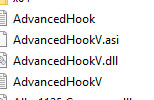
yes, I believe I have all the advanced hookv files I need :)
-
So I downloaded the san andreas state trooper pack as well as the ELS script installed but all of the lights besides the standard tailgate flashing lights wont turn on. siren works fine and I've used both keyboard and mouse not that that part matters.