JBroski
Members
-
Joined
-
Last visited
Files posted by JBroski
-
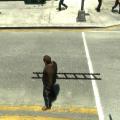
(The original spike strip mod created by me :) )
By default, PageDown deployes it and PageUp removes it.
FAQ:
Q.Why can't I place 2 or more?
A. I don't have it set to for a reason, to many objects crashed the game in testing.
Q.Will the spikes go away?
A.Nope. I was testing the other day I started at the airport and flew back to the spawn on party mode. My friend ran over it and it still worked..
Q.Dude, it don't work. I tried it on my friends tires and he said they didn't pop!!!
A. Well, it won't pop it on actual players. It will look popped on your screen but it won't be popped for him.
Q.Can I drop them from a car?
A.Yep. It should work on all vehicles. It drops about 5 feet behind you.
Q.I am pressing the key I have set to deploy and nothings happening.
A.You still have a strip down. Press the key you have set to remove it.
- 1,293 Downloads
- 8 Comments
Updated -
=====================
== Overview On Mod ==
=====================
This was the original Baitcar Mod that was made. It is still in its early development stage and will be eventually updated with more features. Also, this mod is also uploaded on Major-Gaming.com. I know that in the description of the mod, it says ''Do Not Upload ANywhere Else Or A DCMA Report Will Be Sent To You'' Well this is Voided against me as I have been authorized to re-upload this to any website of my choosing.
How To Play?
Copy The BaitCar.net.dll file into your scripts folder. Then Copy the ScriptHook.net
into your directory. (Note: You do need the scripthook.net file that is given to you specificly.)
Online Roelplay:
When using this mod online with others, it has been reported that it takes a long time for the suspect to get into your vehicle and actually attempt to take it. There is not a config file for this yet, when the next version is released a config file controling the timer for the suspect should be added to the files.
Support:
If you have any questions or problems about the mod, please do not post them here. They will not be answered here. Visit the (N/A The website for the support section for the baitcar mod has been switching to a new software so some of the forms have been lost including the actual downloads, this will be updated at a later point with a new section for help on this mod) for any problems or concerns you have regarding the mod. To Operate the mod, please read the ''Read Me'' text file. It will explain how to use it, install it, and other things like that. This mod has only been tested on 1.0.0.7 so I am not sure if it works on any other versions.
Current Version/New Updates:
Version 1 (Updated on 4/7/13 just to edit the description and add some details.)
Example Of The Mod:
Please do not spam/pm the video makers about the mod, if you have any questions please comment on them here.
http://youtu.be/CwzN-G28QkQ
Copy Right Notice To Disclaimer: THIS IS PROHIBITED TO BE UPLOADED TO ANY OTHER WEBSITE IN ANY WAY, SHAPE, OR FORM. A DCMA Notice Will Be Sent And Legal Action Will Be Taken If Found Anywhere Else Without Proper Permission To Be Re-Uploaded.
//////////////////////////////////
//// Major-Gaming.com ////
//////////////////////////////////
- 4,666 Downloads
- 13 Comments
Updated