Skip to content
View in the app

A better way to browse. Learn more.

LCPDFR.com

A full-screen app on your home screen with push notifications, badges and more.

To install this app on iOS and iPadOS
  1. Tap the Share icon in Safari
  2. Scroll the menu and tap Add to Home Screen.
  3. Tap Add in the top-right corner.
To install this app on Android
  1. Tap the 3-dot menu (⋮) in the top-right corner of the browser.
  2. Tap Add to Home screen or Install app.
  3. Confirm by tapping Install.

Officer Redden

Members
  • Joined

  • Last visited

Files posted by Officer Redden

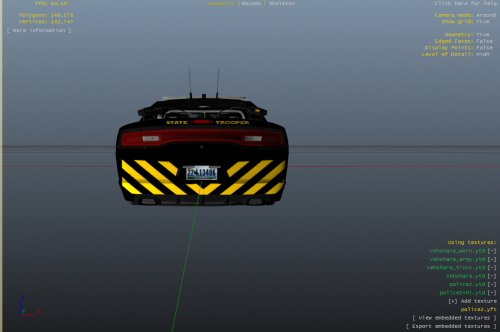
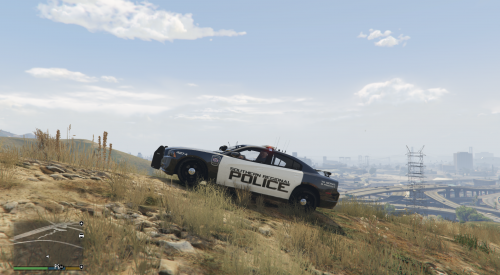
  1. Import it into the police2.ytd or replate the exact named file! 
    Vehicle:
     
     
    • 61 Downloads
    • 1 Comments
    Submitted
  2. Instructions:
    Once in OpenIV, proceed to find the 2 blue papers with a magnified glass Icon In the taskbar. Next search 'police2', a result should have a  file path that says in the line dlcpacks>bxchgr2.
    Open the police2.ytd file, Scroll down on the left side to find chrg_sign 
    (Recommended)Delete every chrgr2_sign except chr2_sign_1 if you wanna not have to find the skin everytime
    After you have your selected chr2_sign, make sure you're in edit mode or it will not appear, hit replace in the top right and find the file you downloaded and select it.
    Congrats you know have a skin installed!
    What's Next?:
    Currently trying to make more police skins such as the SRP Explorer!
    Required: 
     
    • 37 Downloads
    Submitted

Account

Navigation

Search

Search

Configure browser push notifications

Chrome (Android)
  1. Tap the lock icon next to the address bar.
  2. Tap Permissions → Notifications.
  3. Adjust your preference.
Chrome (Desktop)
  1. Click the padlock icon in the address bar.
  2. Select Site settings.
  3. Find Notifications and adjust your preference.