


RoBoMP
-
Joined
-
Last visited
Everything posted by RoBoMP
-
I made this new skin to install on Mohaalsmeer's Ford S331 Tow Truck. Many more to come that will be released in a pack to be used for his model. Follow this link to download Mohaalsmeer's model:
-
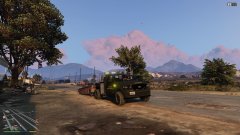
From the album: First Choice Towing & Recovery
-
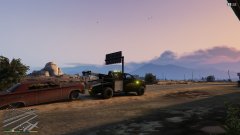
From the album: First Choice Towing & Recovery
-
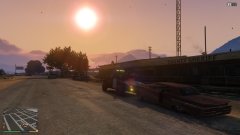
From the album: First Choice Towing & Recovery
-
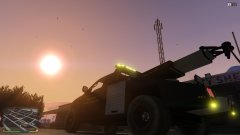
From the album: First Choice Towing & Recovery
-
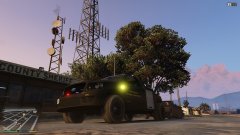
From the album: First Choice Towing & Recovery
-
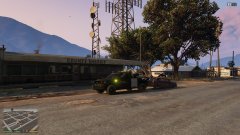
From the album: First Choice Towing & Recovery
-
-
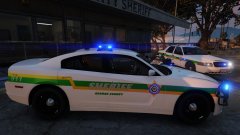
From the album: 2014 Charger & 2011 CVPI (George County Sheriff's Office)
-
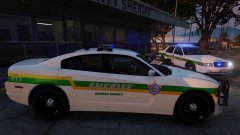
From the album: 2014 Charger & 2011 CVPI (George County Sheriff's Office)
-
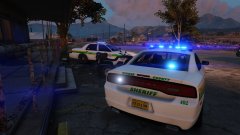
From the album: 2014 Charger & 2011 CVPI (George County Sheriff's Office)
-
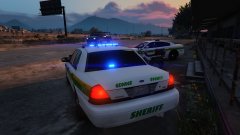
From the album: 2014 Charger & 2011 CVPI (George County Sheriff's Office)
-
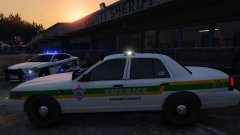
From the album: 2014 Charger & 2011 CVPI (George County Sheriff's Office)
-
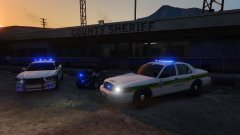
From the album: 2014 Charger & 2011 CVPI (George County Sheriff's Office)
-
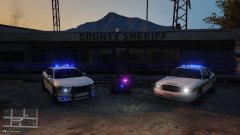
From the album: 2014 Charger & 2011 CVPI (George County Sheriff's Office)
-
This is my first attempt at making a skin that is a direct depiction of my patrol car in real life. Its not perfect by any means but its a work in progress. Once perfected I will be uploading the file for all to enjoy.
-
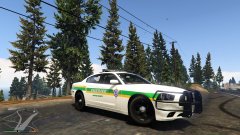
From the album: My Agency skin for a 2014 Charger
-
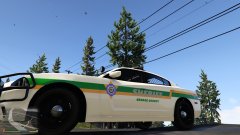
From the album: My Agency skin for a 2014 Charger
-
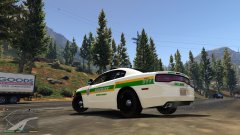
From the album: My Agency skin for a 2014 Charger
-
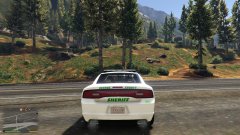
From the album: My Agency skin for a 2014 Charger
-
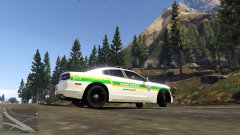
From the album: My Agency skin for a 2014 Charger
-
I fixed it. When I decompressed the file with WinRAR, for some reason, WinRAR would not unpack the els.asi file along with the rest of the install. So I used 7zip and it worked. Weird!
-
I fixed it. When I decompressed the file with WinRAR, for some reason, WinRAR would not unpack the els.asi file along with the rest of the install. So I used 7zip and it worked. Weird!
-
I'm having this issue as well. When I downloaded the ELS install I noticed the els.asi is not showing up for me to install in my root GTA V file. So in game my els control panel won't come up to adjust my lights and stuff. So... following.
-
I'm not. When I decompress the file to drag over into my root GTA file there is no els.asi. Not sure what's going on. I'm not sure how garbage it is but I'm currently using winrar to decompress all my downloads.


