




Alexandrovskiy
Members
-
Joined
-
Last visited
Everything posted by Alexandrovskiy
-
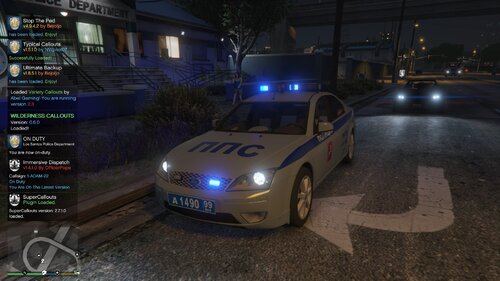 Хоть бы Readme приложил в какой patchday файлы кидать
 -
Crash lspdfr когда вы используете кнопку x плагина силы выноски в данный момент, просто взял часы и ушел отчет о сбоях для команды ragepluginhook, журнал и отчет о сбоях прилагается к консолидации RagePluginHook.журнал CrashReport_Urec_637011230539227971.застежка-молния
-
Crash LSPDFR What should I do with crash? Thank you in advance RagePluginHook.log
-
in lcpdf came out a lot of strange characters when translated into my native language @LMS you just need to hire a Russian-speaking translator and try to make the text in Russian
-
Если есть возможность нанять русского переводчика и перевести lspdfr на русский, то я как поклонник модификации хотел бы увидеть его на родном языке Сэм и разработчики будут любезны сделать тот же мод, что и на gta iv@Сэм и разработчики будут любезны сделать тот же мод, что и на gta iv мод для перевода на другой язык, как я помню, был из LMS @Sam as far as possible, please make a program for translation and it is desirable to take into account the Russian language in it so that there are no errors with the text as in gta iv
-
@Albo1125 thank you for all that you have done for fans of this modification, a good rest, if possible, waiting back

