
Rob412
Members
-
Joined
-
Last visited
Everything posted by Rob412
-
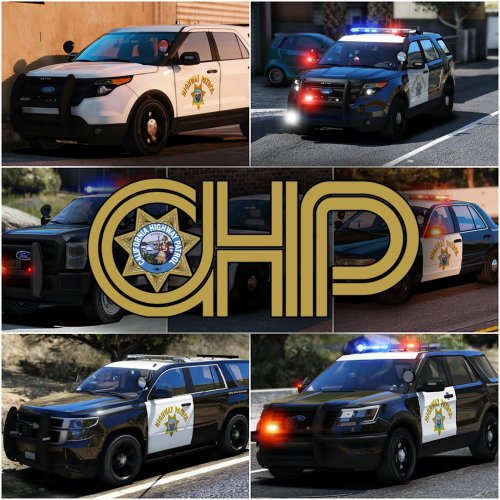 I have been having trouble replacing "police3 " everything else worked except the cars that replace that file
- 964 comments
- 158 reviews
-
-
-
so put the cars in the els folder
-
its fine if its just not me then theirs other people with the same problem.....
-
-
Like the toggle screen wont pop up and the lights don't change
-
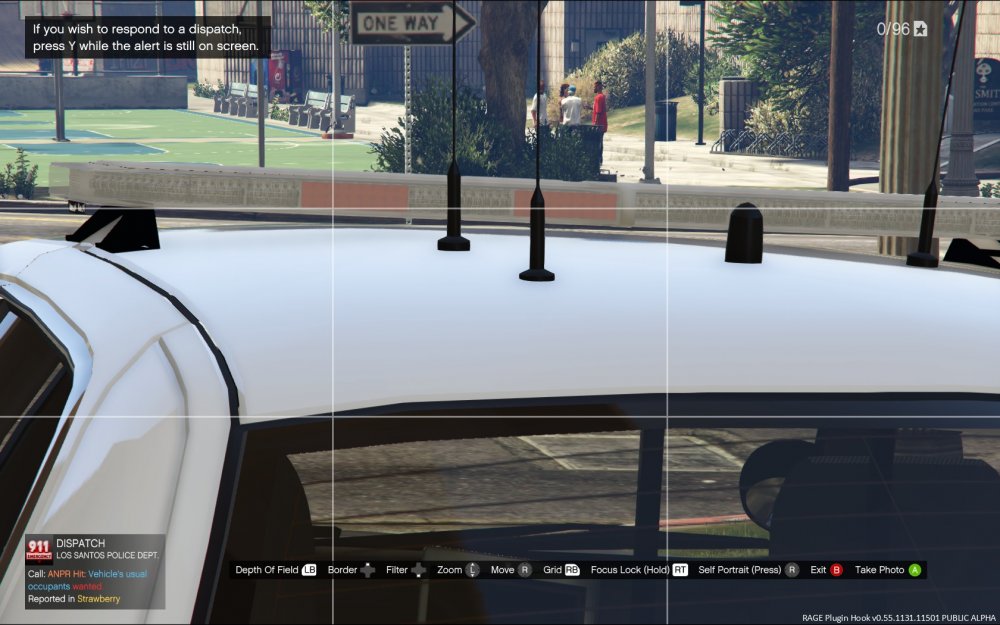
so the lights are on top bar are on all the time
-
yes its did not help so i came here for help
-
// EMERGENCY LIGHTING SYSTEM V (Ver. 1.05) // Copyright (C) 2016 Luxart Systems // Made by Lt.Caine // --- MAIN CONFIGURATION FILE --- [ ADMIN ] VcfContainerFolder = pack_default [ LIGHTING ] LightFlashDelayMainLts = 38 LightFlashDelayCoronas = 40 EnvLtMultExtraLts_Siz = 1.0 EnvLtMultExtraLts_Rng = 1.0 EnvLtMultExtraLts_Int = 1.0 EnvLtMultTakedwns_Siz = 1.0 EnvLtMultTakedwns_Rng = 1.0 EnvLtMultTakedwns_Int = 1.0 EnvLtMultCrnaHalo_Siz = 1.0 EnvLtMultCrnaHalo_Rng = 1.0 EnvLtMultCrnaHalo_Int = 1.0 EnvLtMultCrnaOthr_Siz = 1.0 EnvLtMultCrnaOthr_Rng = 1.0 EnvLtMultCrnaOthr_Int = 1.0 LodCoronaInitDistance = 10.0 [ AUDIO ] BtnClicksBtwnSrnTones = true BtnClicksBtwnHrnTones = true [ GENERAL ] MaxActiveVehs = 40 ElsMaxRangePl = 800 ElsMaxRangeAi = 500 ElsActiveOnAi = true ElsTrafCtrlOn = true [ CONTROL ] AllowController = true Toggle_LSTG = 74 Toggle_SECL = 75 Toggle_WRNL = 76 Toggle_CRSL = 219 Toggle_TKDL = 221 Toggle_BLKT = 220 Toggle_SIRN = 71 ChgPat_PRML = 85 ChgPat_SECL = 73 ChgPat_WRNL = 79 Sound_Ahorn = 89 Sound_Manul = 84 Snd_SrnTon1 = 49 Snd_SrnTon2 = 50 Snd_SrnTon3 = 51 Snd_SrnTon4 = 52 Snd_SrnScan = 53 Snd_SrnTonX = 54 Snd_SrnPnic = 71 TogInfoPanl = 85 TogKeysLock = 145 Read a from post early today telling me to change "TogInfoPanl = 80" to "TogInfoPanl = 85"
-
Will this help ================================================== LUXART SYSTEMS PROCESS LOG (V-ASI) ================================================== MOD ELS.asi NAM Emergency Lighting System V VER [ 1.05 ] -------------------------------------------------- <AHOOK> Attempting to initialize AdvancedHookV by LMS. (OK) AdvancedHookV.dll file found and successfully initialized. <FILEG> Collecting information from ELS.ini. (OK) Main configuration data successfully collected. <VCONT> Attempting to open VCF container at: [ .//ELS//pack_default ]. (OK) VCF container found, scanning for files. <FILEV> Found file: [ POLICE.xml ]. <FILEV> Verifying vehicle model name [ POLICE ]. (OK) Is valid vehicle model, assigned VMID [ 0 ]. Parsing file. *A crash before all clear indicates faulty VCF.* VCF Description: Sample VCF VCF Author: Luxart (OK) Collected data from: 'ADMIN'. (OK) Collected data from: 'INTERFACE'. (OK) Collected data from: 'EOVERRIDE'. (OK) Collected data from: 'MISC'. (OK) Collected data from: 'CRUISE'. (OK) Collected data from: 'ACORONAS'. (OK) Collected data from: 'SOUNDS'. (OK) Collected data from: 'WRNL'. (OK) Collected data from: 'PRML'. (OK) Collected data from: 'SECL'. (OK) ALL CLEAR -- Configuration file processed. <FILEV> Vehicle information retrieved. Loaded [ 1 ] ELS-enabled model(s).
-
i cant pull up the panel tho the siren toggle does not work
-
Sorry if this is in the wrong section but i cant get my els to work i thing i have the latest download of it... i have downloaded a els car but only the rear wig wags work. A other post i found said to change the binding i tried that but it didn't work kinda new to the modding community so any advice it welcome