


REDDRAGON
Members
-
Joined
-
Last visited
Everything posted by REDDRAGON
-
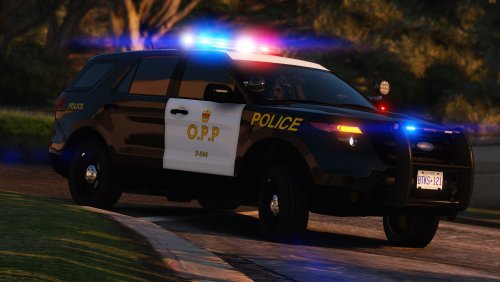 Hi i'm totally confused on installing this pack do i download both O.P.P [DLC] and O.P.P [REPLACE] or just one because i downloaded both in the REPLACE instructions it says to Navigate to mods > update > x64 > dlcpacks > patchday24ng or your latest. latest what patchday ? and patchday24ng has no entrys of the cars and a comment read here said found the issue in the readme it says put them in mods > update > x64 > dlcpacks > patchday24ng when they need to go in mods > update > x64 > dlcpacks > patchday24ng>dlc.rpf>x64>levels>gta5>vehiclesrpf but i looked and there's no entrys of the required vehicles to replace theres coquette4 gauntlet5 peyote3 no police vehicles in there And for INSTALLING DLC i have no problem but i use lspdfr and want to change or add this pack when i go to station and choose a vehicle i also have nve installed
 -
 that makes no sense when your install instructions say Open: Grand Theft Auto V\lspdfr\keys.ini TRAFFICSTOP_INTERACT_Key=None TRAFFICSTOP_INTERACT_ModifierKey=None TRAFFICSTOP_INTERACT_ControllerKey=None TRAFFICSTOP_INTERACT_ControllerModifierKey=None but if we put the key back two menu's overlaps
- 202 comments
- 3 reviews
