



Jcorrales13
Members
-
Joined
-
Last visited
Everything posted by Jcorrales13
-
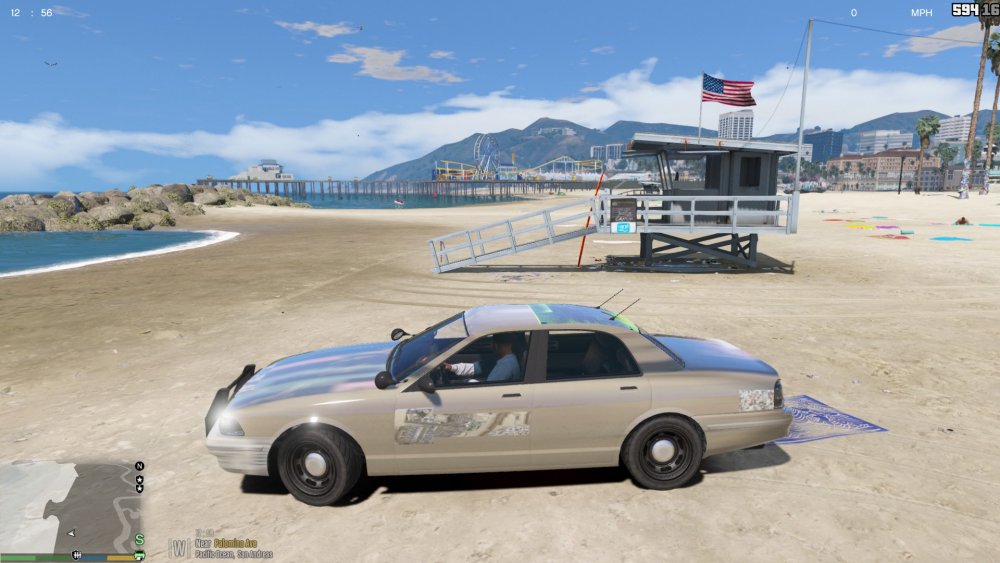
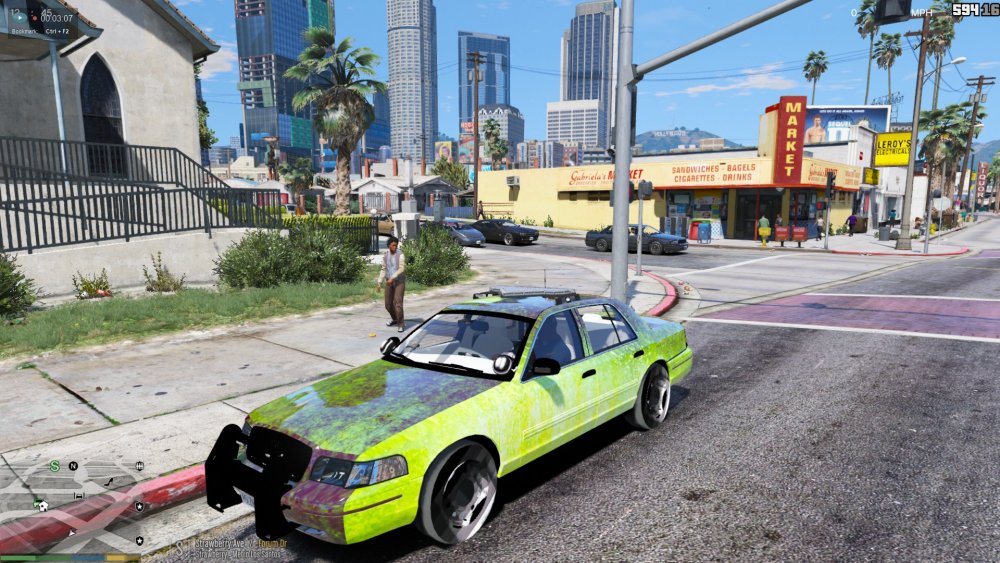
The vehicle looks exactly how it shoudl be. Its not until after the I get into the game that I see that its messed up.
-
the latest patch which is 15 for me
-
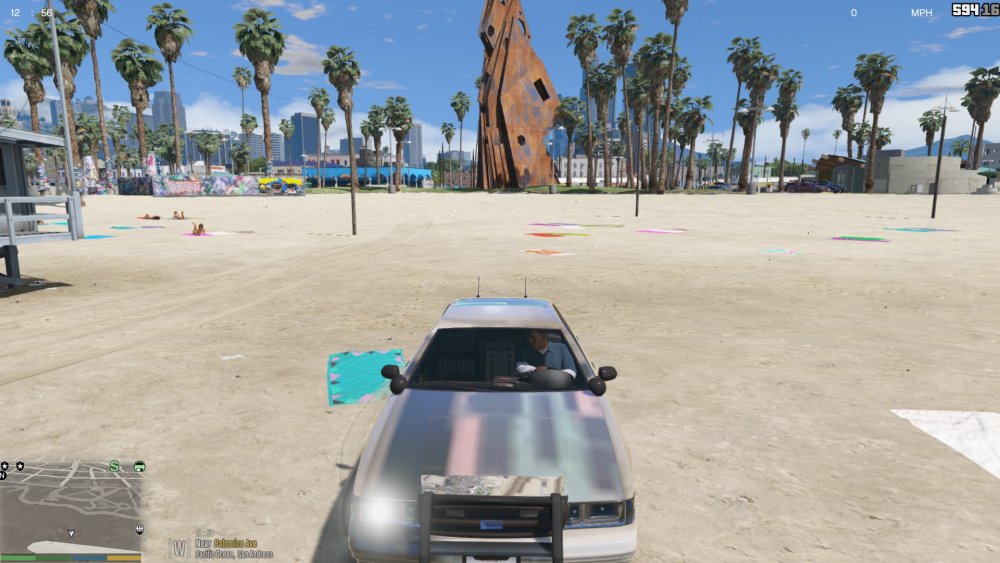
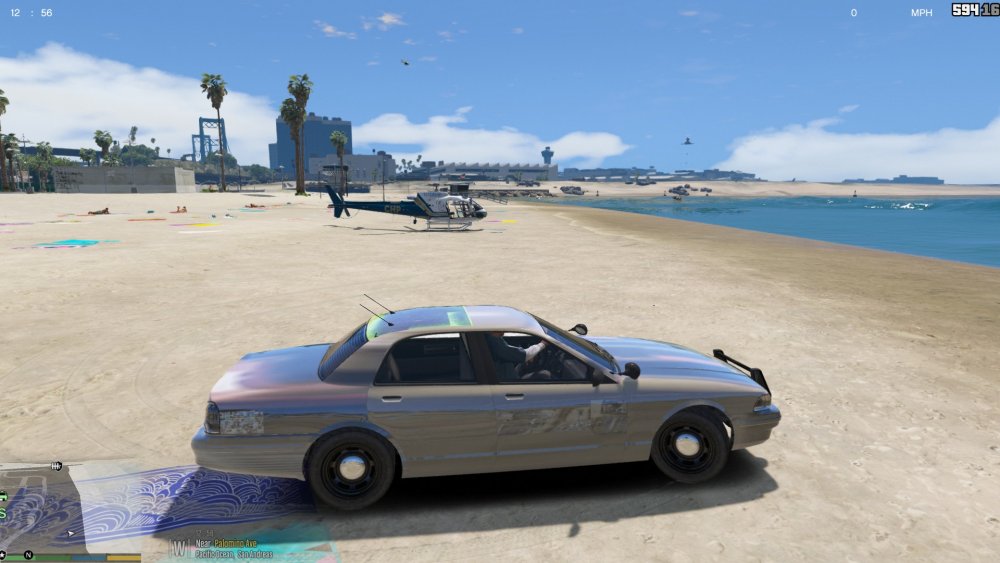
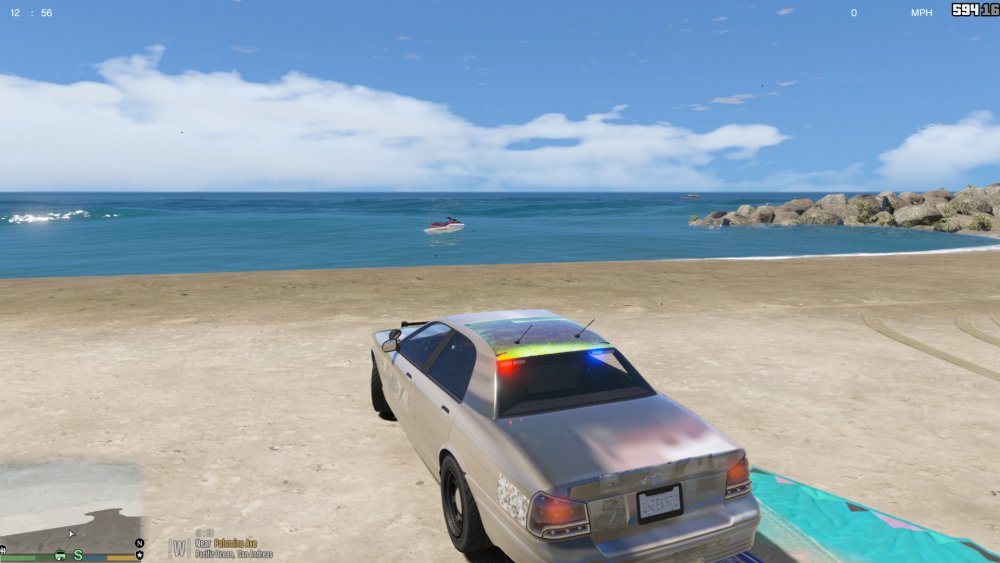
When I upload cars yes I include the YTD file. Even when I first installed the game the normal sheriff slot came up like this.
-
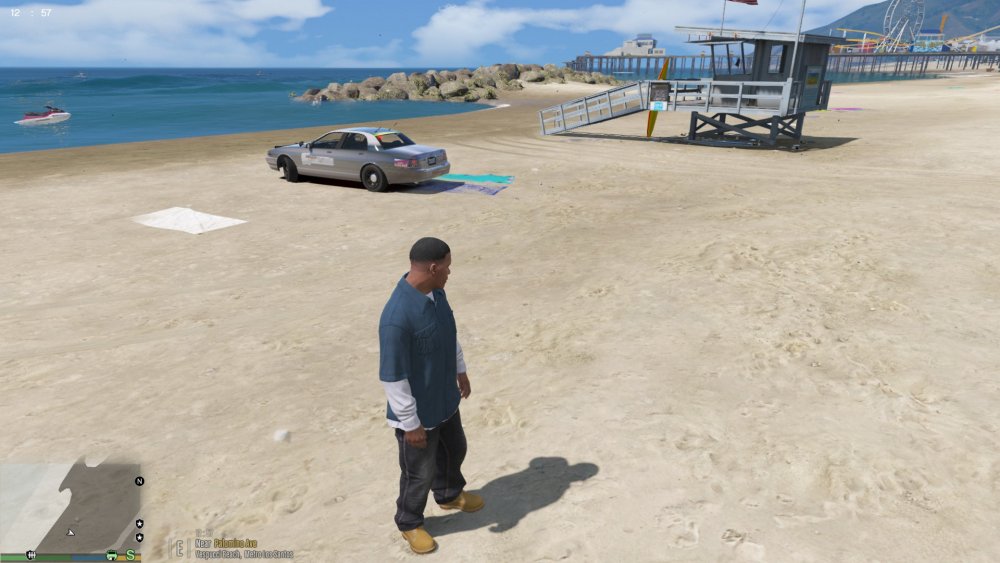
I have reinstalled GTA and again my sheriff slot has no texture at all whether its the vehicle thats normally in GTA or if its a vehicle I install.
-
 I LOVE THIS! The only thing I would like to see is the K9 uniform the blue utility uniform to have a long sleeve version as well. That would complete my CHP gameplay. I love the short sleeve for K9, however if I am patrolling in the rain I would like to have that same blue uniform in long sleeve. Other than that this is PERFECT.
- 2,352 comments
- 238 reviews
-
 My most recent actions, nothing appears in that box for me even if I run or stop someone. Also is the Extras box and Help button supposed to do anything?
- 1,743 comments
- 172 reviews
-
My SAHP K9 uniform and a couple of others such as the windbreaker uniform in LSPD dont have feet?? The pants go down and then the feet and boots turn invisible. Can anyone please help me fix this.
-
When I first installed this everything was going great!! For some reason my SAHP K9 uniform has no feet. The pants go down and then cut off. His feet and boots are invisible. It is also like that for a couple of other uniforms one of em is the windbreaker in LSPD. Can anyone tell me why this is happening?
- 2,352 comments
- 238 reviews


