


.png.69806f776557344fab78955055c7992c.png)
.png.2ed133dd2bdde6a89ddb4facefb858ca.png)
OfficerNils
Members
-
Joined
-
Last visited
Everything posted by OfficerNils
-
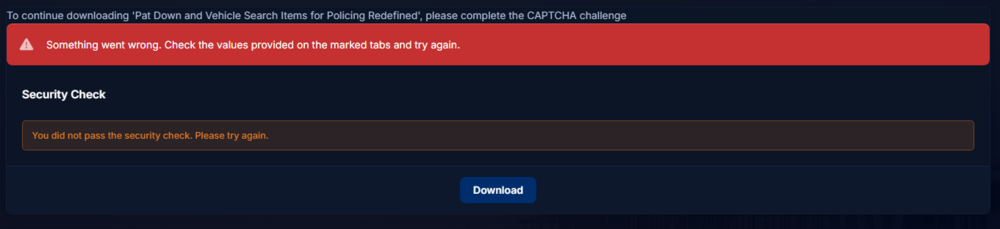
Hey there, I am unable to download any files due to the CAPTCHA security check not appearing anymore. Refreshing the site doesn't work, going back and hitting the download button again doesn't work either and I need some assistance. I've attached two pics, one of the missing security check and another one showing what happens when I press download anyways

-
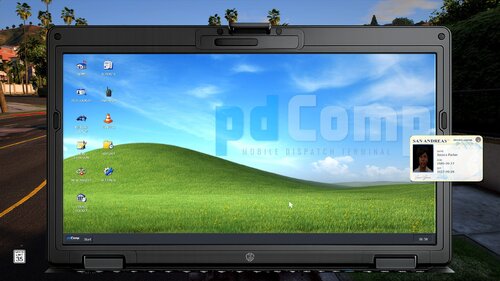 I've tested it out, the mouse is a little bit laggy and I can see that I'm looking around when I move my cursor inside the computer. When adding notes in a charge I hit "F" to write "failure" - I got out of the Vehicle as a result, I was hoping all Keybinds get locked like for example CompuLite and I can type away.
- 390 comments
- 39 reviews
-
 Love the sound - Installed it, all seems to be okay but it's just silent Ingame, don't know what's wrong
 -
 Are you planning on doing traffic stop questions too?
 -
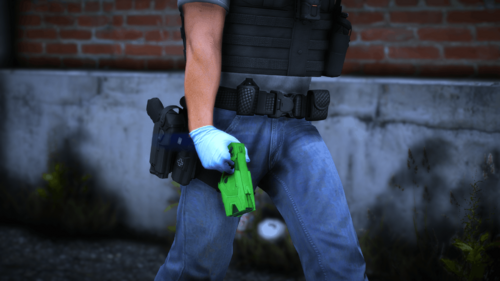
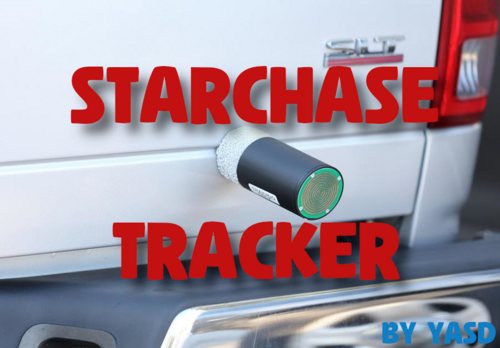 I'm having issues with the actual attachment - 90% of the time it attaches on my own vehicle (I use the replace models from Tactical Donut's LAPD pack) and I have to retry at least ten times before it actually shoots out. Do you recommend any fixes to resolve this issue because.. goddamn - I like that plugin. Other than that, great work! 😄
- 11 comments
- 4 reviews
-
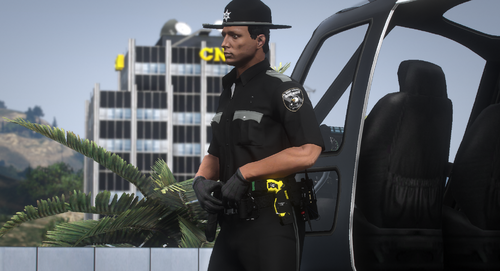 Where did you get the belt? 0_o Looks fancy
 -
I want to put the suspects in my car, but it wont let me i have the problem only in First Person is there a fancy command to add in he Ini. file? if not this might be cool to add to the game *wink**wink*
.thumb.png.123253f1e55e92416e9978a9f49e0df6.png)



