


lttrbmb
Members
-
Joined
-
Last visited
Everything posted by lttrbmb
-
-
-
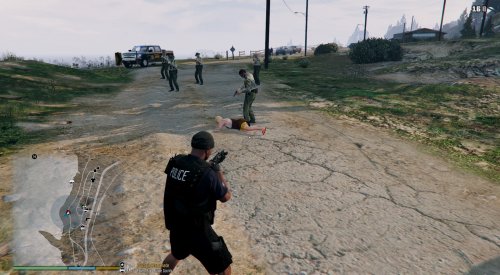 Probably mr kindness. Not 100% sure who made the car, I could send it to you if you message me on discord though.
- 110 comments
- 33 reviews
-
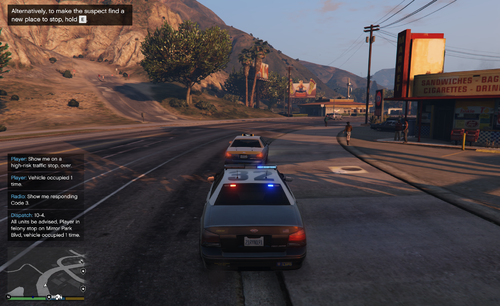 I wasn't using a plugin in that video, it's the vanilla graphic setting called 'depth of field'.
- 242 comments
- 18 reviews
-
-
random ingame screenshots
-
 20180118033710_1.jpg
-
 20180118010143_1.jpg
-
 20180115151232_1.jpg
-
 20180115150601_1.jpg
-
 20171105133601_1.jpg
-
 20171024215642_2.jpg
-
 20171023193918_2.jpg
-
 20171023193946_1.jpg
-
 20171023190049_1.jpg
-
 20171018205334_1.jpg
-
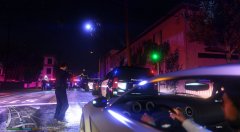 20171018014908_3.jpg
-
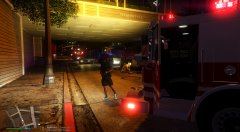 20171018000922_3.jpg
-
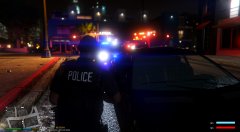 20171017152405_2.jpg
-
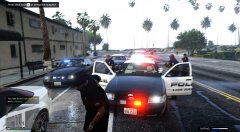 20171017014321_1.jpg
-
 20171011235244_1.jpg
-
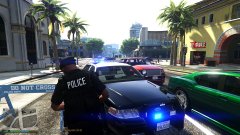 20171004232250_2.jpg
-
 20170926171838_2.jpg
-
 20170926171838_2.jpg
-
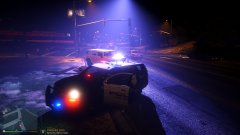 20170926171838_2.jpg
-
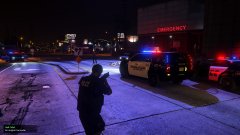 20170926171838_2.jpg
-
-
From the album: icko on patrol
-
From the album: icko on patrol
-
From the album: icko on patrol
-
From the album: icko on patrol
-
-
 Absolutely, because plebs like me would think PeterUCallouts.defaults.ini is going to be used to adjust settings. Or just clearly state which lines to add to our existing .ini. Thanks anyways!
- 547 comments
- 103 reviews
-
That worked, I'm confused though. What are the 2 .ini files for? Do all the settings still belong in PeterUCallouts.ini or is it PeterUCallouts.defaults.ini.
- 547 comments
- 103 reviews
-
Yea, I just copied the ReduceCalloutProbability part from my old .ini file, which I deleted afterwards. I actually thought you switched the name for the .ini file to PeterUCallouts.defaults.ini and the old one would be useless. It got recreated though: PeterUCallouts.defaults.ini looks like that on my end:
- 547 comments
- 103 reviews
-
Great work on the update, I'm facing an issue with the DissmissPedKey though. No matter which keys I set, with or without modifier. It won't do anything, no error notification or anything in the log, while through Police Smart Radio it works flawless/pops error messages when too far away from a ped. // It's actually the same for the taking statement feature, I'm not able to trigger it.
- 547 comments
- 103 reviews
-
From the album: icko on patrol
-
From the album: icko on patrol
-
From the album: icko on patrol
-
From the album: icko on patrol
-
From the album: icko on patrol
-
From the album: icko on patrol
-
Another great plugin for improving roleplay. The feature to give orders to the suspect and how the backup units arrive/behave brings yet another game experience to LSPDFR. Also the Police Smart Radio integration is a pretty neat addition. Well done, keep it up
- 242 comments
- 18 reviews
-
From the album: icko on patrol
-
From the album: icko on patrol
-
From the album: icko on patrol


.thumb.png.e2108197eebd2a115a71434e78afdd67.png)
