



Tha Mexikan
Members
-
Joined
-
Last visited
Everything posted by Tha Mexikan
-
 u rock homieee im on it!!!
 -
can u make a 2560x1440 ?
-
 whats the size?
 -
-
-
-
-
-
-
-
-
-
-
-
-
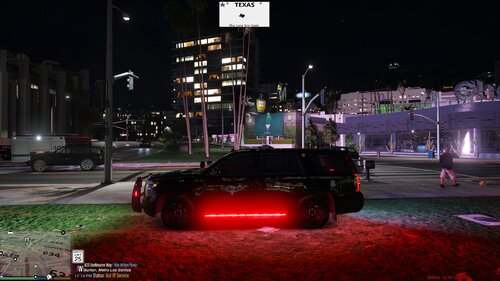 i made a video so im going to put it on https://www.youtube.com/@tha_mexikan1752
- 15 comments
- 4 reviews
-
yes the lights reflect even more then before on the other two i did i will try and make a video on it i use quantv on this one !!
- 15 comments
- 4 reviews
-
-

- 1
-
-
This setup is designed to be the best for law enforcement use, ensuring that the ELS effects are not only visually impactful but also practical for real-world scenarios. Fast and Controlled Flash Delays: The flash delays are optimized for emergency response, ensuring that the lights are attention-grabbing without being chaotic. High Intensity and Extended Range: Lights are set to be bright and cover a wide area, making them effective in various conditions, from daytime pursuits to nighttime operations. Professional and Authoritative Appearance: The overall configuration is designed to give law enforcement vehicles a commanding presence on the road, enhancing both visibility and authori
- 15 comments
- 4 reviews
-
-
- 4
-
-
 does this work with the updated PR?
 -
-
-
-
 so im on the 1.8.0.7 when i update do i need to install the Microsoft Speech Platform, Language Packs, and the Community Translations Again?
- 1,347 comments
- 82 reviews
-
-
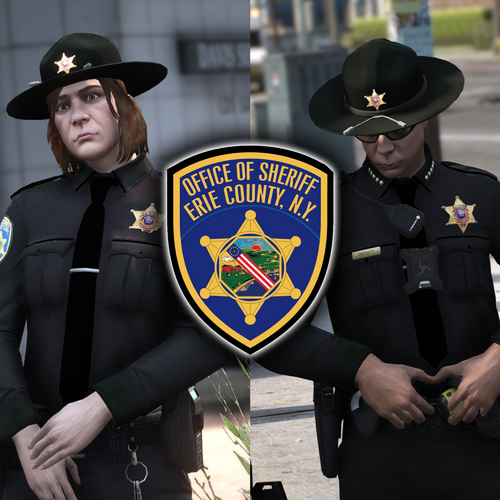 looking sexxxy!!

.thumb.png.30177a0c051e229db6773959bc72cd65.png)



.thumb.png.656f907bc2febc81911b0b821cb502c8.png)
