


.png.c5f76066ef98af089c38b85696fc3af5.png)
.png.70172e22575cb2460268ada975616072.png)
.Django.
Members
-
Joined
-
Last visited
Everything posted by .Django.
-
Hey sorry to repost, but on the topic of character customization. One of the preview screenshots has a name tag matching the player name. Is that a new feature or a custom texture from the player? Also what kind of issues can we expect with existing plugins such as Peteru and stop the ped?
-
A question on the character customizations, in relation to EUP, does that directly affect the name tag on the uniform or was that a custom design on your screenshot
-
sent a dm thanks so much
-
Im trying to add non els add on vehicles but they use custom carcols for the flash pasterns and what not, i cant seem to figure out how to add them in. Can anyone help?
-
Im aware, I thought i read somewhere that the LSPDFR devs were in close contact with him and being that there were changes in the AI driving ability I was curious if there was any change with their ability to interact with ELS vehicles as popular as they are.
-
Has there been any change in the AI Officers ability to operate ELS vehicles? the last time I checked and its been a minute, they weren't able to control the siren properly, it would either be on whenever their lights were on or not used at all.
-
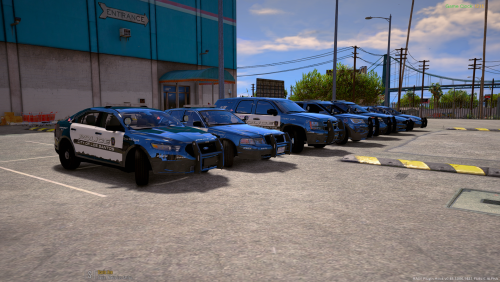 love the pack, only issue i have is for my responding officers, with this pack and others. the vehicles will have random components flash in and out with the lights, such as the push bar, car barrier and so on. Im new to all this and some assistance would much appreciated.
- 779 comments
- 187 reviews
-
-

- 1
-
.thumb.png.e9c2f543b52944ccd569c027f63ca789.png)
