


ThomasEdgewood
Members
-
Joined
-
Last visited
Everything posted by ThomasEdgewood
-
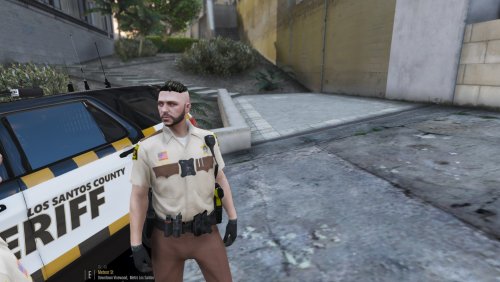 Go get 'em, Pat!
 -
Hi, I found out it is caused by ELS somehow. I had this problem aswell, but after removing ELS it worked fine. I don't know how ELS is causing it though.
-
I am trying to get a Rockford Hills PD agency which just patrols Rockford and Burton. I have edited the agency.xml, backup.xml and regions.xml to include the RHPD (see below). When I call for backup in game the LSPD, instead of the RHPD, still responds even though I have removed the zones from the city region. The RHPD also isn't included in the backup menu. Am I missing something? Am I doing something wrong? Regions.xml: <Regions> <Region> <Name>Rockford</Name> <Zone>ROCKF</Zone> <Zone>BURTON</Zone> </Region> </Regions> Backup.xml: <BackupUnits> <LocalPatrol> <Rockford> <Agency>rhpd</Agency> </Rockford> </LocalPatrol> </BackupUnits> Agency.xml:
-
 This is a Handhaving background for Computer+. To use this you will need Computer+ (obviously) To install: Replace Generic (or whatever you decide to name it) with the file in Plugins/LSPDFR/ComputerPlus/backgrounds
 -
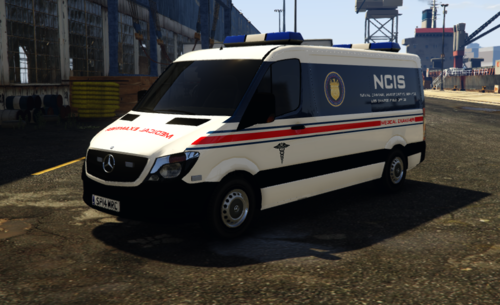 The NCIS Medical Examiner ambulance. Based on the ambulance seen in the TV series NCIS. To install: Replace the original YTD files with mine. Model: https://nl.gta5-mods.com/vehicles/2014-police-mercedes-sprinter
 -
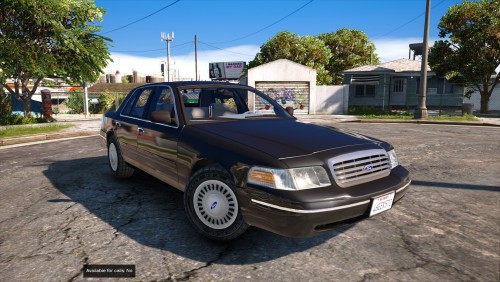 Thanks for making this. Finally a car which has the same lighting setup as in both The Rookie and Lethal Weapon.
- 8 comments
- 3 reviews



