




ShadowlessKnightGaming
Members
-
Joined
-
Last visited
Everything posted by ShadowlessKnightGaming
-
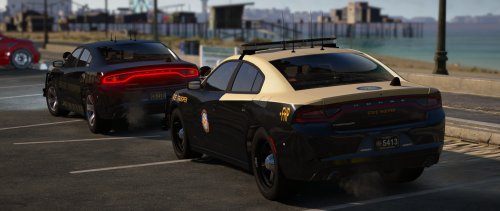 Absolutely beautiful job, sir! Best Charger I have seen to-date and that is saying something! Only thing I wish is if you would have included a template so skins could be created for this beautiful creature!
- 76 comments
- 55 reviews
-
 @PieRGud May I make a recommendation for the next update? Could you add the ability to see what the suspects are wanted for when a search is conducted? For example, you pull John Doe over and do a search and it pops up for wanted to have a label or something next to it that states "Wanted from LSPD. Assault on a Police Officer." Really love the mod, cheers!
- 1,743 comments
- 172 reviews
-
-
 I feel you man. I'm having troubles as well. Besides the fact it crashes with Taco Highway Callouts (now removed) it has a lot of problems reading what I am saying correctly now. The previous version did fine.
- 587 comments
- 106 reviews
-
-

- 1
-
-
Hello, I have been using VocalDispatch since I started my LSPDFR series, about two weeks ago, and haven't had any problems until yesterday. Since I updated to the latest GTA V and RagePlugin, VocalDispatch seems to be crashing the game, or in some way interacting with LSPDFR and causing the crash. As you can see, the final command in the command line came from VocalDispatch as it interacted with Tacco's Highway Callouts. Any idea why it might be doing this? System is: Windows 10, i7 6th Gen, GTX 1060, 16GB RAM, 250 SSD utilizing the Windows Speech Recognition. Thanks for any information. P.s. I have some coding experience (got a degree in CIS) and would be willing to assist in some way.
- 587 comments
- 106 reviews

