.gif.e441e9fc669ec51045cdd68759e09fda.gif)
Sinnisa
Members
-
Joined
-
Last visited
Everything posted by Sinnisa
-
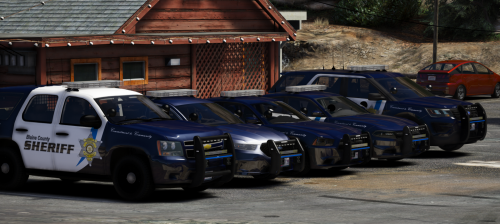
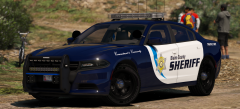
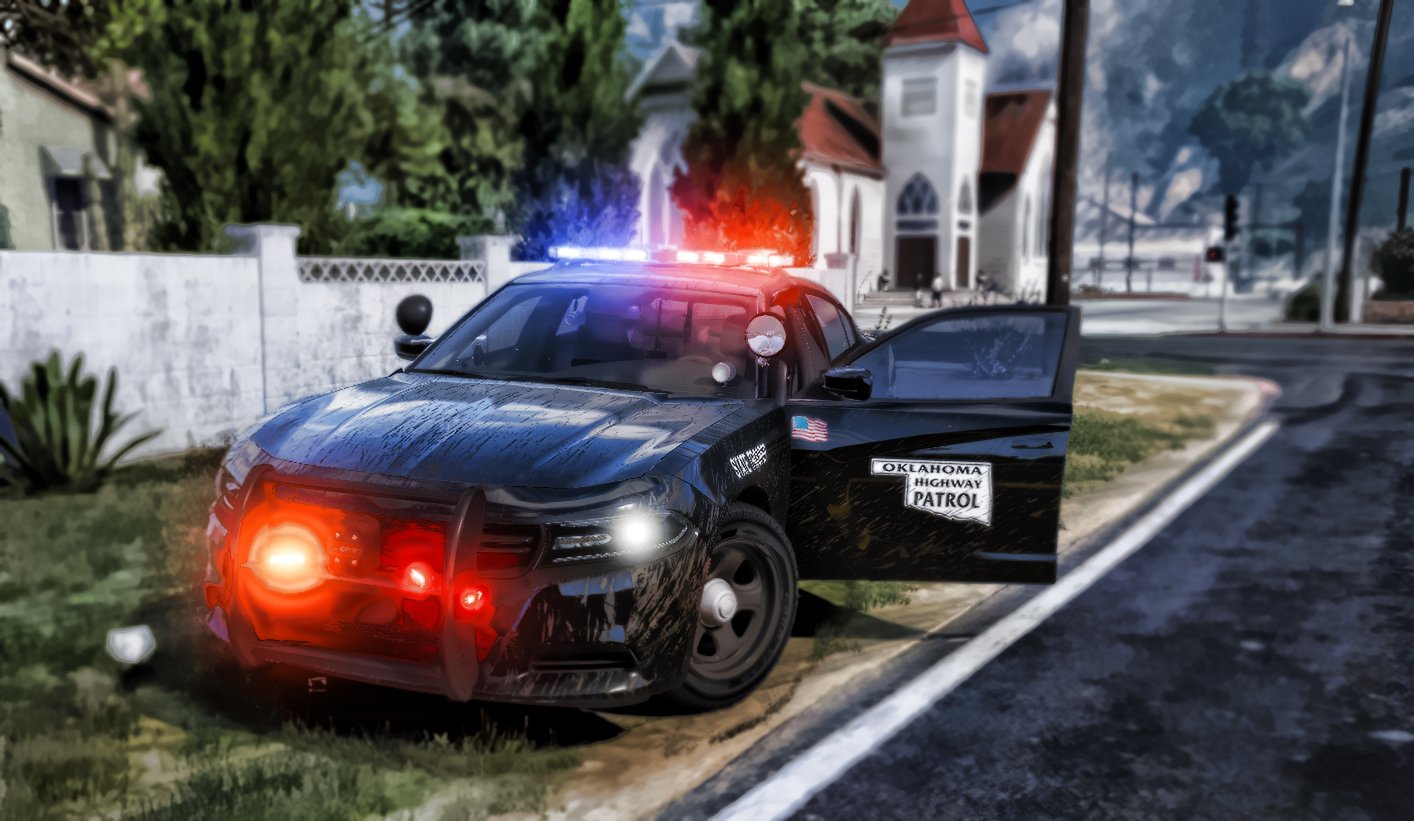
From the album: Policing the city
-
-
 today
today -
From the album: Policing the city
-
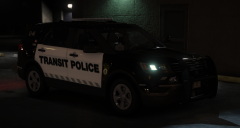
From the album: Policing the city
-
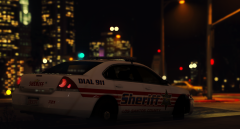
From the album: Long shift
-
-
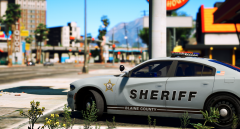
From the album: Long shift
-
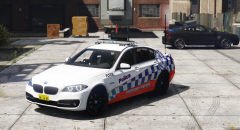 Now that's a car!
 -
-
He should, it's the best looking car in the fleet
-
We want '15 Tahoe
-
-
-
??? you serious, that many? I had no idea...
-
-
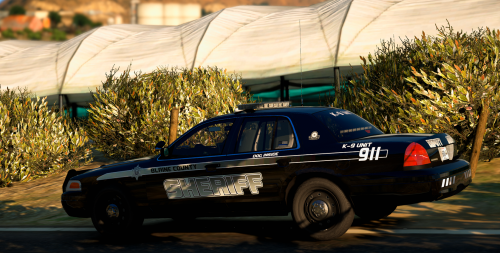 @billiarboy I'll try for the next update Sorry man, I simply don't have the time to redo it all over. You can try and resize it, see if that can help you in any way.
- 25 comments
- 9 reviews
-
-

- 1
-
-
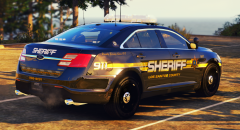 @Jedahdiah I for one still like that pack
 -
-
@billiarboy 16exp fits on the one from description, t0y's latest pack, Maurice97's Trooper pack
- 25 comments
- 9 reviews
-
-
@billiarboy My friend you are trying to put 2016 FPIU skin on the 2013 FPIU model...
- 25 comments
- 9 reviews
-
-
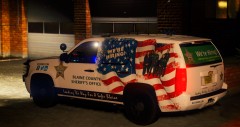
From the album: Long shift
-
.thumb.gif.d4932ee9e40386bd9bc3782f9432147a.gif)