


InsaneInsanity
Members
-
Joined
-
Last visited
Everything posted by InsaneInsanity
-
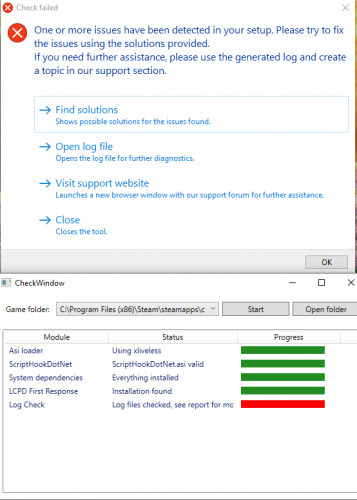 All you have to do is run it and it should work, please leave feedback if it doesn't work
 -
It's a Batch file, it simply runs commands that fixing the log file issue. Very simple very quick
-
I have posted an original fix for steam which you can see on my profile, this works the same way but for ROCKSTAR Games Downloads. Not Steam.
-
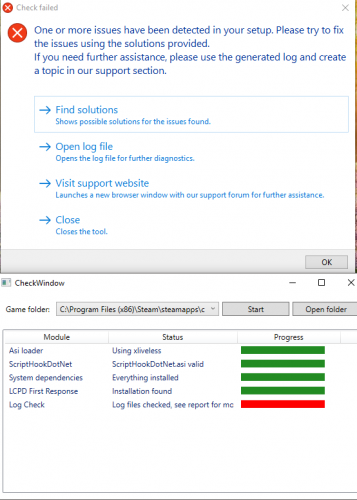 Cheers man :) ANYONE LOOKING FOR ROCKSTAR GAMES FILE, I HAVE MADE A NEW ONE, PLEASE GO TO MY PROFILE AND DOWNLOAD. THIS SCRIPT WORKS FOR STEAM ONLY. I WILL NOT BE SUPPORTING CRACKED VERSIONS.
 -
Glad I could help! Please share if you can :)
-
Lcpdfr is still great in my opinion :), if I'm honest it's more realistic than GTA V in the way the AI panic and hide etc. Obviously the taxis aren't so realistic at red traffic lights 😂
-
Glad I could help! This issue annoyed the crap out of me lol so happy it helps you guys out
-
This file simply runs and deletes all the log files fixing the issue of 'Problem with log files please read files'. This issue makes the game more and more unstable over time. Every time you get an error and the game crashes, simply run this fix and be on your way. I have proof this is not a virus as the last screenshot even shows the script in which is ran.

