
Fells
Members
-
Joined
-
Last visited
Files posted by Fells
-
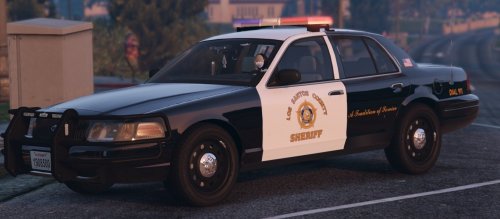
Skins for the 2011 CVPI, 2013 Tahoe, 2014 Charger and 2016 Explorer. Not based on any real department.
Installation: Open the .ytd files of your installed cars and replace their corresponding texture files with these.
I've provided them for you in .dds format for quick dragging and dropping.
Guaranteed to work with the following:
CVPI, Charger and Tahoe:
Explorer:
- 219 Downloads
Submitted -
Skins for the 2014 Charger, 2016 Taurus, 2016 Impala and 2017 Tahoe. Not based on any real department.
Installation: Open the .ytd files of your installed cars and replace their corresponding files with these.
Will work with the following:
- 141 Downloads
Submitted -
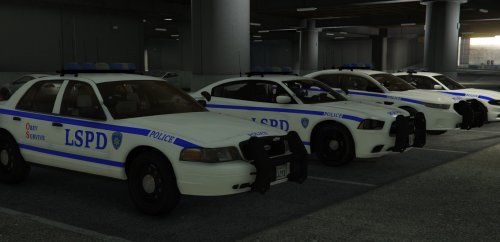
Lore friendly New York style skins for the Crown Vic, Taurus, -14&-15 chargers, -16 Explorer and -17 Tahoe.
Vehicles used in screenshots:
CVPI, Taurus, 2014 Charger:
2016 Explorer, 2017 Tahoe:
2015 Charger:
- 150 Downloads
- 10 Comments
Submitted -
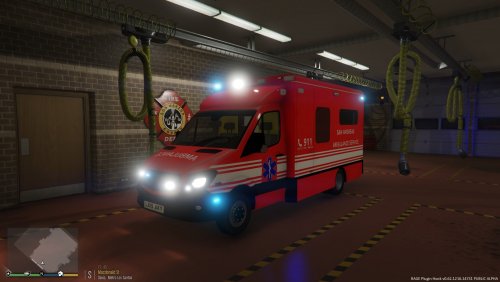
This is a skin for the 2015 London Ambulance MB Sprinter by ObsidianGames.
I wanted a more lore friendly skin for it and chances are some of you would prefer that as well.
It requires the following vehicle:
http://www.lcpdfr.com/files/file/15305-2015-london-ambulance/
Installation: Open ambulance.ytd and replace car_sign_1 with the provided skin.
Credits to ObsidianGames for the vehicle. I also copied the rear from the skin that comes with the vehicle by default. Everything else is my doing.
- 44 Downloads
Submitted -
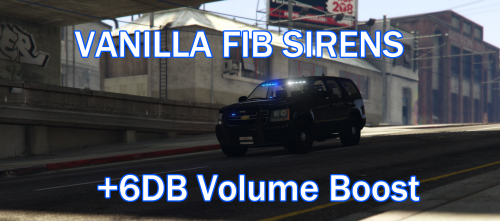
This is a siren replacement that replaces the default Police Primary Wail siren and the Police Secondary Yelp with the vanilla
GTA V FIB sirens. By default, these sirens are somewhat quiet, so I have provided a volume boosted version of these sirens
to use in any law enforcement vehicle.
INSTALLATION:
Use your OpenIV to navigate to: GTA V/mods/x64/audio/sfx/resident.rpf. Right click "vehicles.awc" and select "Export to openFormats (.oac)" and select a folder you wish to extract it to. You should now get a folder titled "vehicles", filled with .wav files, and "vehicles.oac". Move "0x0D329446" and "SIREN_2" into the vehicles folder, then replace all. To get the sirens into the game, right click on anywhere in OpenIV in the folder "resident.rpf" and select "Import openFormats". Then select "vehicles.oac" from the location you previously extracted it to and hit OK.
CUSTOMIZATION:
As said above, these replace Police Primary and Police Secondary tones. If you'd like them to replace another siren, rename the files
to the filenames below, then replace as instructed above.
0x013F5FE7 - Police Bike Main
0x17DDFB5C - Police Bike Secondary
0x0A8960B6 - FIB Primary
0x0A49B203 - FIB Secondary
0x0D329446 - Police Primary
SIREN_2 - Police Secondary
POLICE_WARNING - Police Priority tone
0x0E0DA7BC - Granger Primary
0x16E74B3E - Granger Secondary
0x1C98C4D5 - Ambulance Primary
0x144C8602 - Ambulance Secondary
AMBULANCE_WARNING - Ambulance Priority tone
0x14BFBCE3 - Firetruck Horn
0x159C9182 - Firetruck Primary
0x161768E7 - Firetruck Secondary
CREDITS:
Rockstar for the original FIB sirens, Fells for boosting their volume.
- 299 Downloads
- 1 Comments
Submitted -
Like how the Vanilla Bike Siren sounds like? Replaced your other sirens with it but it was too quiet? This is definately for you!
This is a siren replacement that replaces the default Police Primary Wail siren and the Police Secondary Yelp with the vanilla
GTA V police bike sirens. By default, these sirens are somewhat quiet, so I have provided a volume boosted version of these sirens
to use in any law enforcement vehicle.
INSTALLATION:
Use your OpenIV to navigate to: GTA V/mods/x64/audio/sfx/resident.rpf. Right click "vehicles.awc" and select "Export to openFormats (.oac)" and select a folder you wish to extract it to. You should now get a folder titled "vehicles", filled with .wav files, and "vehicles.oac". Move "0x0D329446" and "SIREN_2" into the vehicles folder, then replace all. To get the sirens into the game, right click on anywhere in OpenIV in the folder "resident.rpf" and select "Import openFormats". Then select "vehicles.oac" from the location you previously extracted it to and hit OK.
CUSTOMIZATION:
As said above, these replace Police Primary and Police Secondary tones. If you'd like them to replace another siren, rename the files
to the filenames below, then replace as instructed above.
0x013F5FE7 - Police Bike Main
0x17DDFB5C - Police Bike Secondary
0x0A8960B6 - FIB Primary
0x0A49B203 - FIB Secondary
0x0D329446 - Police Primary
SIREN_2 - Police Secondary
POLICE_WARNING - Police Priority tone
0x0E0DA7BC - Granger Primary
0x16E74B3E - Granger Secondary
0x1C98C4D5 - Ambulance Primary
0x144C8602 - Ambulance Secondary
AMBULANCE_WARNING - Ambulance Priority tone
0x14BFBCE3 - Firetruck Horn
0x159C9182 - Firetruck Primary
0x161768E7 - Firetruck Secondary
CREDITS:
Rockstar for the original Police Bike sirens, Fells for boosting their volume.
- 276 Downloads
Submitted