
Empire
Members
-
Joined
-
Last visited
Everything posted by Empire
-
Shell not return at all, Max
-
I'm not an lover of droid, Nope What about Thomas
-
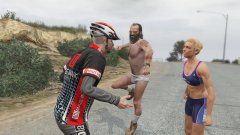
From the album: Empire GTA V
Going thought the story plot and yes, naked is the way to go for keeping cool -
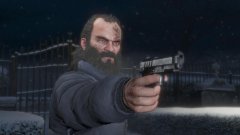
From the album: Empire GTA V
Put your god damn hands up! then I run away since there are Chinese around -
-
After @Bayareabuggs has his!
-
Nope, Maybe NakedViking
-
-
Yes, :) Ben the great is next
-
-
-
-
Getting bored? Let's Play a Forum Game.... You need to write a word that is start last letter of Previous word, for e.g. I write a Word "Game", then next word will be start from "E". You can think any word.... No Game Rules. Let's Start My Word is:- Computers
-
because ben definitely doesn't answer. Starmix
-
-
-
-
-
-
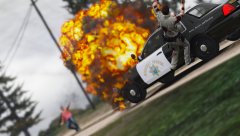 A123 Officer down 10-20 at floodlight street downtown. Send out 11-85 and EMS. And forget the firetruck since they are at an night club
 -
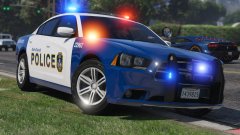 Now that's Nice
 -
 What's that?
 -
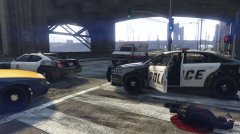
From the album: Empire GTA V
Mad house, officers being run over my speedy Scriabin people -
-
So does anyone like The Vampire Diaries?