RainDropDropTop
Members
-
Joined
-
Last visited
Everything posted by RainDropDropTop
-
-
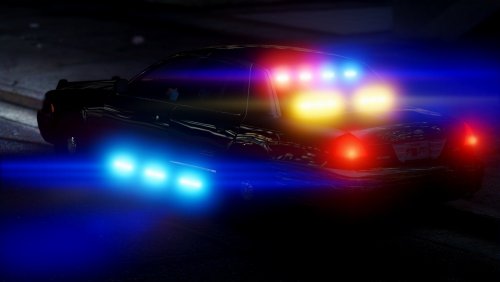 For anyone like me who doesn't like how the actual colors of the lights are kind of faded, you can replace "emerlightsd" inside the police4.ytd file with the same file inside FBI unmarked Challenger from MrPotato (export and replace from that ytd) which it also has the siderunners but as you can tell on the challenger they have a nice deep color. Other than that it's a perfect car :)
- 44 comments
- 21 reviews
-
-
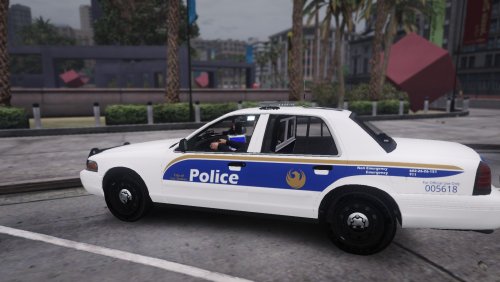 This is awesome because I live in Phoenix. Would love to see the Maricopa County Sheriffs Office black and yellow too.
- 6 comments
- 2 reviews
-
-

- 1
-
-
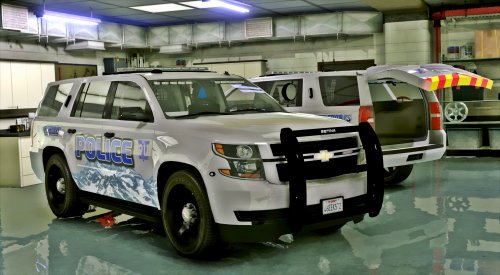 It would be way better if you actually configured an ELS file for your models instead of just changing one word out of the sample VCF that comes with ELS. Especially on this vehicle the red is going where the blue lights are and the blue is going where the red lights are. It works for everybody who pays no attention I guess. The model is great but you short it by going with the sample VCF to save time.
- 29 comments
- 15 reviews
-
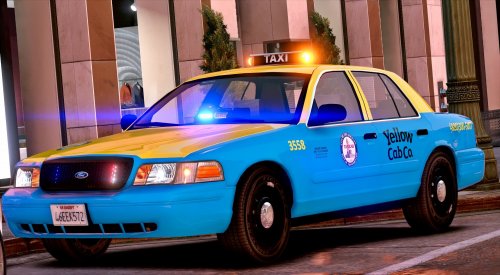 I love this taxi, but does anyone know how to fix this yellow/orange light orb ontop? I have tried it with and without the "required meta", I've also reinstalled clean twice and backed up to my old police4 before reinstall and it still comes up just like this. Could it be something in my carcols? or carvariations? It's not the meta file, model, or the ELS file i've already made sure. All the other lights work flawlessly. EDIT: It's also only at this distance and further that it shows up.
- 33 comments
- 8 reviews