
Officer 19
Members
-
Joined
-
Last visited
Reputation Activity
-
 Officer 19 reacted to Reddington in Vehicle ModTry linking us to some of them, please. I'm curious. The method posted should be working.
-
Officer 19 reacted to Sam in Super Wednesday: ELS and RDE 3.0 now available!Emergency Lighting System for GTA V
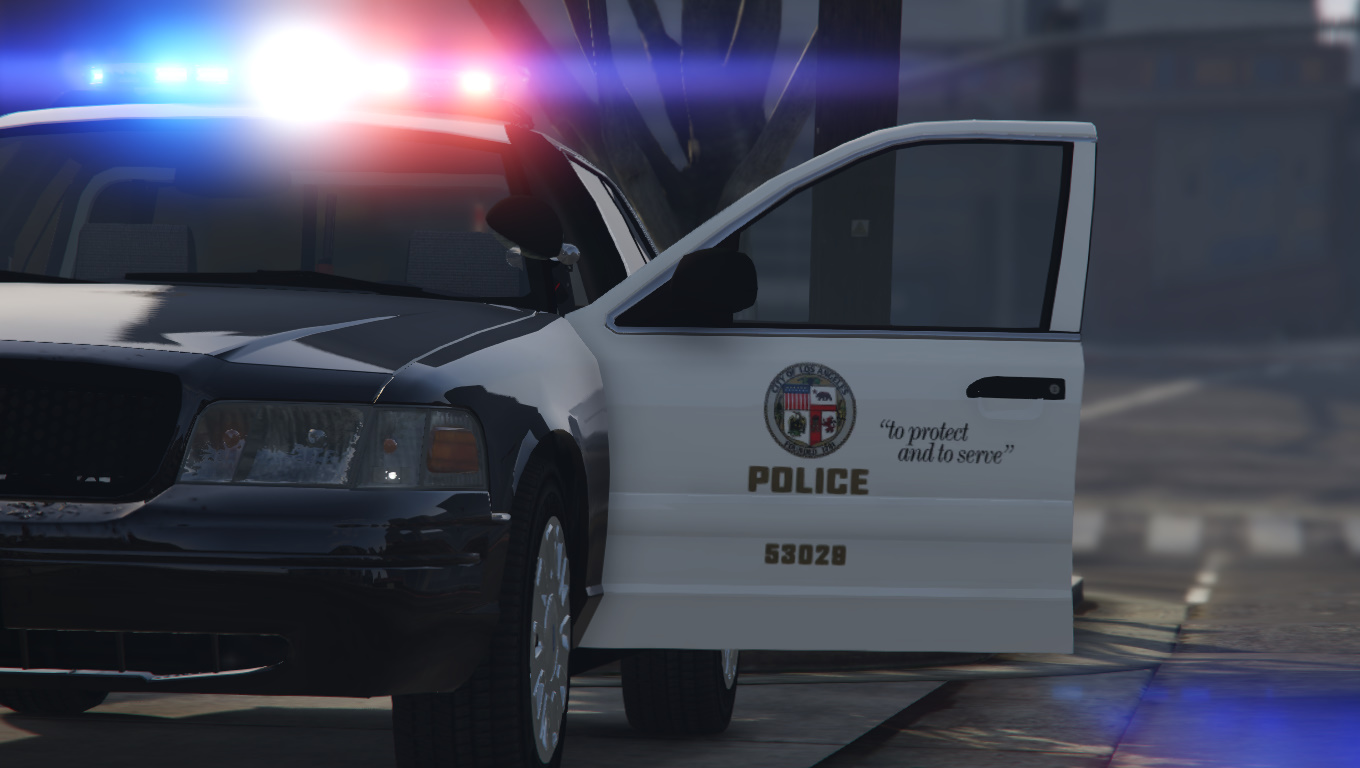
After much waiting and anticipation, the time has finally come. Emergency Lighting System for Grand Theft Auto V is now available. Much like its predecessor for GTA IV, ELS-V brings hundreds of new lighting patterns, a bunch of siren options and a beautiful new interface for controlling your vehicle's emergency equipment. Developed by our own @Lt.Caine and @LMS, ELS-V is a must-have for any one that enjoys realistic police and emergency vehicles in their game.
Realism Dispatch Enhanced
As if the release of ELS-V wasn't enough, we've also been spoiled today by the latest release of Realism Dispatch Enhanced. RDE is a massive modification that brings loads of new lore-friendly models and textures for vehicles, models and even police stations. Also new in RDE 3.0 is a custom wanted level system that not only re-introduces the six star wanted level, but also fully utilizes all of the new assets added by the RDE modification, meaning that should the player become wanted in the airport, for example, they will be chased by airport police.
Both of these modifications are available in our Downloads section now