


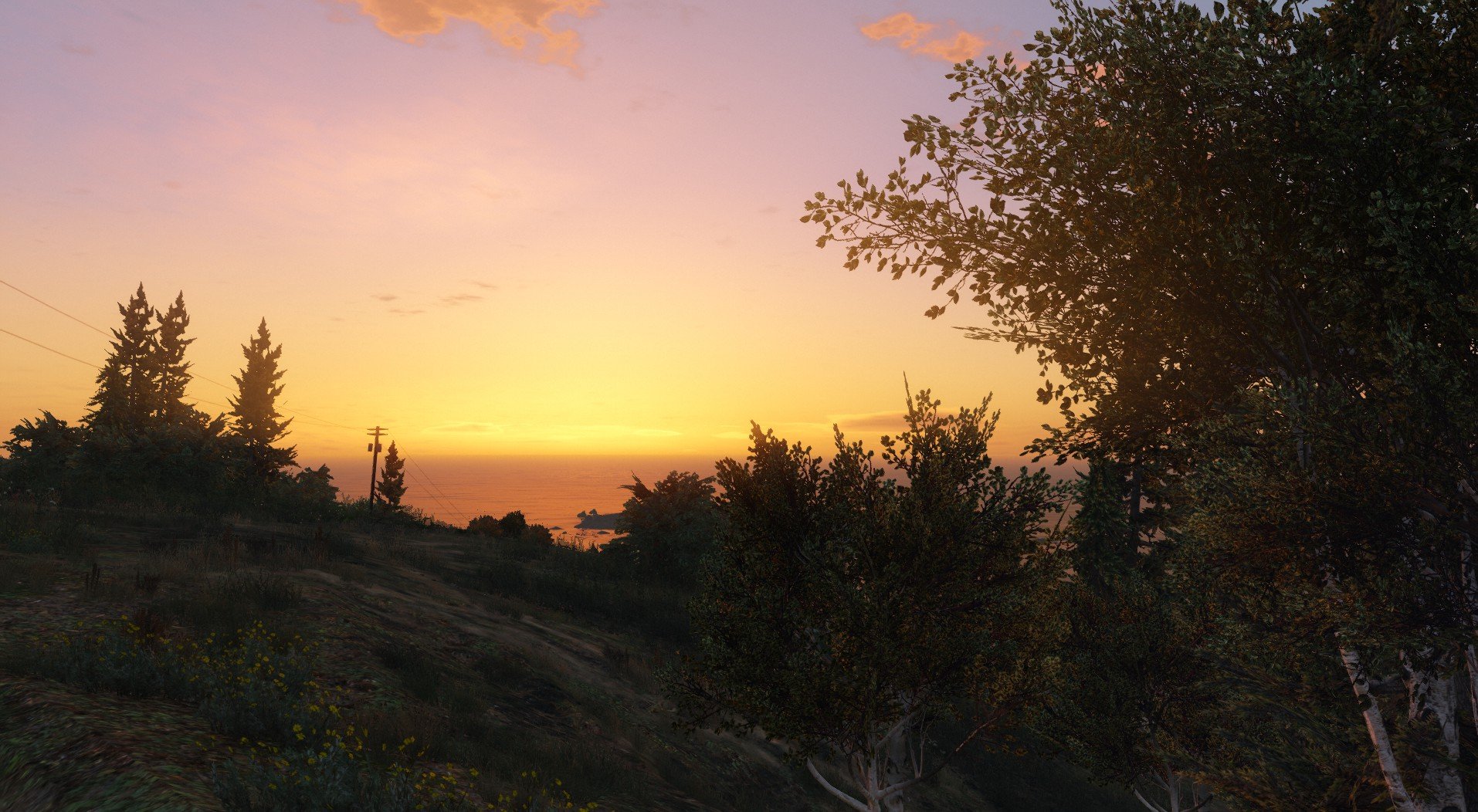

TheMonotoneScone
Members
-
Joined
-
Last visited
Reputation Activity
-
 TheMonotoneScone got a reaction from
Deactivated Memberfor a gallery image, Interceptor -
TheMonotoneScone got a reaction from Voit Turyv for a gallery image, MVAShout out to Fenton for the ambulance and PNWParks for the Police Tape mod
-
TheMonotoneScone got a reaction from Voit Turyv for a gallery image, Landstalker
-
TheMonotoneScone got a reaction from Voit Turyv for a gallery image, '06It could also be 1996 but in this context it was '06
-
TheMonotoneScone got a reaction from Voit Turyv for a gallery image, Polar Bear
-
TheMonotoneScone got a reaction from GrandTheftPD for a gallery image, MVAShout out to Fenton for the ambulance and PNWParks for the Police Tape mod
-
TheMonotoneScone reacted to Reddington for a gallery image, 20180515180515_1.jpg
-
TheMonotoneScone reacted to NefariousBonne for a gallery image, Parked in the Rain
-
TheMonotoneScone got a reaction from Richard Noggin for a gallery image, High Speed Pursuit
-
TheMonotoneScone got a reaction from Mags for a gallery image, 20171007181728_1.jpg
-
TheMonotoneScone got a reaction from Sinnisa for a gallery image, 20170819121033_1.jpg



.thumb.gif.d4932ee9e40386bd9bc3782f9432147a.gif)