


yankman19
Members
-
Joined
-
Last visited
Everything posted by yankman19
-
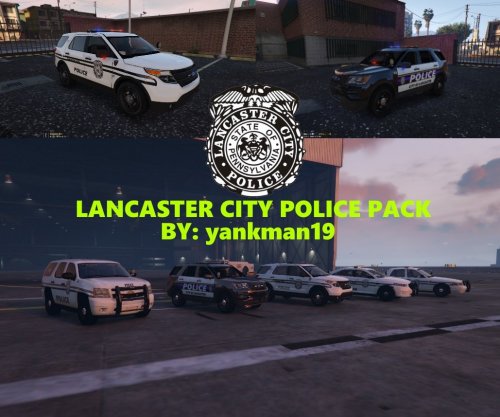 Lancaster City Police Department Pack: This is my second pack that I have done and I hope to do more in the future. This Pack is based off the Lancaster City Police Department in Lancaster, Pennsylvania. I hope that you guys really like the pack. Instructions on how to install these skins onto the vehicle is included in README file in the download. Next Texture Pack I'm Working On: Jacksonville Sheriffs Office Pack as per Request. If you would like to see a specific pack, just let me know down in the Comment Section This texture pack is based off of Captain14's LSPD Pack ELS Style Lighting: *Please note that I am not affiliated with the Lancaster City Police Department.
 -
 Thank You!
 -
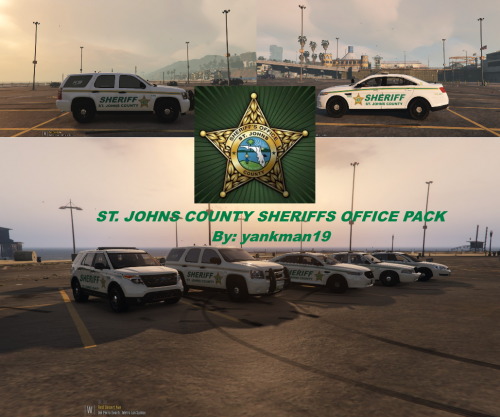
This is the first texture pack i have ever done for GTA V. I wanted the first texture pack I had ever made be of my home county in St. Johns County, Florida. I hope you guys enjoy it, and tell me what you think about it. If you would like to see a Los Santos County or Blaine County Version of this let me know down below. Instructions on how to install these skins onto the vehicle is included in README file in the download. This texture pack is based off of Captain14's LSPD Pack ELS Style Lighting: *Please note that I am not affiliated with the St. Johns County Sheriffs Office.
