
FateofDeath
Members
-
Joined
-
Last visited
Everything posted by FateofDeath
-
I also use radiance mod but it is still slightly dull
-
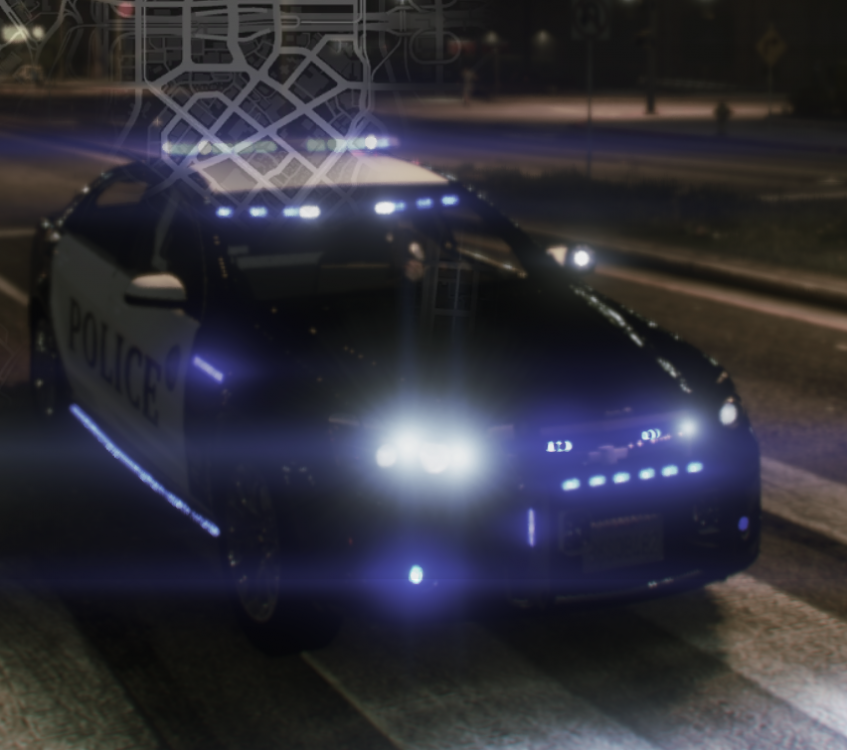
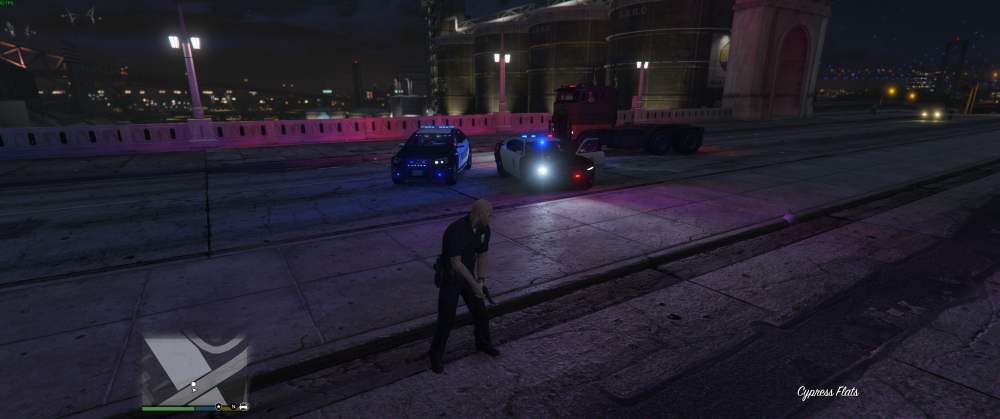
Hey guys, I recently added a police car and it has made all the vehicles in LSPDFR u can select in the on duty section super dull to where u can barely see the lights flashing. Also with the new vehicle I put them all in patchday 10 and the light bars someone stay on as if it's missing something but idk what would cause that. Mod I was using: Caprice Police car epic lights! This is about a 90mb file it had Police3+hi.ytd Police3_hi.yft Police3.ytd Police3.yft and then an ELS xml file I didn't use because I didn't put ELS on yet was just testing the model first. I have replaced a meta line for police3 in this path as well B:\Steam\steamapps\common\Grand Theft Auto V\Mods\update\update.rpf\common\data\levels\gta5\vehicles.meta and made a backup of that vehicles.meta and replaced it as original and it still shows dull lights. So I'm unsure what is causing that and what is causing the light bars to semi stay on and not flash. Screenshot attached. 1st Picture is the mod where the lights stay on and don't flash and only the headlights and taillights flash. 2nd Picture is a side by side with a stock Buffalo but the lights aren't that bright and kinda dull I use a Enhanced light pattern it's more rapid flashing and random patterns rather than ELS and all the stock cars look good but the lights are still a tad dim and even the mod car from outside lspdfr on duty setup look liek the 1st picture.