


Thsishere
Members
-
Joined
-
Last visited
Everything posted by Thsishere
-
nope thanks for the help 🙂
-
tried and tested it didnt work as it still crashes on startups. oh it finally loaded in to lspdfr after i start gta 5 first follow by rage plugin hook
-
alright i will test it out later
-
here you go. i am able to run gta without lspdfr.
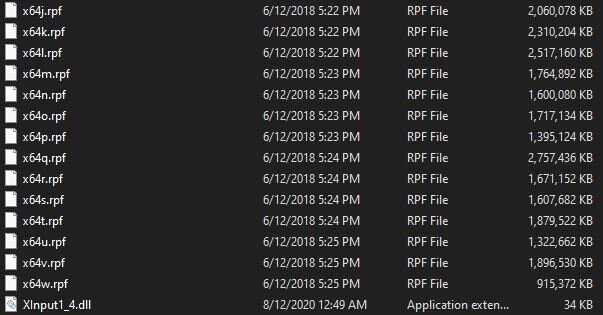
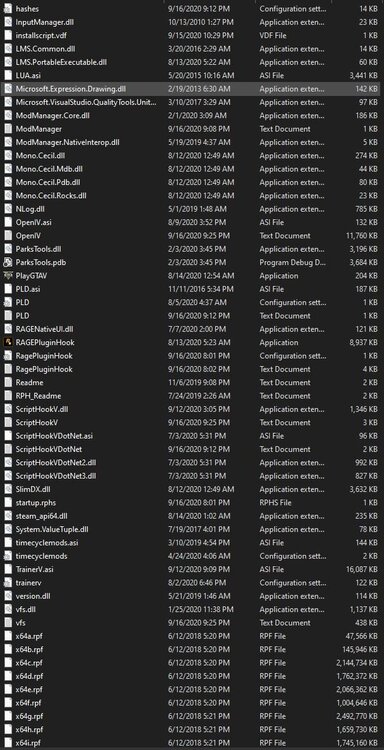
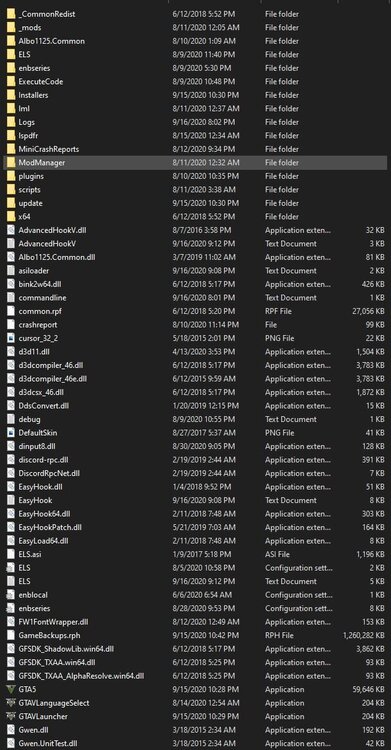
-
alright i will try it out and see if it works i tired it still crashes after it load up gta 5
-
RagePluginHook.log
-
Okay. The games works fine now thanks.
-
oh alright will do thanks.
-
alright. thanks for the reply but my lspdfr.ini only has the following: Main.PreloadAllModels = false Callouts.Multiplier = 250 WorldEvents.IntervalMultiplier = 1.0f WorldEvents.MaxNumberOfEvents = 1 Chase.CopsCanCommandeerVehicles = true i dont see any ambient events or should i just add a new line of command in?
-
Hi there i have a problem with lspdfr after i installed assorted callouts and callout manager, before installation everything was working fine till i install those 2 mods in, but since then i had those 2 mods uninstalled and i tried running it it still crash, and the next day i added assorted callouts back without callout manager and it was working out of a sudden, after playing for abit the game crashed again and when i tried to reopen it it will crash when i am getting teleported to a nearby police station. i will post the RPH log file for you guys to check. thanks RagePluginHook_06082020_132215.log



