


rolyasmatt
Members
-
Joined
-
Last visited
Everything posted by rolyasmatt
-
 Ok thanks, I actually uninstalled the trainer a long time ago, do you have a link for it. Forget where I got it.
- 81 comments
- 25 reviews
-
Awesome ride! How do I get the black skin, I am only getting white in game with the install.
- 81 comments
- 25 reviews
-
-
 Ok thanks- I have never added skins or messed with textures; is this a drag and drop procedure? Is there any type of readme that I can follow along with? Are there usually 2 ytd files, one is Hi?
- 36 comments
- 19 reviews
-
Awesome car as usual. Trying to get all blue lights, I put the all blue xml into the ELS folder. Still a mix of red and blue. I even tried the red one, and still a mix of both. What am I missing here..
- 36 comments
- 19 reviews
-
 Can you do exact install instructions please? Nothing in readme or here. Just want to be correct... TY
- 51 comments
- 21 reviews
-
.thumb.png.04a1687a445e54a18a959b7926b87d7b.png) Sir- thank you that worked. Next stupid question; i found the section and the line for the tint. I have edit on for OPEN IV; however, the meta opens in a new window, i find the section, but i cannot make any changes to the line. How can I edit the line?
Sir- thank you that worked. Next stupid question; i found the section and the line for the tint. I have edit on for OPEN IV; however, the meta opens in a new window, i find the section, but i cannot make any changes to the line. How can I edit the line?- 217 comments
- 38 reviews
-
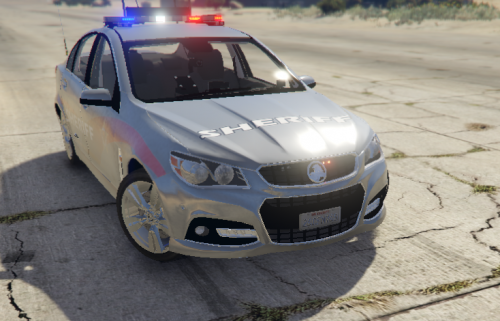
 So trying to remove the tint from shrieff2 ; in the meta file using OPENIV, how the heck do you edit it? I have edit mode on, and the meta part opens in a new window and i cannot edit any of the lines.
- 85 comments
- 28 reviews
-
Any quick way to find the line sheriff2 in the meta file. I found the s' in the model name put no sheriff listed.. hmm?
- 217 comments
- 38 reviews
-
Great, thank you, I have noticed some mods that mention this and that some do not. Great info and thank you again!
-
Awesome- thank you very much for clearing that up, makes sense now. One last question; I know a lot of the cars when downloaded are labeled say police1 or 2 or sheriff 1 or 2. But if i download a file that comes.. say as police2, and I change the file name to say sheriff1, do i need to change anything else with the other files like the carvariation and vehicles meta files? Or will changing the model file name have no impact the other files that come with the vehicle mods. Thanks again for this great thread of info.
-
Awesome posts as this has helped and made more sense of installing, now I am tracking which cars go where. Couldn't really fully get this answered; every car I download always says use latest patch day or use this specific patch day. I see in my folder that the latest patch day is 13. So i am guessing that's the newest patch? (It just continues down the line?) So I just put say 5 new cars in, if i put them all in the patch day 13 folder, they will over ride all previous vehicles? I know some instructions say use different patch day, i just did a car that worked in patch day 4. (How does someone know which police slot is the newest in one patch day? Seems like from what you are telling me, use the newest patch day available regardless. So if patch day 14 comes out and say they updated the police3 model, the generic car would over ride my modded car? so I would have to go and put the modded one in patch day 14 to override the generic one? Thanks for the info, hopefully this has made sense as this is the only thing I do not fully understand and have been winging it for a while now.
.thumb.png.04a1687a445e54a18a959b7926b87d7b.png)
