


Alexjjrussell92
Members
-
Joined
-
Last visited
Everything posted by Alexjjrussell92
-
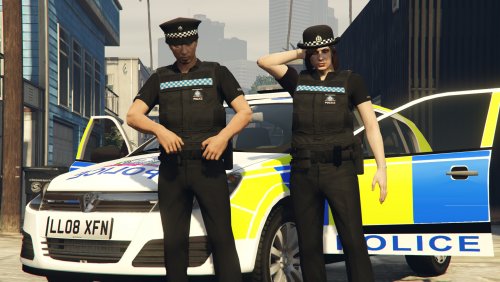 ive added this to the five m server side eup , it works when you use a trainer but doesnt work with the eup_ui as its written differently for example : where as in the read me included it only says this : MALE Peaked cap - Hats 47 Texture 1 Baseball cap f - Hats 10 Texture 1 Baseball cap b - Hats 11 Texture 1 Trousers (default space) - Lower 36 Texture 1 Trousers (replaced) - Lower 38 Texture 1 Polo shirt - Shirt overlay 95 Texture 1 Black fleece jacket - Shirt overlay 62 Texture 1 High vis jacket - Shirt overlay 62 Texture 3 Blue jumper - Shirt overlay 51 Texture 4 Vests - Accessories2 28 textures 1,2,3, 4, 5 & 6 and the shirt and tie would be default items Shirt - Shirt overlay 14 Texture 1 Tie - Teeth 11 Texture 3 need a way of finding out how to change the 2nd list into the first to create it as an eup uniform so im 50% there already if anyone can help that would be awesome 🙂
- 32 comments
- 4 reviews
-

