
94lima
Members
-
Joined
-
Last visited
Everything posted by 94lima
-
i dont know what to do. Ive tried different vehicles. everything loads in fine. Just my sound crashes that it. I cant still play the game. Els lights work. THe panel works.. i can go through the stages etc. just my sound disappears 😞
-
Downloaded fresh install of gta v. Followed all tutorials. I put one custom car in that was els compatible. When i press j all my sound crashes. Lights work. Game works fine. But i lose all sound. For life of me i cant figure out why. 8 hours in 😪
-
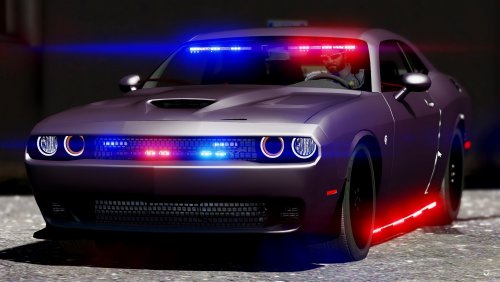 I placed this in lates patchday and it still didnt work? Anything im doing wrong?
- 85 comments
- 45 reviews
-
 Albo, i need help lol, My siren mastery is working but when i load in game only some of the sirens i want are in the game for specific vehicles. i have them in the custom sirens folder but they still dont work. Is this wrong setup? <?xml version="1.0" encoding="utf-8"?> <SirenControl> <VehicleSirenSetup> <VehicleModel>***police***</VehicleModel> <VehicleModel>***FBI2***</VehicleModel> <VehicleModel>***Sheriff2***</VehicleModel> <VehicleModel>***police2***</VehicleModel> <Sirens> <Siren1 SirenType="Primary">Main.wav</Siren1> <Siren2 SirenType="Secondary">POLICEMAIN2</Siren2> <Siren3 SirenType="Secondary">RamHiLo1</Siren3> <Siren4 SirenType="Secondary">RamHiLo2</Siren4> <Siren5 SirenType="Secondary">RamHiLo3</Siren5> <Siren6 SirenType="Secondary">RamHiLo4</Siren6> <Siren7 SirenType="Secondary">RamHiLo5</Siren7> <Siren10 SirenType="Horn">horn</Siren10> </Sirens> </VehicleSirenSetup> </SirenControl>
- 852 comments
- 108 reviews