.gif.12c33eb2e7c4c66bf6da3b9d0d5a7480.gif)
PDaniels
Members
-
Joined
-
Last visited
Everything posted by PDaniels
-
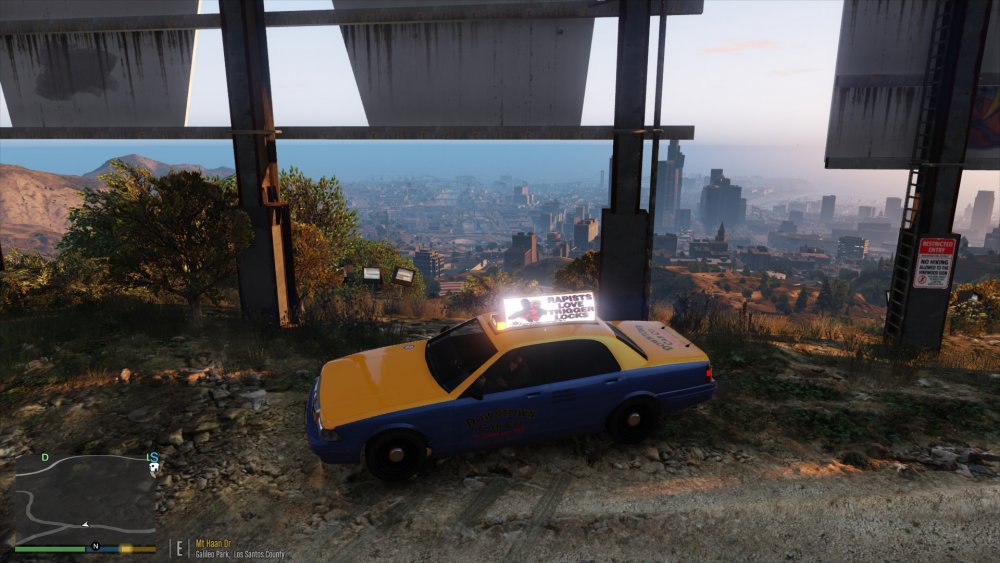
This is a fix for the Vanilla Taxi rooftop ads To keep them from being blindingly bright while keeping the visualsettings.dat intact. This does not edit visualsetting.dat, it is just a texture replacement for the taxi's, so your emergency lights keep looking great. DISCLAIMER I know that the colors have been distorted, I am not a Photoshop master. My goal was to reduce the glare and I feel I achieved what I wanted. I wasn't going to spend a lot of time editing something that isn't important( I spend close to zero time in the taxis and I never just sit and look at the ads) to my game play, from afar it still looks like an advert and doesn't blind me when I'm on patrol. So keep that in mind if reviewing. If you want it to look better, I invite you to make the edit your self. ----------------------------------------------------------------------- INSTALLATION With OPENIV go to GTAV/MODS/x64e.rpf/levels/gta5/vehicles.rpf and open taxi.ytd drag and drop the included taxi_signs_2 to replace the existing texture agree to the pop up window, Click save and Exit OpenIV Then Play GTAV with out being blinded by the Taxi's ----------------------------------------------------------------------- NOTE Tested with VisualV w/ Radiance V v1.8 It may be too dark with other mods that edit visualsettings.dat
- 7 comments
- 7 reviews
-
-

- 10
-
-
Edit: I made it and uploaded it here, If anyone is interested I "made" a fix. The taxi fix in custom visuals basicly just applied a dark filter over the taxi ad textures, but gave the ads an orange hue and didnt dull it enough for me. so I took the vanilla textures, I even replaced the ads with some of my own and then used paint.net to change the brightness till I liked it. If there's interest I can Upload my edit to the vanilla taxi signs(with default ads) Also I stuck with Visual V and Radiance V because custom visuals didnt work with some of the police cars I'm using. Thanks guys for the input
-
It's there, I couldnt tell you the line for street lights but the path is, .../GTAV/update/update.rpf/common/data/visualsetting.dat
-
-
This is what I'm Using. I like it and its very clean sounding, it doesnt sound dry or detached from the game.
-
I was looking at that last night, i'm going to be up all night so I'll try that, thanks
-
-
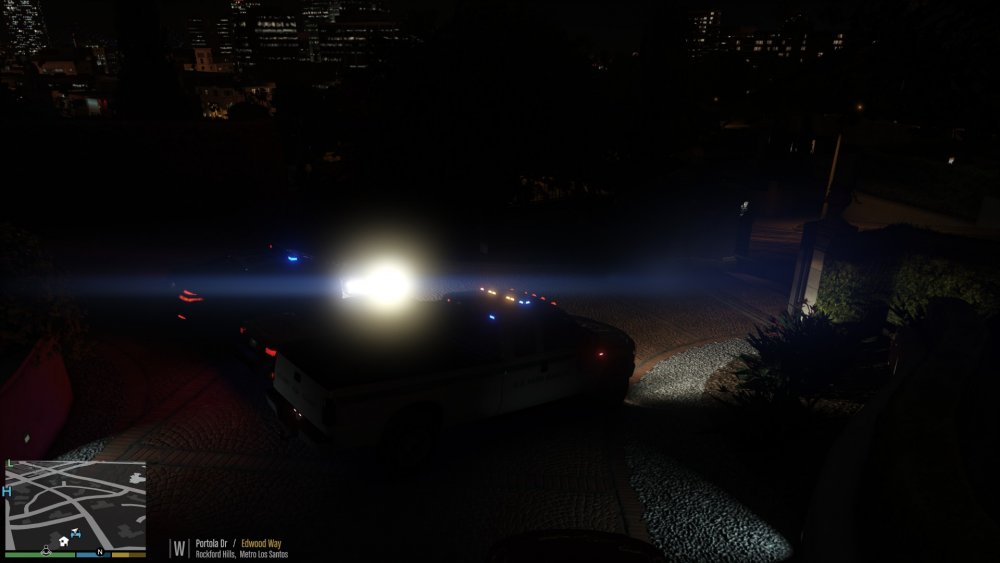
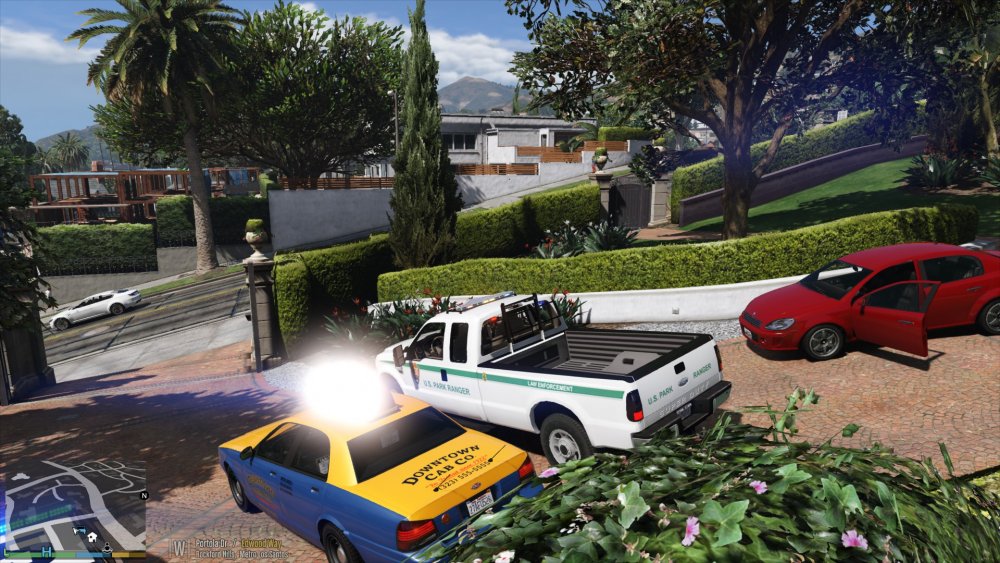
So I love what Radiance V does to the game but I have only one problem which is the ad light on top is blinding during the day and the night. but from best i can tell by editing the misc.coronas settings in visualsettings.dat reduces it but also dulls emergency lighting. Am i going about this wrong or is there a way I can isolate the taxi ad lights. What leads me to suspect that there might be a way to isolate is because that park ranger truck pictured( SOLDI3RFX 's 2010 F350) light bar light bloom is very surpressed compared to other light bars(how is that changed?) to the point that when the misc.corona is edited where the taxi is no longer blinding they don't look good. I am using Visual V in n with Radiance V EDIT: I have tried Realistic radiance. I am new to GTA Modding, and trying to learn what files do what and understanding how to edit them.
-
When using OpenIV its in GTAV/mods/update/update.rpf/common/data/visualsetting.dat and its on line 0167 mine is set at 5.0 the default for Radiance V
-
.thumb.gif.99941e41c4edf64b0e53ee69b6a80148.gif)