

DrWyatt
Members
-
Joined
-
Last visited
Everything posted by DrWyatt
-
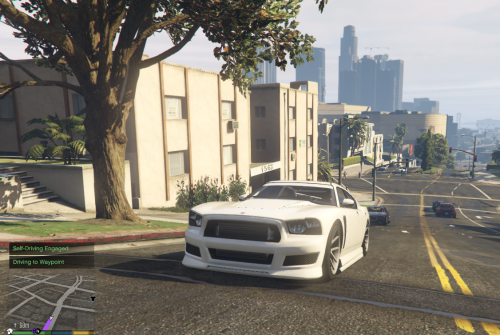 Or for the Muiltitasking officer, or the AFK one, or for whatever officer that would like this. :D
 -
Tired of waiting for Tesla to release their Self-Driving cars for Grand Theft Auto 5? Then wait no more. Self-Drive is a Plugin that lets you give full control of your vehicle to AI, but in the other hand gives you the power to select your speed and set waypoints to give it a destination. A route feature is on the works, but no ETA. Installation Guide: Extract the Downloaded File to Any Directory Open the folder "SelfDrivev10" Open the folder "Grand Theft Auto V" Copy all the contents of this Folder to your GTA V root directory Enjoy :D Requires: Rage Plugin Hook 0.39+ How to Use It: Press U to engage/disengage Self-Driving Mode Set waypoints to direct the AI into somewhere specific (Optional) Use Numpad1 and Numpad3 to Decrease and Increase your speed, respectively Known Bugs: None PS: If you set a waypoint, the Plugin drives you there and stops, you can change it in the SelfDrive.ini file. PS2: Feel free to leave suggestions and questions in the comments, or in a PM. This mod is now deprecated, I strongly suggest downloading Cyron43's VAutodrive instead, you can find it at https://www.gta5-mods.com/scripts/vautodrive.