THED
-
Joined
Everything posted by THED
-
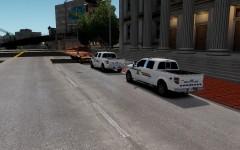
From the album: F-150 RCMP
I know there is many of this skins out there but these are made personally by ME they maybe not be released. -
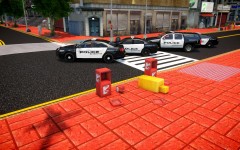 Here http://www.gta4-mods.com/misc/different-hd-roads-f23499
 -
Police Interceptor Pack
-
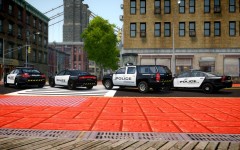
From the album: Police Interceptor Pack
Police Interceptor Pack -
From the album: Police Interceptor Pack
Police Interceptor Pack -
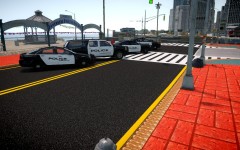
From the album: Police Interceptor Pack
Police Interceptor Pack -
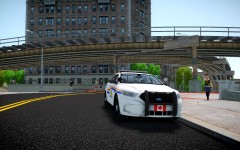 Thanks this was a old skin I made couple of months ago.
 -
-
-
-
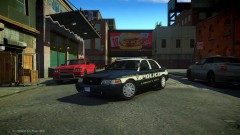 Nice Skin I Love It :)
 -
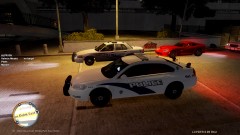 Vic of Course.
 -
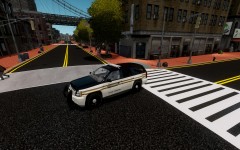 Yea I have notice that.
 -
Tennessee State Trooper Tahoe Skin Coming Soon...
-
From the album: Tennessee State Trooper
Tennessee State Trooper Tahoe Skin Coming Soon.... -
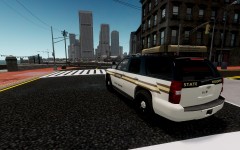
From the album: Tennessee State Trooper
Tennessee State Trooper Tahoe Skin Coming Soon.... -
-
-
 The same thing use to happen to me.
 -
-
-
Dear THECTM405
-
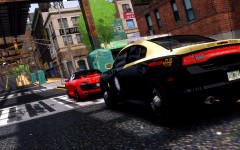
From the album: FHP Patrol
You Can Run But You Can't Hide. -
-