


JLGACC
Members
-
Joined
-
Last visited
Everything posted by JLGACC
-
Not sure that is going to work. When I play the game in regular mode. I hit F4 to bring up the load screen and nothing happens. I tried deleting the game, and re-installing, and deleting the two trainer files out. Can't bring up the load screen though. Must be missing something. I'm not a big modder, so I'm sure it's something simple/stupid.
-
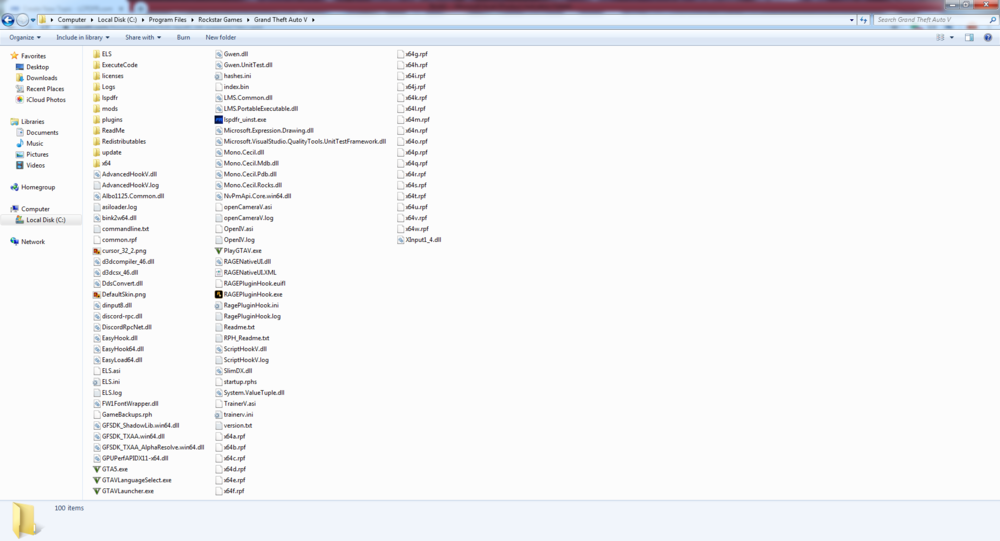
Getting an error message about LSPDFR freezing when the game is trying to load. Below is my log-file. I've run Albo's trouble-shooter. No issues there. Anything look like it's missing?
-
Getting an error message about LSPDFR freezing when the game is trying to load. Below is my log-file. I've run Albo's trouble-shooter. No issues there. Anything look like it's missing?
-
-
-
Downloaded the below vehicle: Car looks great, but can't get the ELS module to work. First time messing around with ELS. I have the following downloaded: ELS Trainer SciptHook ScriptHookV ASI is Turned on I put the vehicle XML File in the ELS folder, but still no light and no siren. Been playing around with it for the past hour, but nothing works. I'm sure I'm missing something. Any ideas? Thanks!
