


shmicko
Members
-
Joined
-
Last visited
Everything posted by shmicko
-
lol what, just putting up a LSPDFR screenshot
-
.thumb.jpg.fc83e7c679de7b577eba24b49e75bb8d.jpg) Gday mate. Thankyou, and VicPol currently dont use tnis vehicle but they use Mercedes Benz AMCs aand also new Ford xr8 whith the new Towards Zero campaign car. Make sure you you have edited dlclist right
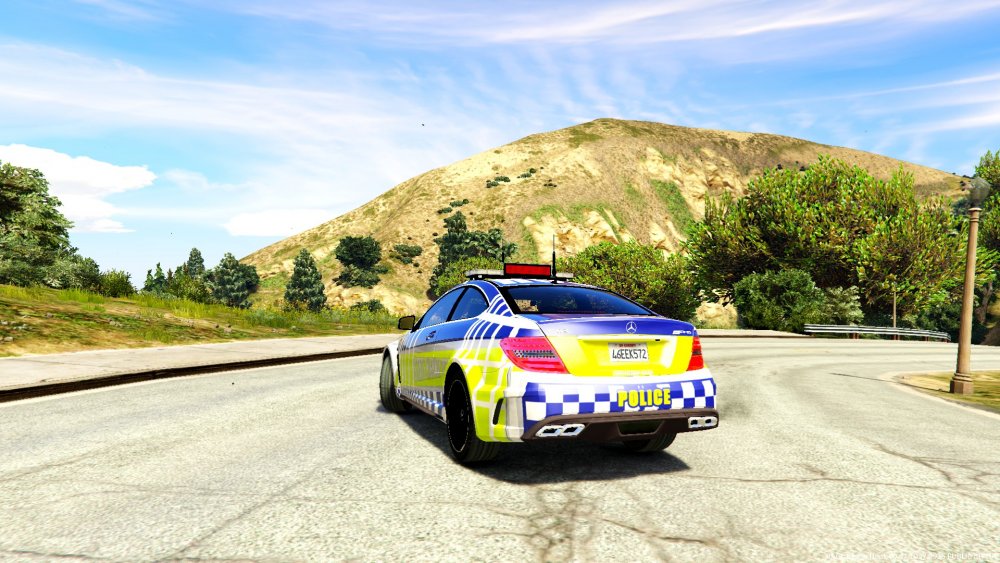
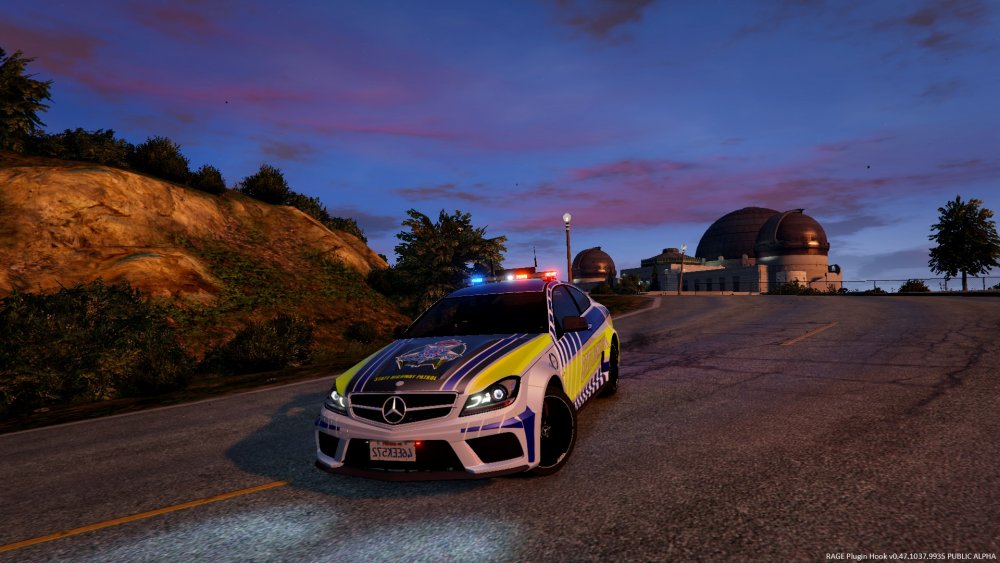
Shmicko Mods Towards Zero Highway Patrol Merc v0.1 Drove past one of this babies not long ago.. TO GET THE SOUND TO WORK, Open up the addon vehicles.meta and replace <audioNameHash /> with <audioNameHash>POLICE</audioNameHash> Credit: Model - Foroza Model Converted - Shmicko Template - Shmicko Uv-Map - Shmicko Police Equipment - Shmicko, Jacob Have fun with this model and feel free to make a new texture. The one i made was quick. DO NOT REUPLOAD ANYWHERE ELSE. DO NOT MODIFY OR RIP THE MODEL. LEGAL ACTION CAN BE TAKEN. Bugs: (THIS IS BETA MODEL SO A LOT OF SMALL DETAILS DONT WORK AKA DIALS) - Hands on wheel - Seat positioning - Handling - Unbreakable glass - Install: locate: C:\Steam\steamapps\common\Grand Theft Auto V\mods\update\x64\dlcpacks and drop the "towardszero" folder in there. Then locate: C:\Steam\steamapps\common\Grand Theft Auto V\mods\update\update.rpf\common\data\dlclist.xml extract that some where and at the bottom of the list add <Item>dlcpacks:\towardszero\</Item> Then you are complete :) To spawn just go to trainer, spawn vehicle by name, then type towardszero1Oh sorry! I'll do that now :)
Gday mate. Thankyou, and VicPol currently dont use tnis vehicle but they use Mercedes Benz AMCs aand also new Ford xr8 whith the new Towards Zero campaign car. Make sure you you have edited dlclist right
Shmicko Mods Towards Zero Highway Patrol Merc v0.1 Drove past one of this babies not long ago.. TO GET THE SOUND TO WORK, Open up the addon vehicles.meta and replace <audioNameHash /> with <audioNameHash>POLICE</audioNameHash> Credit: Model - Foroza Model Converted - Shmicko Template - Shmicko Uv-Map - Shmicko Police Equipment - Shmicko, Jacob Have fun with this model and feel free to make a new texture. The one i made was quick. DO NOT REUPLOAD ANYWHERE ELSE. DO NOT MODIFY OR RIP THE MODEL. LEGAL ACTION CAN BE TAKEN. Bugs: (THIS IS BETA MODEL SO A LOT OF SMALL DETAILS DONT WORK AKA DIALS) - Hands on wheel - Seat positioning - Handling - Unbreakable glass - Install: locate: C:\Steam\steamapps\common\Grand Theft Auto V\mods\update\x64\dlcpacks and drop the "towardszero" folder in there. Then locate: C:\Steam\steamapps\common\Grand Theft Auto V\mods\update\update.rpf\common\data\dlclist.xml extract that some where and at the bottom of the list add <Item>dlcpacks:\towardszero\</Item> Then you are complete :) To spawn just go to trainer, spawn vehicle by name, then type towardszero1Oh sorry! I'll do that now :)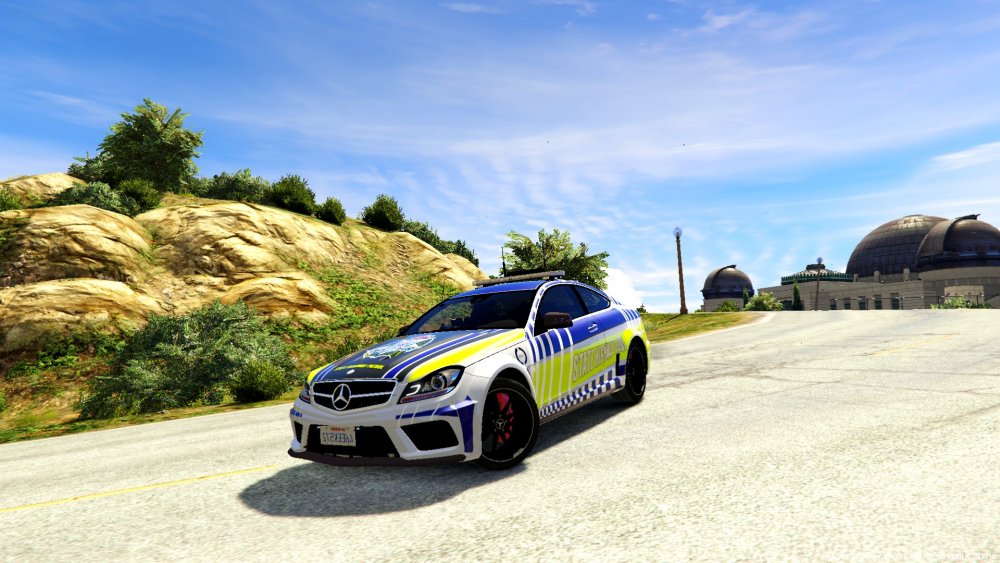
 I'm good in Zmodeler3 Everything was converted by me, but a few consol things. I model so all lightbars or extra car parts are by me. Looking for fun people to play with on a multiplayer lspdfr server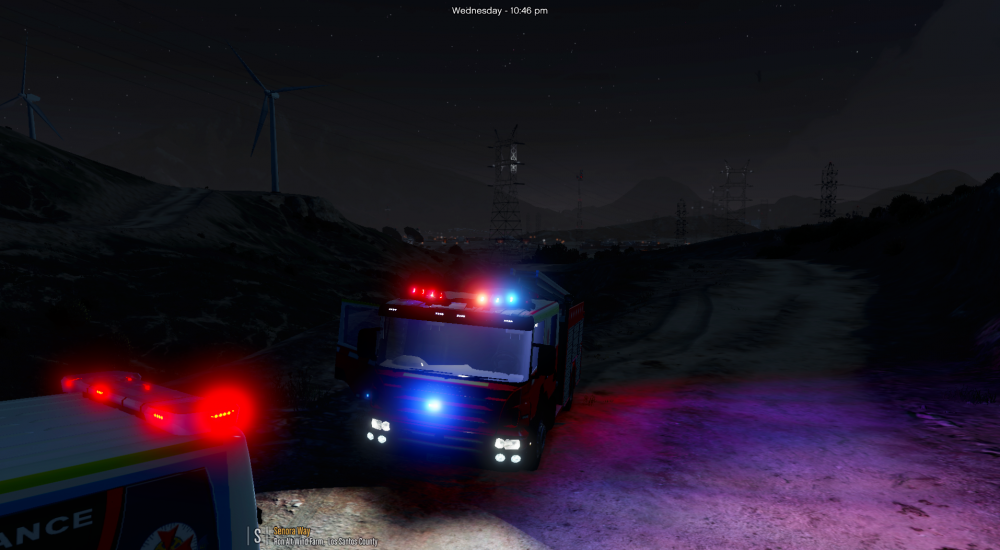
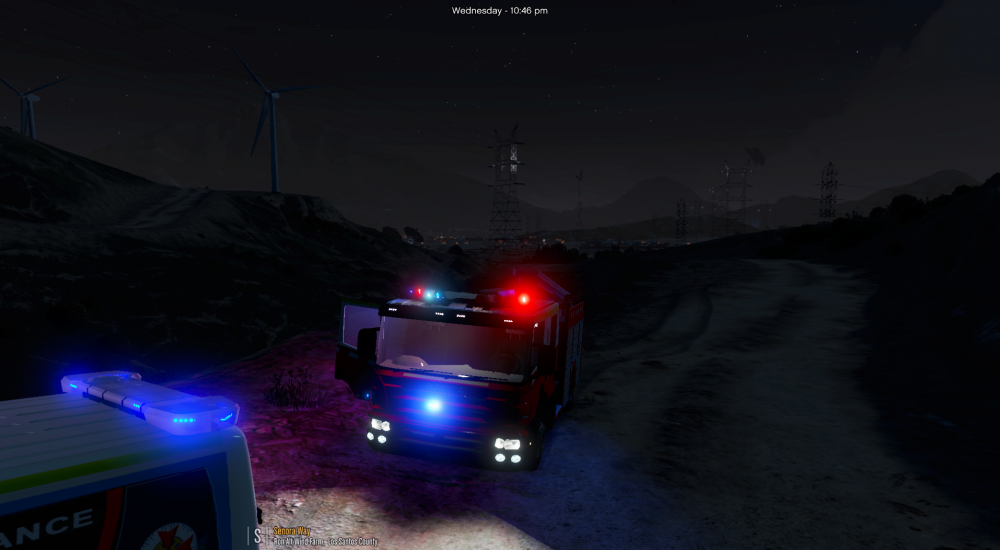
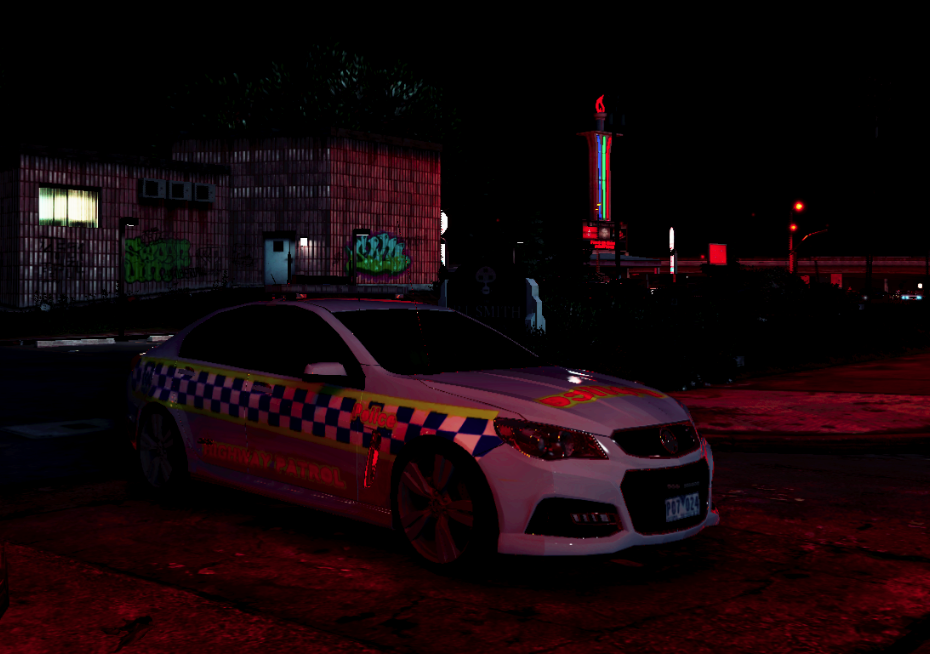
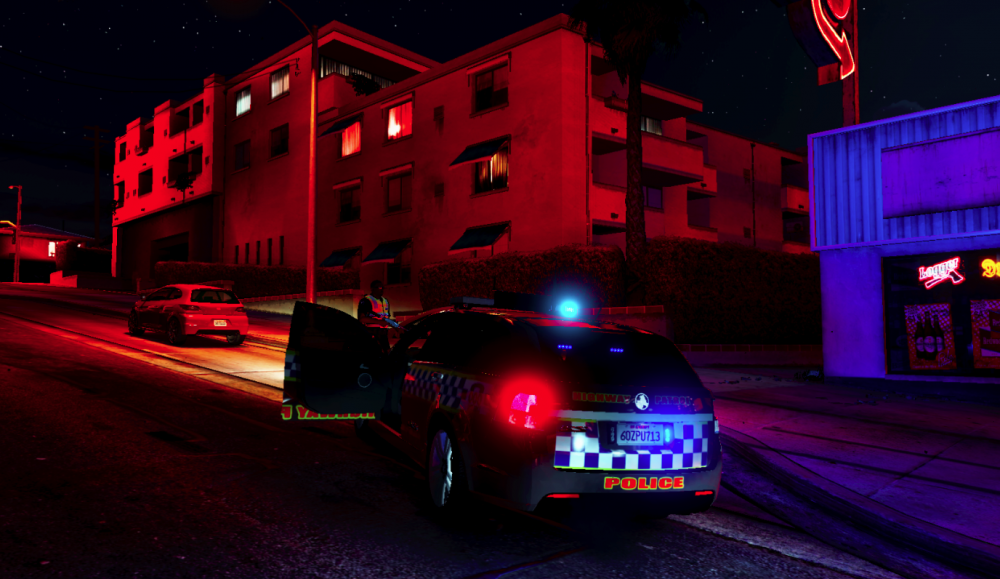 Welcome guys! This is a post about all my models and in game HD photos. Its all going to be Victorian Emergency Vehicles/PED With maybe some other stuff I work on My Gallery Cheers Guys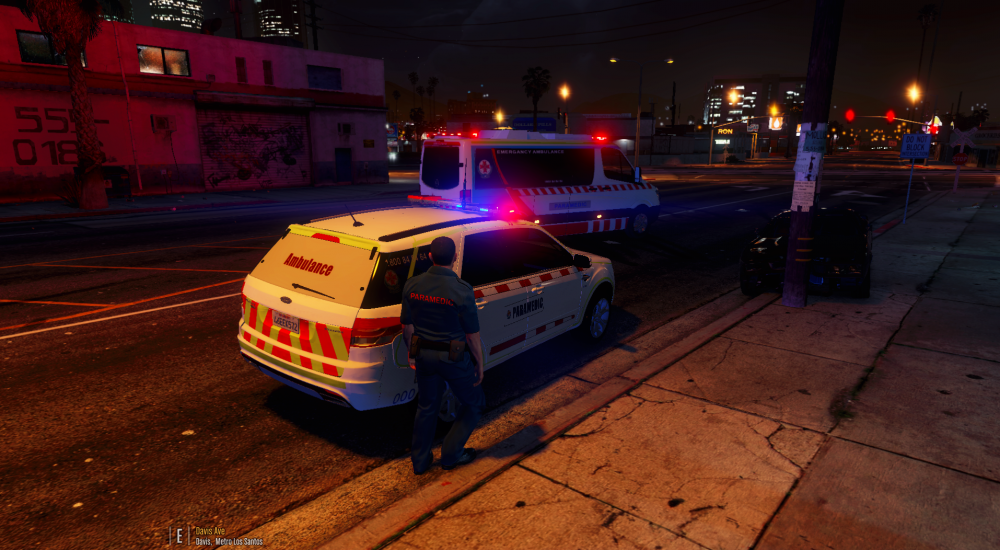
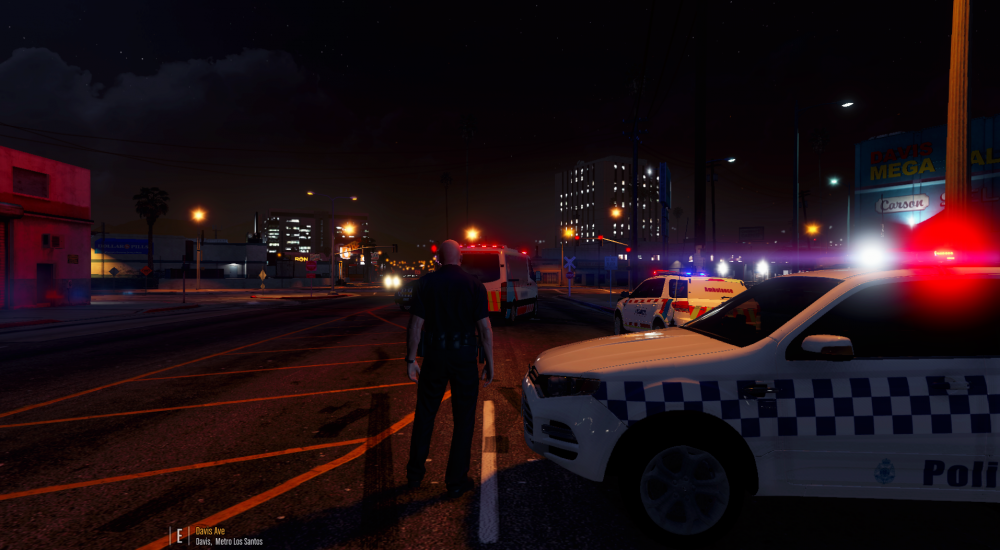
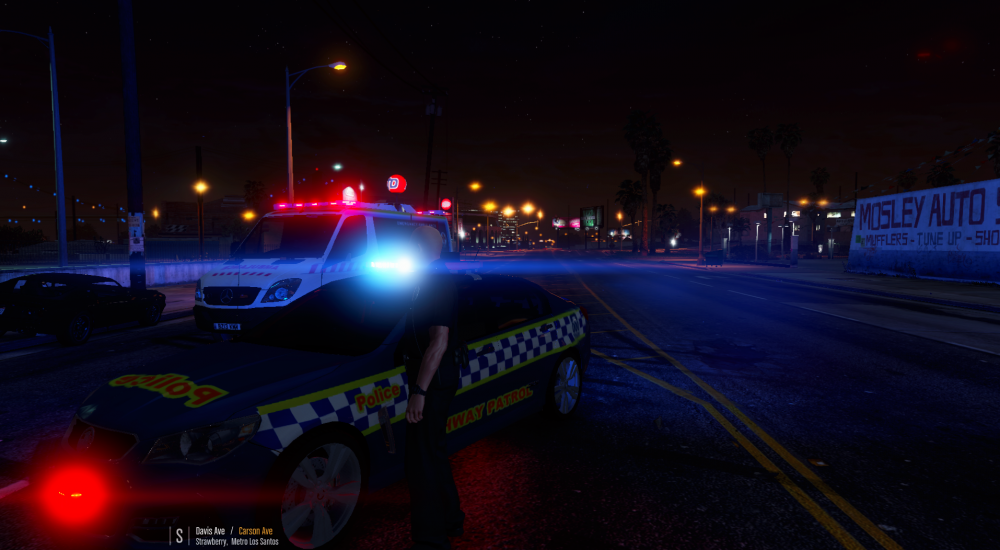
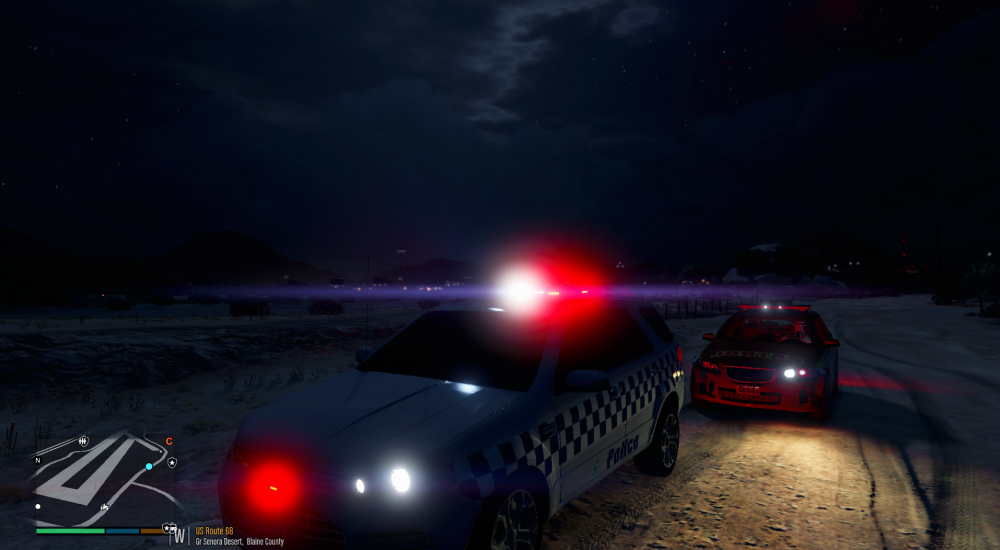
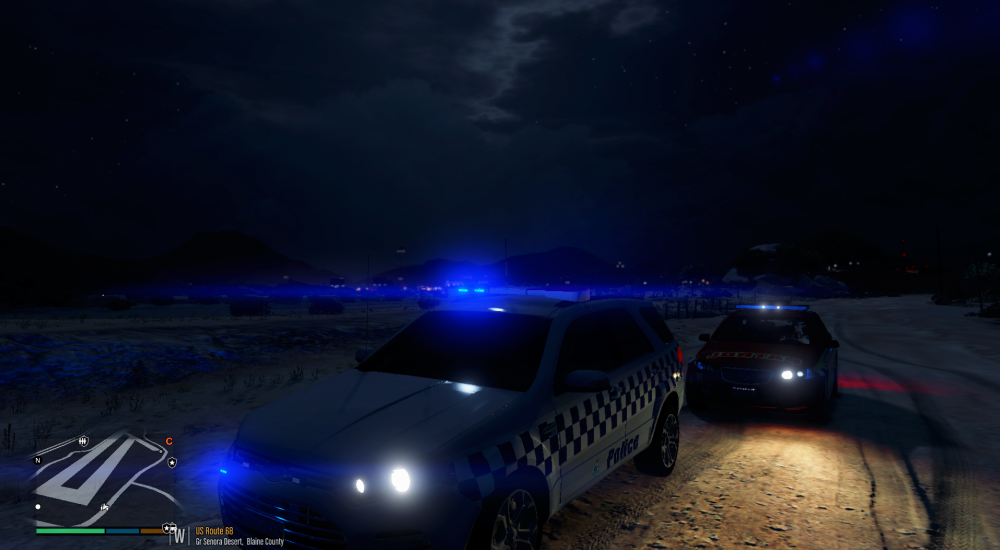
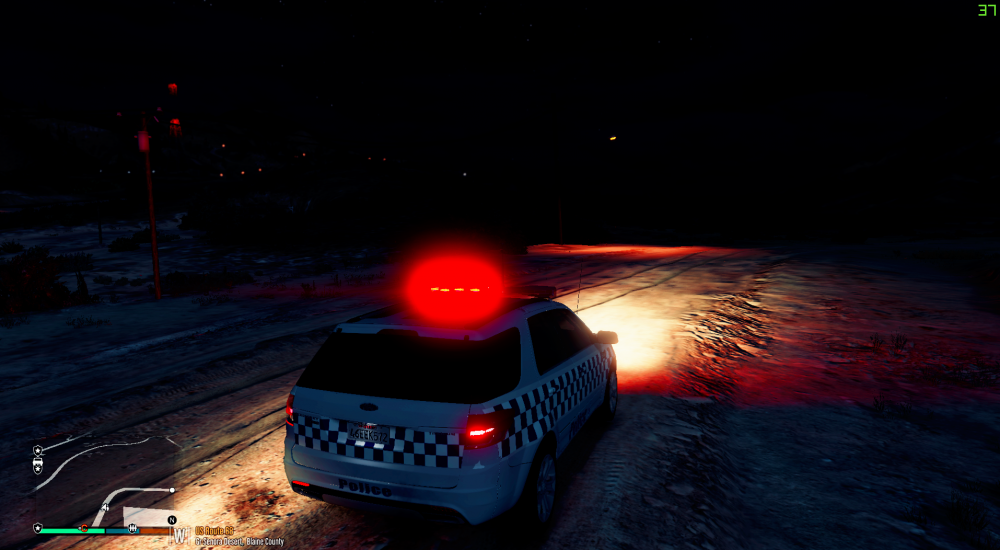
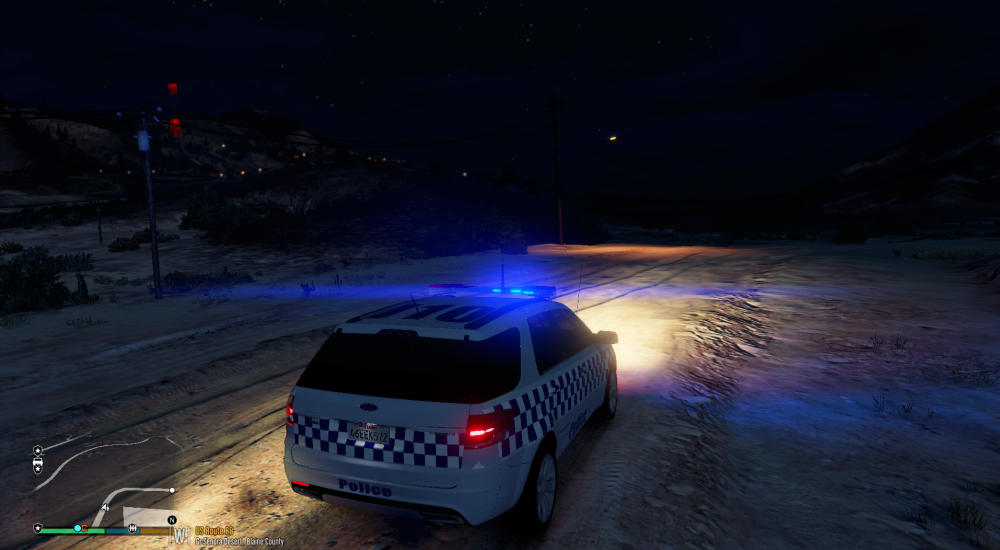
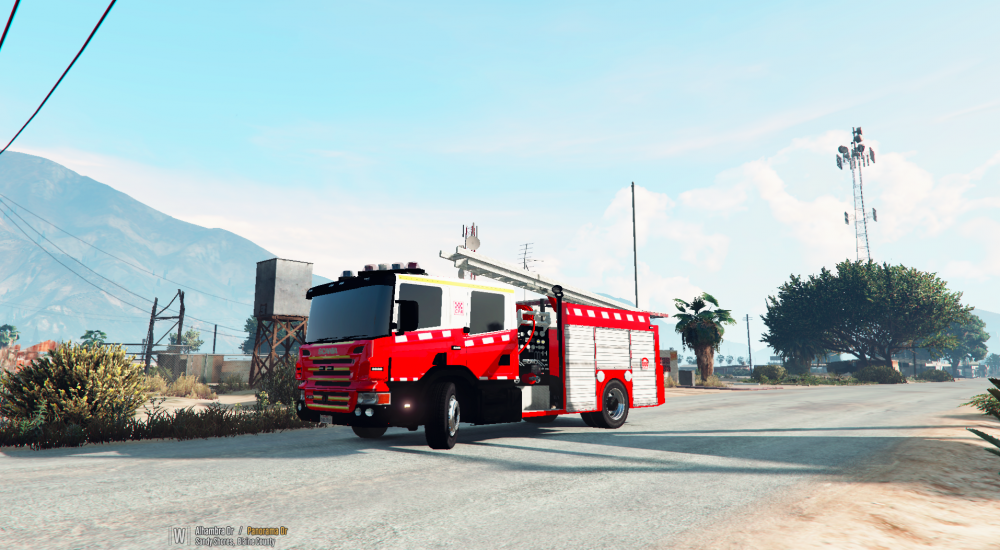
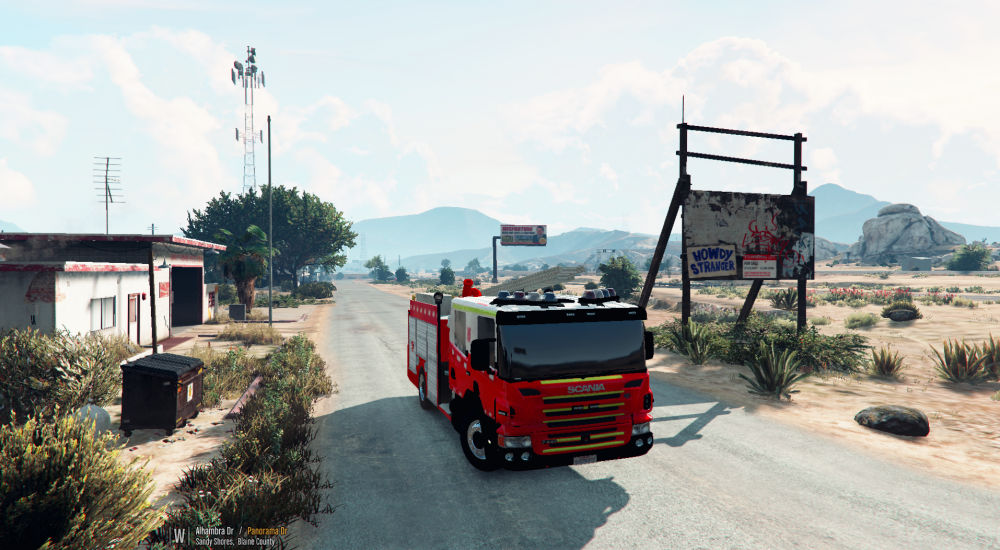
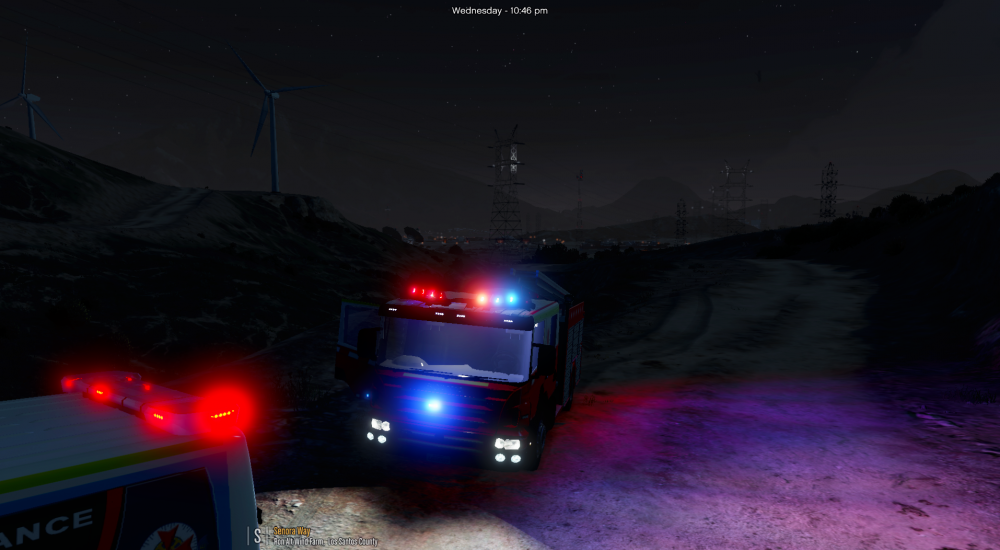
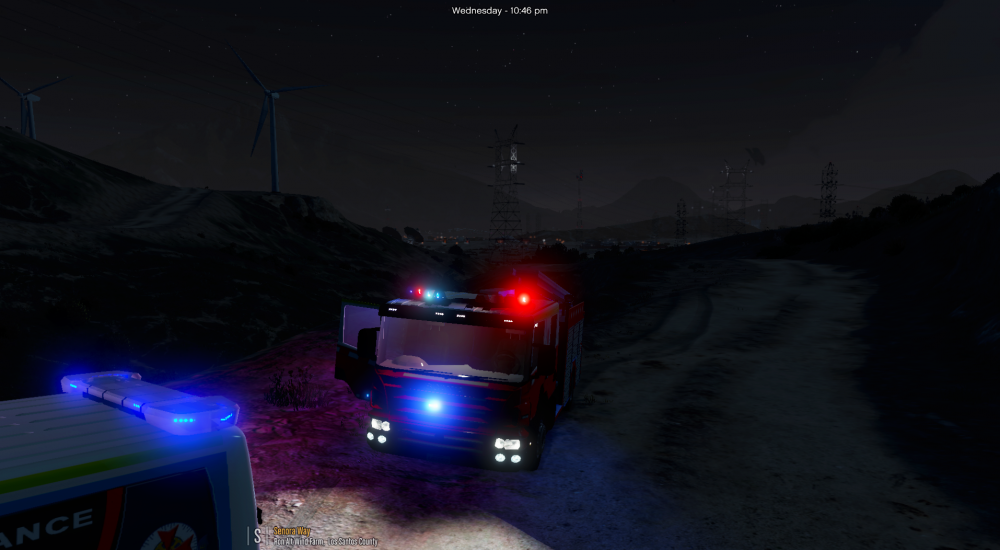
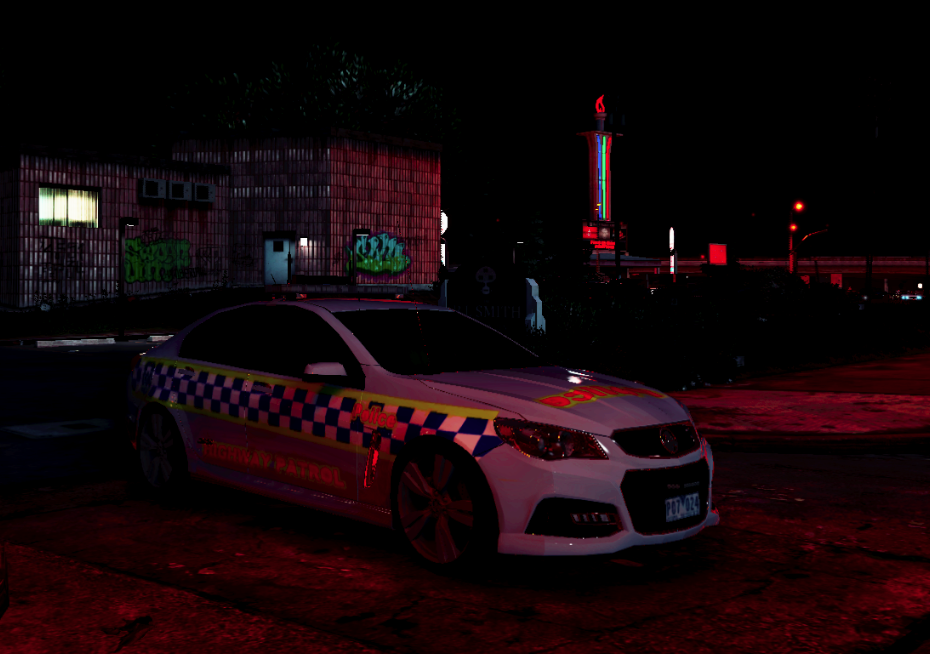
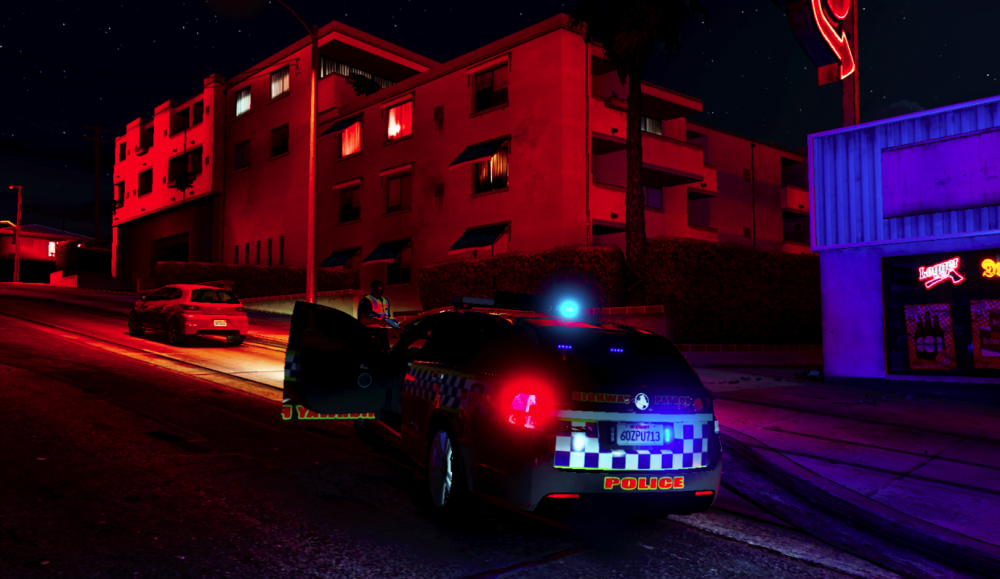
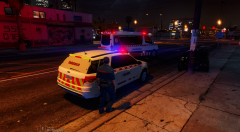
From the album: Victorian Police
-
Victorian Emergency Services
-
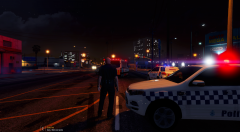 Victorian Emergency Services
-
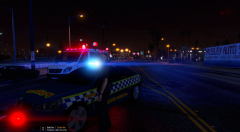 Victorian Emergency Services
-
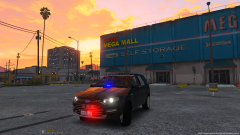
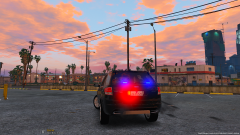 GTA5 2016-09-12 23-58-42.png
-
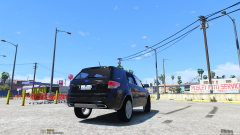
 GTA5 2016-09-12 23-58-36.png
-
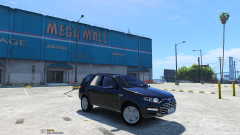
 GTA5 2016-09-12 23-58-13.png
-
 GTA5 2016-09-12 23-58-05.png
-
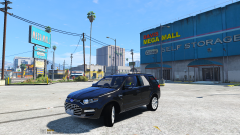 Victorian Police Ford Territory Unmarked
-
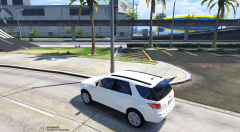 GTA5 2016-09-11 06-06-13.png
-
 GTA5 2016-09-11 06-05-37.png
-
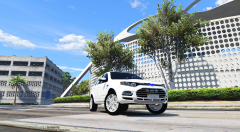 GTA5 2016-09-11 06-05-28.png
-
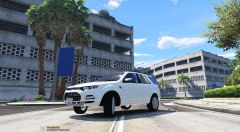 VicPolice
From the album: Victorian Police
From the album: Victorian Police
Yeah it can go into any slot, youlll just have to always install the vehicle.meta file. Probably will
After i model an interior
From the album: Victorian Police
From the album: Victorian Police
From the album: Victorian Police
From the album: Victorian Police
From the album: Victorian Police
From the album: Victorian Police
From the album: Victorian Police
From the album: Victorian Police


.jpg.67dbee2f4550f7cb72e81c87c0baf333.jpg)
.thumb.jpg.fc83e7c679de7b577eba24b49e75bb8d.jpg)


Account
Navigation
Search
Configure browser push notifications
Chrome (Android)
- Tap the lock icon next to the address bar.
- Tap Permissions → Notifications.
- Adjust your preference.
Chrome (Desktop)
- Click the padlock icon in the address bar.
- Select Site settings.
- Find Notifications and adjust your preference.
Safari (iOS 16.4+)
- Ensure the site is installed via Add to Home Screen.
- Open Settings App → Notifications.
- Find your app name and adjust your preference.
Safari (macOS)
- Go to Safari → Preferences.
- Click the Websites tab.
- Select Notifications in the sidebar.
- Find this website and adjust your preference.
Edge (Android)
- Tap the lock icon next to the address bar.
- Tap Permissions.
- Find Notifications and adjust your preference.
Edge (Desktop)
- Click the padlock icon in the address bar.
- Click Permissions for this site.
- Find Notifications and adjust your preference.
Firefox (Android)
- Go to Settings → Site permissions.
- Tap Notifications.
- Find this site in the list and adjust your preference.
Firefox (Desktop)
- Open Firefox Settings.
- Search for Notifications.
- Find this site in the list and adjust your preference.