


tboes
Members
-
Joined
-
Last visited
Everything posted by tboes
-
They stay solid and do not flash like they should
-
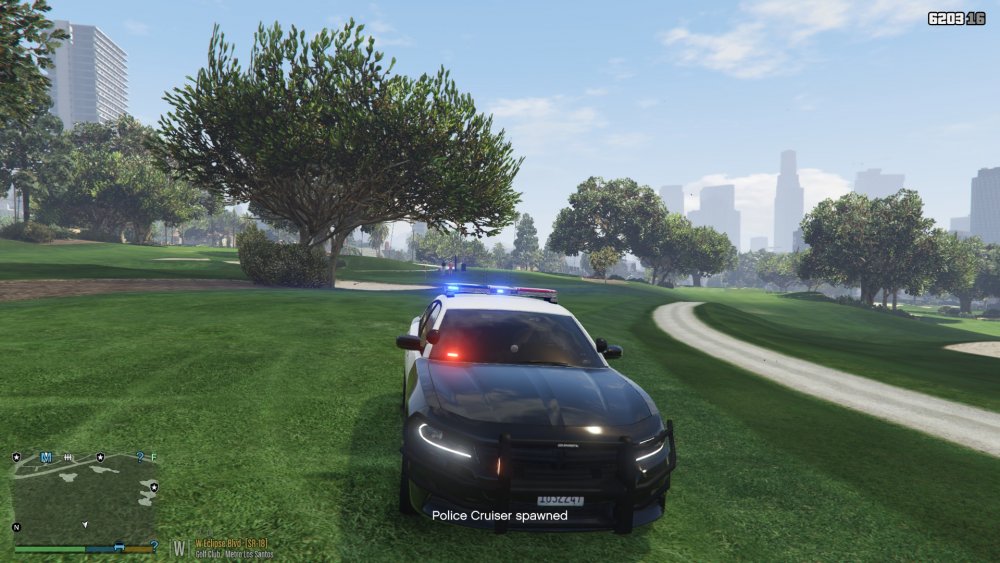
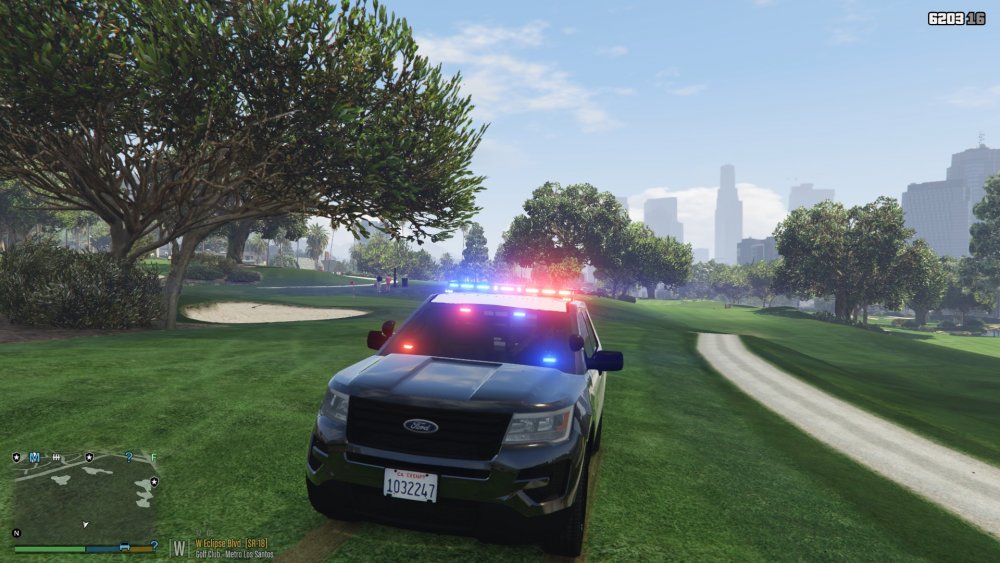
I installed ELS way back when I first started playing LSPDFR which it worked fine and everything. But I recently downloaded Radiance 5 with the "bright" setting and since then my lights look like this (pictures below). I have tried to uninstall the ASI Manager stuff then reinstall and that has not fixed the issue. Please someone explain to me why this is happening
-
So I have been having issues with figuring out exactly where/how to determine which vehicles goes in which patchday file and etc. I have been looking all over the internet for a fix but I cannot find a clear guide on this topic. If someone could please link me to a website or tell me information regarding this topic that would be very helpful
-
Hello, I cannot seem to figure out why my LCPDFR will not work on gta 4. When I first load gta 4 it pops up with an error saying "Error in script 'LCPDFR_Loader.Loader'!" Please help me fix this. I have Callouts+,n GodModeGTA.net (Which I think is a simple police menu thing), indicator script, LCPDFR Loader,net.dll, Sp4s12sNewCallouts (both .dll and .net.dll) installed in the scripts folder. And in the plugins folder I have Backup..net.dll. Please help me fix this. I don't know what any of this stuff means or what part everyone will need to see in order to fix it so here is the entire thing.LCP Staff Edit: Put your login a spoiler tag. Please do this in the future. Thread moved as well. -CM JAM

