
sixium
Friends of LSPDFR
-
Joined
Everything posted by sixium
-
 It's an orderable option.
 -
R.I.P.
-
-
There is also the option of donating
-
^^ can't wait
-
I assume this might be a side-affect of the site-wide ad issues that we've been experiencing the past day or so.
-
I'd say go for both!
-
-
-
-
Yes, it does.
-
-
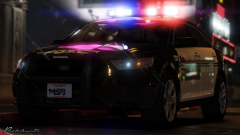 For some reason this image reminds me of the best-of-CryENBv3 from GTAIV
 -
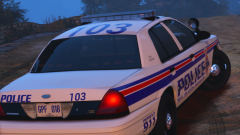 I upload to imgur and just link to them in the message, as many images you want, no limit, no attaching, lasts forever.
 -
-
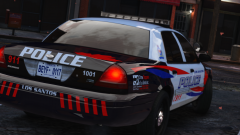 SIIIIIIIIIIIIIIIIIIIIIIIIIIICCCKKKKKK
 -
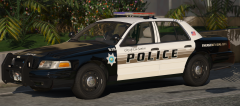 There is sucha thing as a one-car-pack yo
 -
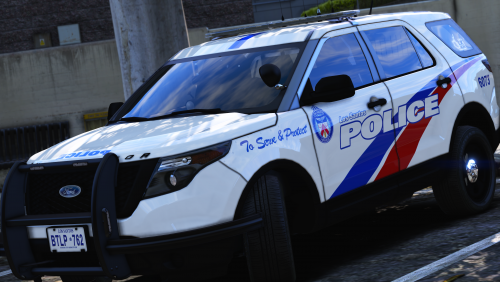 Breathtaking. You even have the reflective dots, that's a detail many people miss. Top notch, A+
- 36 comments
- 8 reviews
-
-

- 1
-
-
-
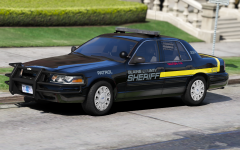 The officer is gone too; logical conclusion: the officer took the pupper out on a walk. Duh.
 -
-
-
 Yummy
Yummy -
You don't have to kill people, or even shoot. Just try arresting them. If they run, chase them. If they resist, hit them with your fists or your nightstick, or hit them with your taser. However, if they are shooting at you, protocol would be to shoot back, to kill, even in real life. I don't see any issues here.
-
Like he said, look in the description.

.png.7ff6ef4a848ef1889b2df9450f99538c.png)