


EricMC
Members
-
Joined
-
Last visited
Everything posted by EricMC
-
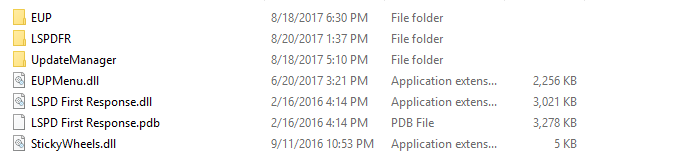
I get 60 FPS smooth for the most part since I only have a 60HZ monitor when I'm playing GTA in story mode WITH Make Visuals Great Again. After I download LSPDFR and all my mods, I get around 50. It looks very choppy when I'm playing, but I have to choice to lock my FPS to 50 with the 50HZ option. The reason for the lag is obviously because of something I downloaded LSPDFR related and I think it's one of my plugins, not my mod itself. If you guys know the mods that cause this, I would love to know. I'm probably guessing they're plugins like traffic policer and arrest manager and I just can't get rid of those. But if it's something I can, I'll do it. Also, I have a GTX 1070, i5 6600k, and 8GB of RAM. I'm running on the Steam version of GTA5 and everything is up to date. GTA 5 Folder + Plugins:
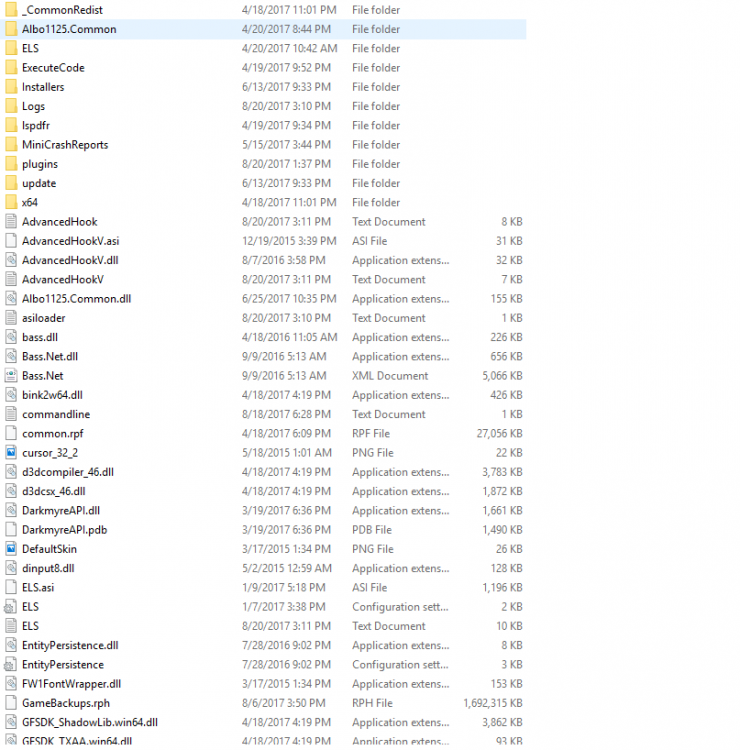
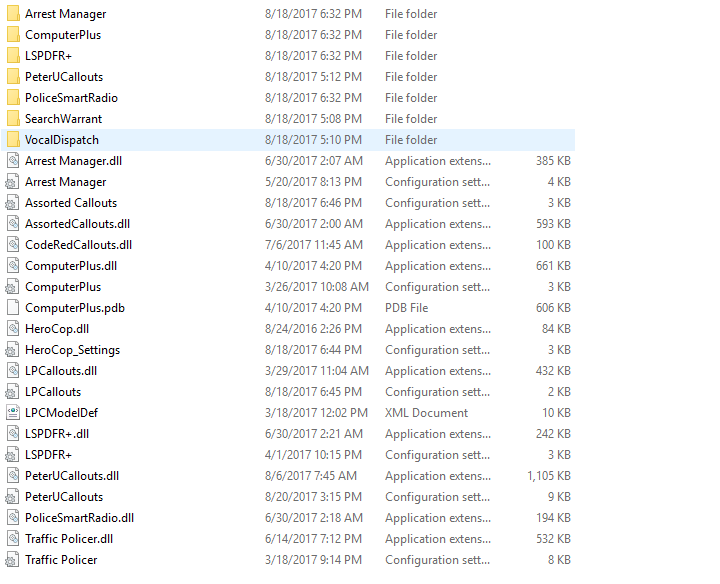
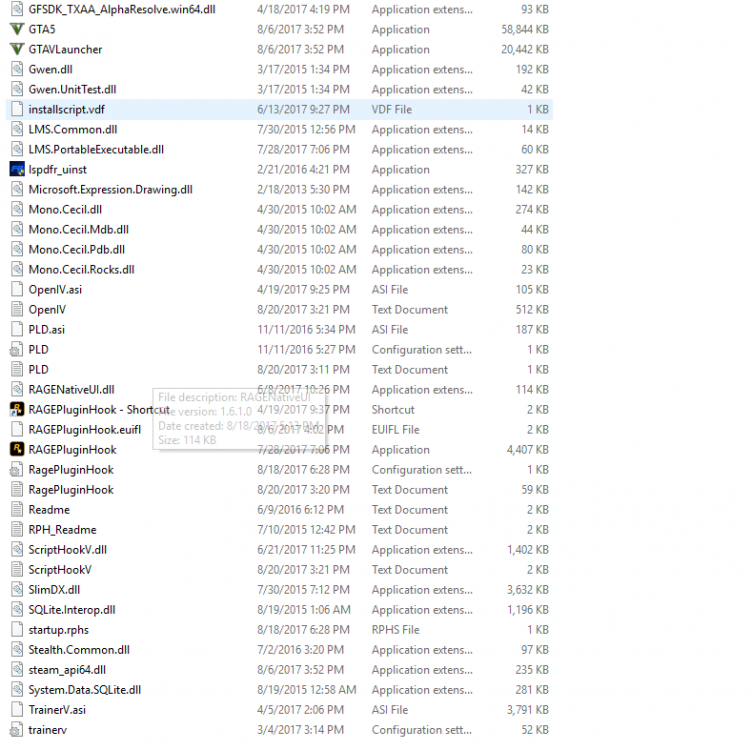
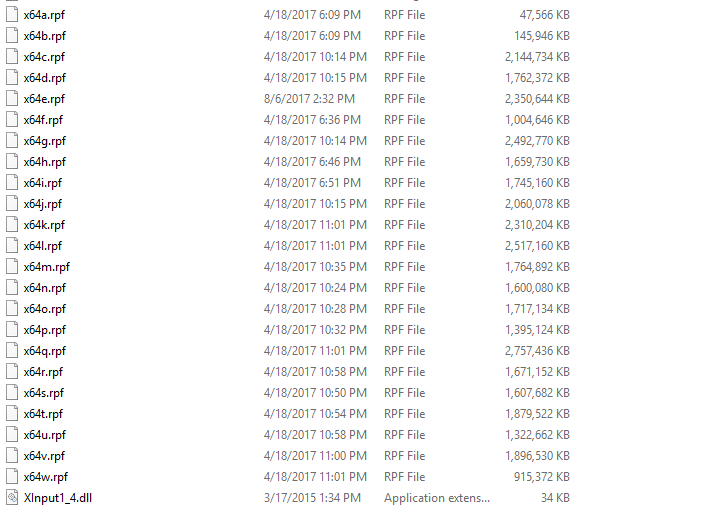
-
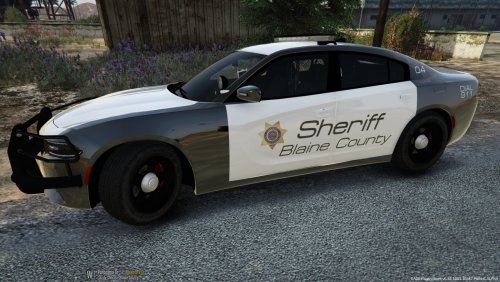 I might turn this into a pack if I get time to make a Tahoe or something else. Enjoy it anyways. (for the Charger below)
 -
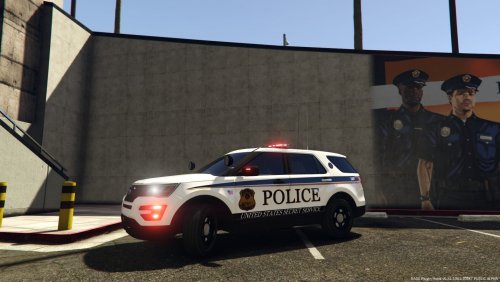 @t0y Thanks for the feedback. The other two should actually be done in the next two days as I'm finishing one of the textures right now.
 -
This pack will include 3 cars; a 2016 FPIU, a 2014 Charger, and a 2016 Taurus. I requested kahlandir to do this for me, but I decided I would try to and this is my progress so far.


