


NinjaBeast
Members
-
Joined
-
Last visited
Everything posted by NinjaBeast
-
-
 Albo1125 I figured out my problem with Traffic Policer! My RPH was V38 But I updated it to V40 (Latest). The problem is some plugin I have is causing my game to crash... Perhaps you could tell me? RagePluginHook_19062016_122918.log
- 3,646 comments
- 306 reviews
-
 Im not good with logs Stealth22 But any chance you could tell me what caused my game to crash? RagePluginHook_19062016_122918.log
- 338 comments
- 46 reviews
-
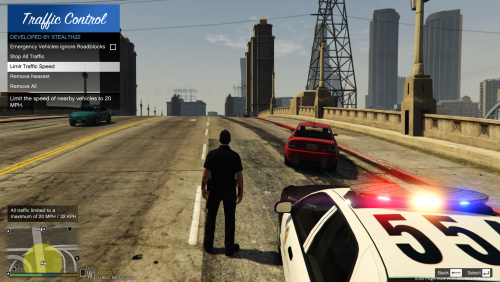
rage is 1.4.1.0 but what do u mean by RPH 0.40? How come code 3 callouts and Traffic Control have 2 different versions of stealth.common and RAGENativeUI? Like in Traffic Controls ReadMe it says " The version of Stealth.Common.dll included with this package is v1.5.0.1. Older versions will not work; v1.5.0.1 is the same version included with Code 3 Callouts v0.6.0." Does this mean I have to get a downgraded version of Code 3 Callouts?
- 338 comments
- 46 reviews
-
Stealth22 I have installed both Albos Traffic Policer and your Traffic control. They both need different versions of RAGENativeUI. Also Traffic Policer wont work if stealth.common.dll isnt updated to the latest version. However Stealth.common.dll both need to be the same for code 3 callouts and Traffic control for Traffic Control to load. As stated in your ReadMe. But Code 3 callouts has a higher version stealth.common.dll. So I have to downgrade my Code 3 Callouts and it is all a huge mess so either Traffic Policer works and Traffic Control Does Not or Traffic Policer does not work and Traffic Control does. Pls fix and Update!
- 338 comments
- 46 reviews
