steven33811
Members
-
Joined
-
Last visited
Everything posted by steven33811
-
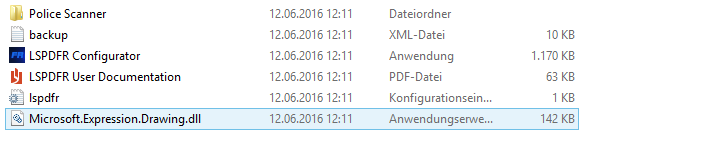
Guten Tag, ich habe folgendes Problem: Beschreibe Dein Problem deutlich und detailliert. Ich habe alles nötigen Komponenten installiert und wenn ich die RageHook.exe starte, dann kam zuerst das Fenster, wo ich alles Konfigurieren muss. Unten steht auch, dass RageHook mit meiner GTA 5 Version kompatibel ist. Wenn ich dann GTA 5 mit RageHook starte, dann lädt RageHook das Spiel, aber ich lande im Hauptmenü von GTA 5, wo ich Story-Mode, Online etc. auswählen kann. Wenn ich dann in den Story-Mode gehe, dann wird das Spiel ohne Mods bzw. RageHook geladen. Gebe an, welche Lösungen Du schon probiert hast. Komplette Neuinstallation und teilweise de- und Installation einzelner Komponenten. Gebe an, welche Version des Spiels Du benutzt (Steam oder SocialClub/Retail). Steam Version Poste die RagePluginHook.log in einem Spoiler(Du solltest die RagePluginHook.log in Deinem GTA5-Ordner bzw. Log-Ordner finden). Poste Deine Systemspezifikationen. Du solltest die Mindestanforderungen von GTA5 erfüllen. Windows 8.1 Pro CPU: Intel I5 6660 GraKa: GeForce GTX 970 OC Arbeitsspeicher: 16 GB DDR4 Mainboard: ASRock Fatal1ty Z170 Gaming K4 Poste, welche Mods Du benutzt. LSPDFR (Auch schon ohne versucht) Poste einen Screenshot Deines GTA5-Ordners (bestenfalls auch des Plugins-Ordners, des Plugins\LSPDFR-Ordners, und des GTA5\LSPDFR-Ordners). Ich hoffe jemand kann mir helfen. Mfg. steven33811