Blood Jok3r
Members
-
Joined
-
Last visited
Everything posted by Blood Jok3r
-
 Thank you for your reply. I thought the same thing at first but every time I click one of those keys I hear the usual els button sound but after that nothing happens.
- 2,706 comments
- 242 reviews
-
I love this mod but I can't find a way to change my siren key. Does anyone know if there's a way I can set one key for the siren that will make it keep going like regular lspdfr? I'm currently having to hold down the "r key" which is obviously pretty hard to do while driving the vehicle, but as soon as I let go the siren stops.
- 2,706 comments
- 242 reviews
-
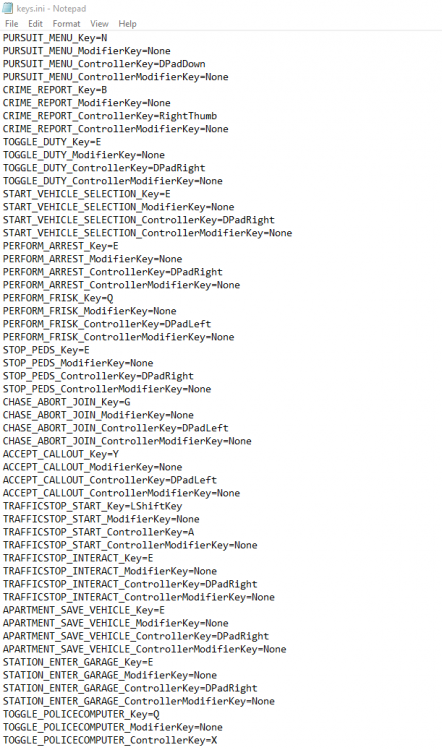
Hey everyone I'm having a pretty basic/annoying problem. I recently got back into playing lspdfr and after setting new files up for hours I can't force or end any callouts. I even looked in the lspdfr "keys" .ini but couldn't find anything that would help. If anyone might know a solution it would be greatly appreciated.
-
-
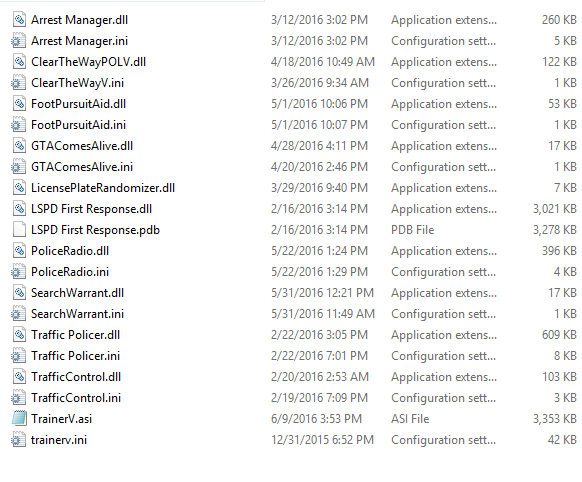
Plugins: https://gyazo.com/ce07cb5dbf0809bcbbc5cecc69315f01 Plugins > LSPDFR: https://gyazo.com/35e7c8b06da535e974a7493f68ec48ba
-
No they do not work im pressing c for the police radio and nothing happens this is very frustrating the only reason I bought this game is for lspdfr
-
Ok I'll try that thank you for responding Ill let you know if it works
-
that is already checked
-
key bindings like when I try to use them nothing happens
-
So I'm very new to gta 5 pc and rage plugin hook says that i have everything loaded but in game when i try to use commands nothing happens