Chip W.
Members
-
Joined
-
Last visited
Files posted by Chip W.
-
This is not a mod for LSPDFR. This is a stand alone program to play dispatch responses.
The best use for this program is to help add more realism to your LSPDFR RP videos by giving you a way to get dispatch to acknowledge your calls when another plugin doesn't do it for you.
Installation:
Download the DispatchResponse.rar to any folder and extract. This file is not required to be in your GTA V, LSPDFR, or Plugins folder. Double click it to run.
You will not see anything pop up.
To make sure it's running, just use one of the hotkeys.
If you do not get any audio, check your task manager for "RandomAudio.exe".
if you don't see it, run the program again.
To use this program:
Run DispatchResponse.exe Use CTRL+SHIFT+1-4 to get a response.
CTRL+SHIFT+1 = 10-4
CTRL+SHIFT+2 = Roger
CTRL+SHIFT+3 = Roger That
CTRL+SHIFT+4 = 10-4 Copy That To close the program:
CTRL+SHIFT+5
I use a laptop and did not see any CPU hits or FPS drops while running this program.
There is no .ini file to change the hotkeys. When I had it made, I specifically asked that it uses a 3 key combo so that it would not interrupt with any other plugin. The audio files can not be changed.
Disclaimer:
I did not make this program and can not be held responsible for any damage it may cause to your PC or any software installation. My son created this program for me to use and share with the LSPDFR RP community. This program has been tested on Windows 10 with the Steam version of GTA V using the latest version of LSPDFR and Rage .52.
This program is provided free of charge and may be shared unaltered.
- 167 Downloads
- 1 Comments
Submitted -
This is just the ELS file required to make this Police Coquette ELS compatible.
This file requires the use of the "Improved Invetero Coquette Q5 Pack 1.0.0" by Voit Turyv
You can download this pack here -
DISCLAIMER:
I did not create this vehicle pack. I have nothing to do with the creator of this pack. I did not ask permission to create the ELS file for this pack. I'm only sharing with the community for those that wish to use it. I have this vehicle mod installed as a DLC as described on the pack download page.
----------------------------------------------------------------------------------
This file was tested with the Emergancy Lighting System 1.05 found here -
----------------------------------------------------------------------------------------------------------------------------
To install this ELS file, just add it to your ELS pack_default folder.
------------------------------------------------------------------------
Credits:
Coquette pack by Voit Turyv
ELS by Lt.Caine
- 77 Downloads
- 2 Comments
Submitted -
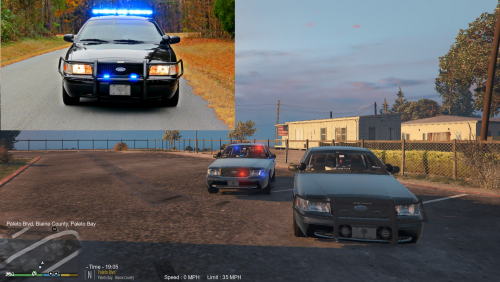
This is my first time creating a skin. This is the Chester County, South Carolina Sheriff CVPI. I realize it isn't perfect, but it's not bad either.
This was created for BXBug's 2011 CVPI 1.7U found here -
To install, just replace an existing texture in the .ytd file using OPENIV or rename this file as vicz_sign_? (question mark being the number you wish to use). Save the .ytd file and play.
Thanks for checking it out.
- 29 Downloads
- 2 Comments
Updated