PoinD3xter
Members
-
Joined
-
Last visited
Everything posted by PoinD3xter
-
 will do. our locker is pretty empty at the moment, havent customised it with drawers or shelves yet.
 -
no worries, i'll get you some detailed pictures when i'm down in station next. need anything in particular?
-
Oh mate that is amazing!!! Would look perfect with the CFA skin! i wanted to do the new model but i know crap all about modelling. cant wait to see yours in action. if you need any pictures or anything for skins let me know, the one in the picture is our new one from the brigade i'm in so can get plenty of pictures
-
haha nice mate. your's will probably be better i'm sure! are you modelling the 2016 ranger?
-
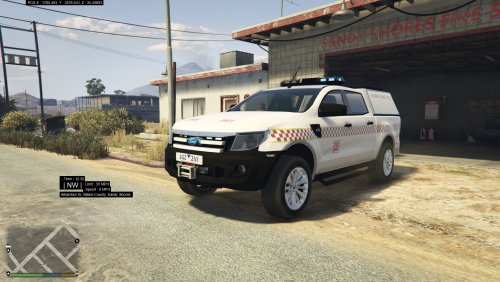
I noticed that no one has made any content for CFA (Country Fire Authority) so I took it upon myself to make one. This is my first texture, so please constructive feedback welcomed. CFA is the Victorian (Australia) country fire authority, this is an FCV (Forward Control Vehicle), or a command vehicle. I decided to give Blaine County FD their own FCV ;) ***I can't work out how to make the lights blue and red, so they are just blue unfortuntately. If anyone knows how to make them blue and red (on the lightbar and on the front) let me know! *** TO INSTALL : Copy contents of CFA Ranger.rar to 'mods/x64e.rpf/levels/gta5/vehicles.rpf Remember to make a backup. I take no responsibility if you dun goofed it up!