B4LT1M0RE
Members
-
Joined
-
Last visited
Everything posted by B4LT1M0RE
-
From the album: New Shirts
-
From the album: New Shirts
-
From the album: New Shirts
-
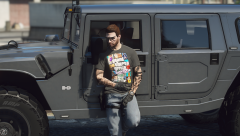
From the album: New Shirts
-
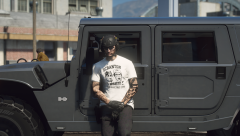
From the album: New Shirts
-
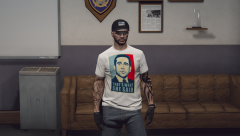
From the album: New Shirts
-

From the album: New Shirts
-
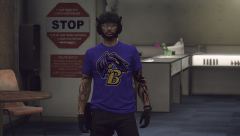
From the album: New Shirts
-

From the album: New Shirts
-
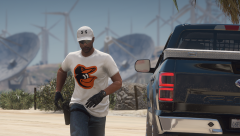
From the album: New Shirts
-
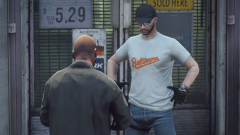
From the album: New Shirts
-

From the album: New Shirts
-
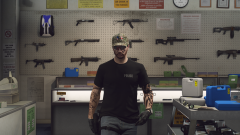
From the album: New Shirts
-
yea, so if i open the ydd, it will open without the textures showing, and if i open ytd, it will straight crash.
-
yea its a really strange problem. I am having fewer problems with speed, but certain ytd's still crash openiv. The two I've noticed so far are 2014 tahoes and 2018 chargers. I feel like it has to be some kind of conflict. I didn't notice any difference with speed in openiv with a vanilla gta either sadly.
-
-
lol no
-
Hello. I started with a fresh install of GTA along with moving over my lspdfr and plugins folder. Ever since I made the move, my openiv takes about 35-40 seconds to load individual ytd, yft, and even small xml files. I am also getting crashes with certain ytd files. I am wondering if 1. I am missing a file or 2. I have a file that I shouldn't. Here are some screenshots of my directory. Any help suggestions would be much appreciated as I haven't been able to find info on something like this anywhere. Thanks!
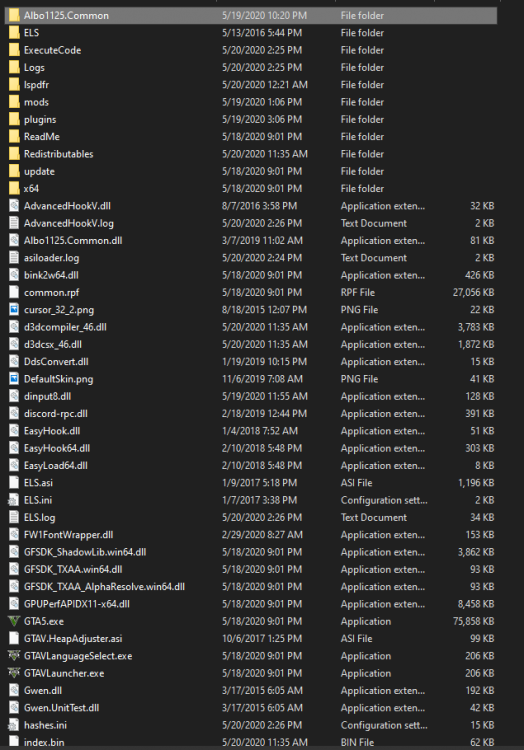
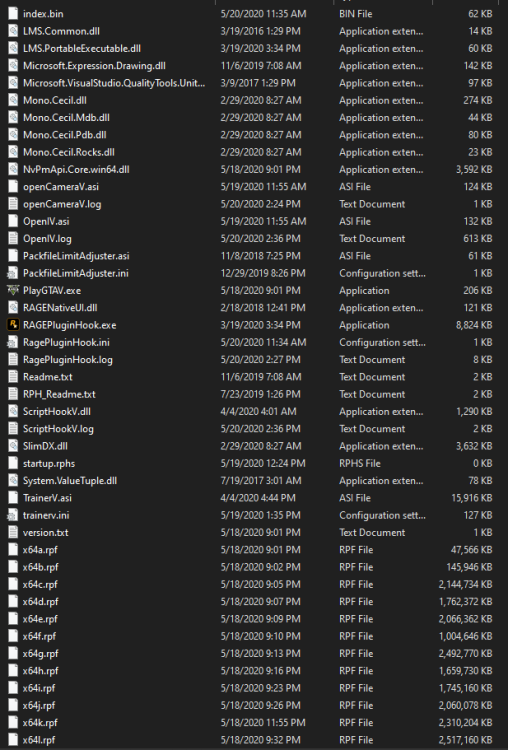
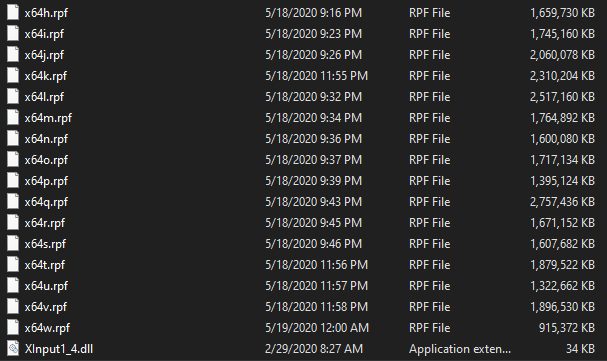
-
-
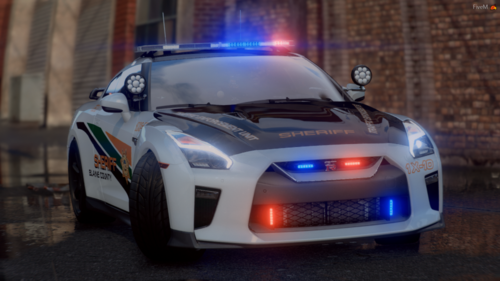 Oh, how I wished this day would come! This thing is perfect. Nice work as always.
- 45 comments
- 9 reviews
-
-

- 1
-
-
 Colors look great, but get somebody to take some screenshots so I don't have to squint to see them 🙂
- 26 comments
- 1 review
-
-
-
-