
TryBeastYT
Members
-
Joined
-
Last visited
Everything posted by TryBeastYT
-
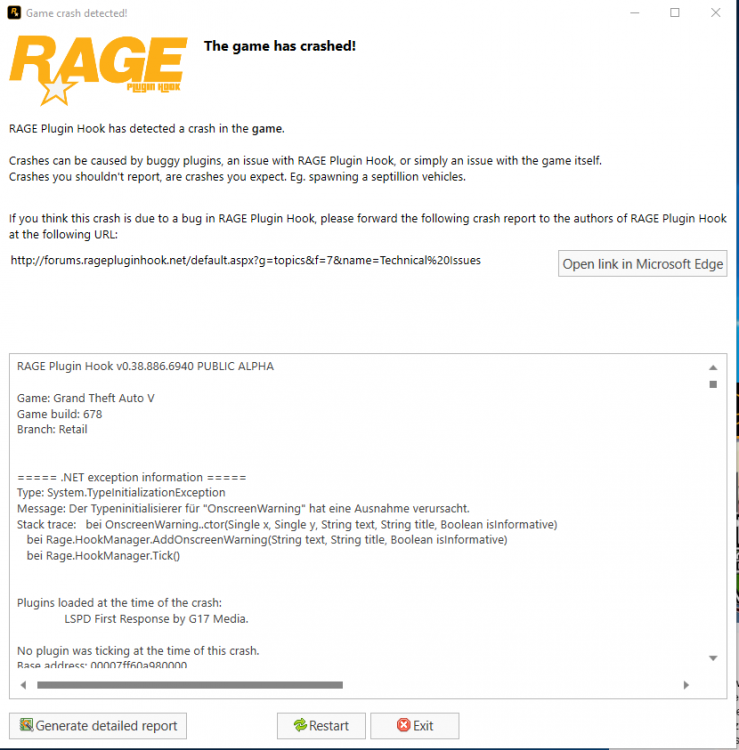
Hey ich hab auch ein Problem bei mir ist alle ordenlich installiert und auf dem neusten stand aber wenn ich in RPH LSPDFR ins start up nehme crasht gta nachdem ladebildschirm habe auch das game so wie die mods schon mehrmals neu installiert leider ohne erfolg RPH (V0.38) jemand ne idee wieso? und wenn ich LSPDFR aus dem start up nehme komm ich zwar in den story mode aber sobald ich F4 drücke bleibt das game stehen ohne das sich die console öffnet und wenn ich nochmal F4 drücke läuft das game weiter Hab Windows 10 -hab neuste RPH -Hab Neuste LSPDRF GTA ist die CD Version ( und Social Club) Noch was bevor GTA abschmiert gibt es im blackscreen noch so ein Pipsen ca 5x kurz mit der zusatzmeldung das gta crasht + die RPH meldung danke schon mal :D
-
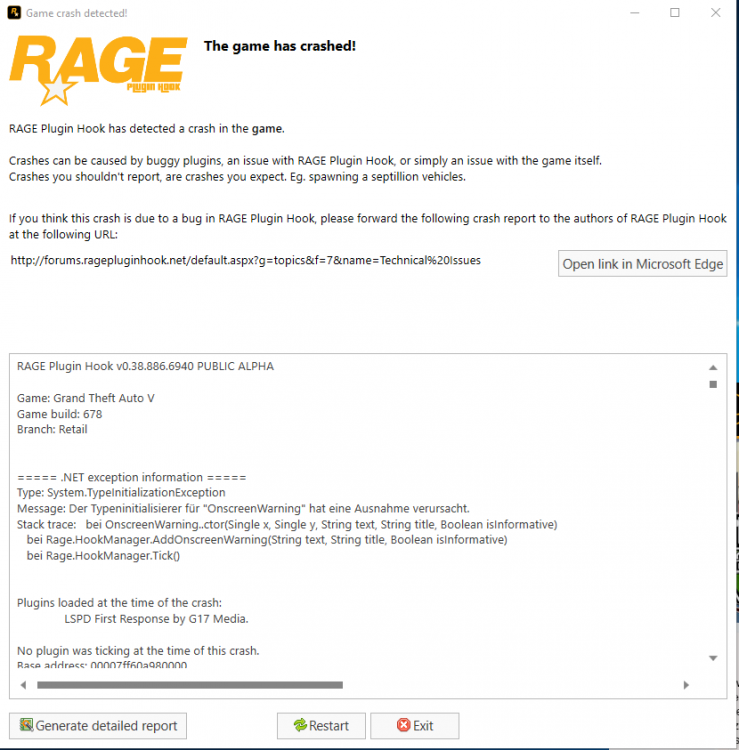
Hey ich hab auch ein Problem bei mir ist alle ordenlich installiert und auf dem neusten stand aber wenn ich in RHP LSPDFR ins start up nehme crasht gta nachdem ladebildschirm habe auch das game so wie die mods schon mehrmals neu installiert leider ohne erfolg RHP (V0.38) jemand ne idee wieso? und wenn ich LSPDFR aus dem start up nehme komm ich zwar in den story mode aber sobald ich F$ drücke bleibt das game stehen ohne das sich die console öffnet und wenn ich nochmal F4 drücke läuft das game weiter Hab Windows 10