Reddington
Members
-
Joined
Everything posted by Reddington
-
-
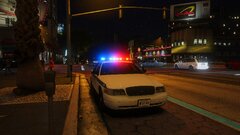
From the album: Red's LSPDFR chaos
-
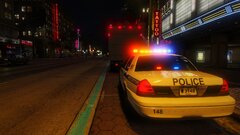
From the album: Red's LSPDFR chaos
-
You're welcome!
-
This. The LSPDFR devs believe firmly in letting the community run wild with various additions and enhancements. Over a slow period of time I'm sure certain things might get added that some plugin has, but for the most part the devs want to make it so the community can contribute to LSPDFR.
-
 @holexion Is there a minimum RPH or something requirement? I noticed that I have tire retainment enabled but it doesn't work. Turn signals work though.
- 262 comments
- 21 reviews
-
-

- 1
-
-
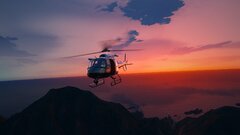
From the album: Red's LSPDFR chaos
-
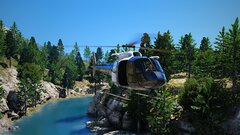
From the album: Red's LSPDFR chaos
-
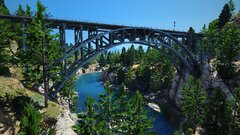
From the album: Red's LSPDFR chaos
-
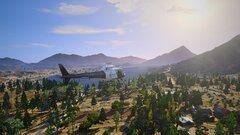
From the album: Red's LSPDFR chaos
-
Your topic has been moved to LSPDFR 0.4 Support. Please post in the correct location in the future.
-
In OpenIV go to mods-->update-->update-->common-->data-->levels-->gta 5. Extract "vehicles.meta" to your desktop. Open the vehicles.meta and find the slot for your car. You can use CTRL F to search for the name (example: police2). Once you find the slot you want to edit, on the third line you'll find <HandlingId>. Use my guide to determine what you want the vehicle to feel like, I do not have the Polara listed, so I'm not entirely sure what works for that. I recommend looking up the GTA V variant of the Polara, or something close and using that. Once you change the handlingid, save it and exit out of the text editor. Now click "edit mode" in OpenIV. Drag the edited vehicles.meta back into the same place you got it from.
-
Your topic has been moved to LSPDFR 0.4 Support. Please post in the correct location in the future.
-
This topic has been moved to the appropriate forum. Please post in the correct location in the future.
-
Your topic has been moved to LSPDFR 0.4 Support. Please post in the correct location in the future.
-
Your topic has been moved to LSPDFR 0.4 Support. Please post in the correct location in the future.
-
-
Your topic has been moved to LSPDFR 0.4 Support. Please post in the correct location in the future.
-
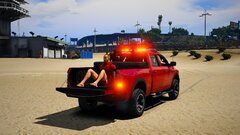
From the album: Red's LSPDFR chaos
-
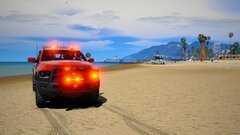
From the album: Red's LSPDFR chaos
-
-
This topic has been moved to the appropriate forum. Please post in the correct location in the future.
-
Bastion is a well known volunteer who has provided quite a bit of help to those who needed it. Any question that he asks is relevant, even if someone doesn't understand it. Please do not interfere in support threads, especially when you're being rude to someone who is trying to help. Thanks.
-
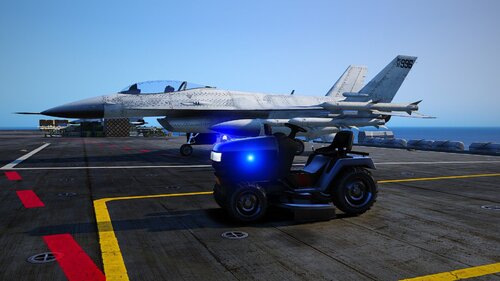 I'm working on this right now, however it'll still be a day or two before it's done.
- 269 comments
- 17 reviews
-
-
- 3
-
-
LSPDFR+ is no longer needed if using Bejoljo's stuff.