bfield6661
Members
-
Joined
-
Last visited
Everything posted by bfield6661
-
 *Anybody coming here because their lightbars are not working, the solution is above, but ill put it here to save you the scrolling.* 1: Open OpenIV 2: Go to the top bar and click "Tools" 3: Click "ASI Manager" Its the fifth option down 4: Uninstall and reinstall "ASI Loader" 5: Restart your PC That was all it took for me. I hope this helps/
- 2,675 comments
- 234 reviews
-
-
For some reason this is as far up as I can get my cursor to go. Any fixes for this?
-
So here is my question... I downloaded an add on pack that has a bunch of vehicles from GTA IV in it. Inside the pack we have a few police cars but unfortunately they didn't come with els config files. I know..... Bummer, right? With how awesome this community is I'm sure we can figure this out. Any ideas?
- 2,675 comments
- 234 reviews
-
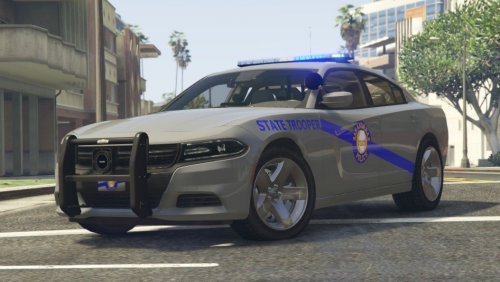 I love the look and realism to this pack! Would give 5 stars if you gave options for red/blue lights instead of just all blues. Other than that, PERFECT!
- 33 comments
- 12 reviews
-
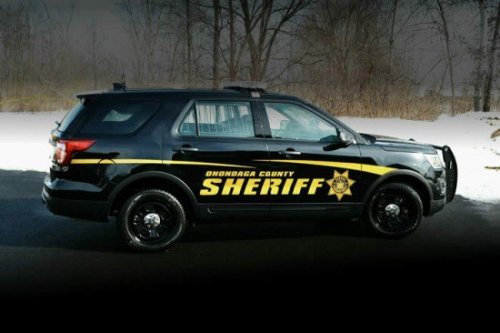 Boonville/Forestport Native here.
 -
Can you make an Oneida County one!
-
After i tried to do the mod when i would load the game it would do an update. Is that the problem?
-
I am doing exactly as the readme files are saying. I have uninstalled and reinstalled it a billion times, I downloaded the ASI loader, OpenIV.ASI and openCamera from the ASI manager. any other suggestions?
-
I tried to do that as well. The files in openiv showed correctly but the vehicles didnt mod in.
-
I am trying to mod in a few police vehicles and when I do the drag and drop nothing happens. Yes, I am using edit mode.