Skip to content
View in the app

A better way to browse. Learn more.

LCPDFR.com

A full-screen app on your home screen with push notifications, badges and more.

To install this app on iOS and iPadOS
  1. Tap the Share icon in Safari
  2. Scroll the menu and tap Add to Home Screen.
  3. Tap Add in the top-right corner.
To install this app on Android
  1. Tap the 3-dot menu (⋮) in the top-right corner of the browser.
  2. Tap Add to Home screen or Install app.
  3. Confirm by tapping Install.

Officer.Lee

Members
  • Joined

  • Last visited

Everything posted by Officer.Lee

  1. Hmm well I run on quite low settings and I have a lot of slow loading, things not appearing after about 20 minutes or so.
  2. Well my computer is pretty new and I can run things like Battlefield 3 on good graphics at about 70 fps, I use a drive booster program too to cut programs. However on GTA IV I get about 20. I'm currently reinstalling GTA IV and gona give my computer a clean. But Im wondering if my setup isn't being used properly. Here are my specs. Operating System: Windows 7 Professional 64-bit (6.1, Build 7601) Processor: AMD Phenom II X4 965 Processor (4 CPUs), ~3.4GHz Memory: 4096MB RAM DirectX Version: DirectX 11 Card: AMD Radeon HD 6800 Series (6870)
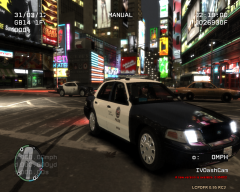
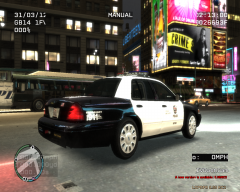
  3. Images added to a gallery album owned by Officer.Lee in GTA IV Galleries
  4. Images added to a gallery album owned by Officer.Lee in GTA IV Galleries
  5. Images added to a gallery album owned by Officer.Lee in GTA IV Galleries

Account

Navigation

Search

Search

Configure browser push notifications

Chrome (Android)
  1. Tap the lock icon next to the address bar.
  2. Tap Permissions → Notifications.
  3. Adjust your preference.
Chrome (Desktop)
  1. Click the padlock icon in the address bar.
  2. Select Site settings.
  3. Find Notifications and adjust your preference.