
GTAMAN561
Members
-
Joined
-
Last visited
Everything posted by GTAMAN561
-
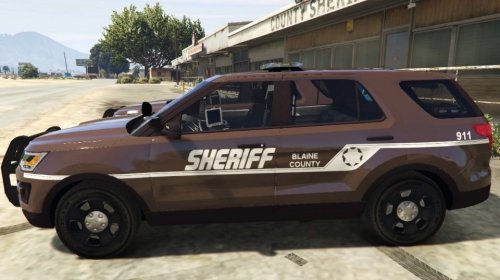 Before we begin I'd like to say that this skin was made by me(GTAMAN) for theHurk's 2016 LSPD FPIU found at http://www.lcpdfr.com/files/file/11044-2016-lspd-fpiu/ *[[[INSTALL]]]* Read the README text document. Thank you again and one more thing please feel free to tell me things that I could improve on. -GTAMAN
 -
-
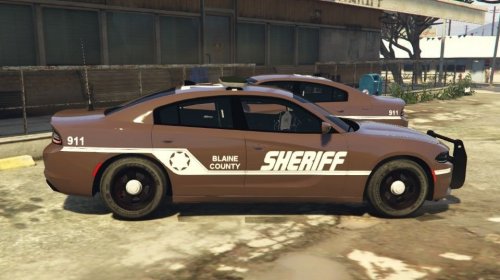 Before we begin I'd like to say that this skin was made by me(GTAMAN) for theHurk's 2015 Charger found at http://www.lcpdfr.com/files/file/11261-2015-lspd-dodge-charger/ The skin it was based off my county's sheriff vehicles. *INSTALL* 1. Let's hope you have OpenIV installed since you already have installed hurk's Charger. 2. Open OpenIV 3. Locate police2.ytd it should be in Mods>Update>x64>dlcpacks>patchday9>dlc.rpf>x64>levels>gta5>vehicles.rpf> 4. Select chgr_sign_1 5. Click replace and then locate chgr_sign_1.tga in the zip file you downloaded it should be inside the main folder. 6. Hit save then close OpenIV -------------------- Thank you again and one more thing this is my first texture for GTA V so please feel free to tell me things that I could improve on. This also means I am not responisble if anything breaks it works fine for me. -GTAMAN
- 2 comments
- 1 review
-
-

- 1
-